 NEWS
NEWS
macOS 27 Beta Hides Trippy Siri 'Voice Pad' Interface With 13 Voices
 07/24/2026
 707
707
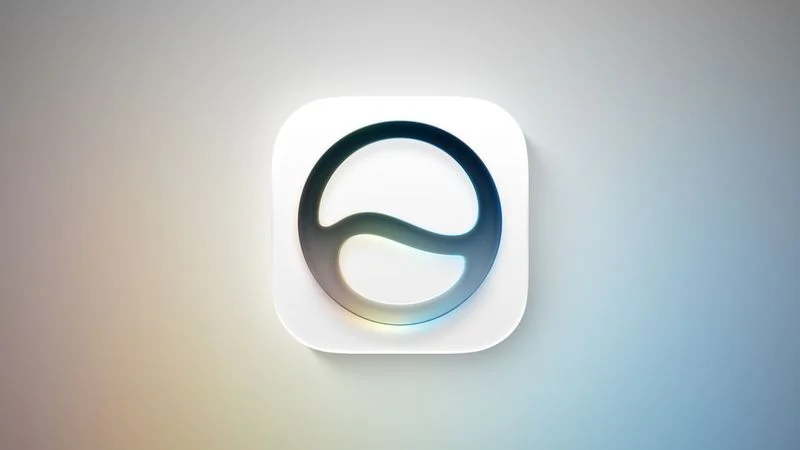
For macOS 27 Golden Gate, Apple appears to be working on an immersive new interface for choosing Siri AI's voice, based on findings in the latest beta.
MacRumors forum member "mactracker" has shared what they call a hidden "voice pad" in the macOS 27 beta 4, which was released on Monday. When enabled, the interface replaces the System Settings menu for Siri's voice options with a nearly black canvas, with the currently selected voice marked by a colored dot.
Pressing, holding, and moving around the pad with your pointer brings the interface to life, causing various colors to transition across the view as more dots appear and the voice modulates through different characteristics. Each dot emerges from the ether like a revealed star in a hidden constellation.
The visuals are even responsive to cursor movement via spatial audio, so that when the pointer approaches a new voice on the pad, it sounds clearer and more present, while voices further away become distant and ambient. Meanwhile, a spatial mixer tracks the pointer's distance, angle, and velocity, which adjusts volume, reverb, occlusion, and filtering across the voice and background audio layers as you move.
The pad lays out 13 voice slots in a loose grid, suggesting Apple may be preparing to support up to 13 custom voices for Siri AI. You can see the UI in action in the video embedded below.
Currently, the latest macOS 27 beta doesn't include the required voice models, so it falls back to the two custom voices available. However, a related file found in the beta describes the 13 expected American English voices by gender, age, and character, spanning everything from a soft-spoken young female voice to a deep adult male voice and two older-sounding voices.
If the interface makes the final macOS 27 cut, it would be a big jump from where things stand today. As of the current betas, American is the only voice option for Siri AI, whose expressiveness and pace can only be adjusted via sliders.
In this context, the interface likely serves as an onboarding experience for picking Siri's underlying voice, with the existing picker and its Pace and Expressivity controls used to further adjust the voice after selection. While the interface remains unfinished, it is already said to be localized for 44 languages. It also shares the same Siri setup framework with iOS 27, so we could see it on iPhone and iPad, too.
Unlike the hidden Siri popover we covered earlier this week, there's no easy way for beta testers to switch on this feature flag, as it requires disabling System Integrity Protection (SIP) and overriding internal code with a debugger.
The new, more advanced Siri AI, which is backed by large language models, will arrive in supported regions with the release of iOS 27, macOS 27, and Apple's other software updates this September.
Source: Macrumors