
NEWS

Apple's OLED 'MacBook Ultra' Will Stick With M5 Pro and M5 Max Chips

06/29/2026

23

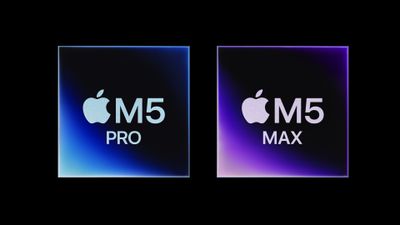
Apple's upcoming high-end MacBook model featuring an OLED touchscreen display will use the company's current M5 Pro and M5 Max chips, according to Bloomberg's Mark Gurman.
Apple's OLED 'MacBook Ultra' Will Stick With M5 Pro and M5 Max Chips
The new, top-of-the-line device will launch "between late this year and early next year," Gurman said, adopting the existing high-end Apple silicon chips rather than next-generation M6 versions. Like the MacBook Pro, the touchscreen MacBook will be available in 14- and 16-inch display sizes, code-named "K114" and "K116." The device will also feature a new design and an iPhone-style Dynamic Island. It is expected to be more expensive than the M5 Pro ‌MacBook Pro‌, which now starts at $1,999 as of Apple's recent price rises.

Yesterday, Gurman revealed that Apple plans to skip what would have been the "M6 Pro" and "M6 Max" for more powerful "M7 Pro" and "M7 Max" chips. The M7 series of chips is said to be focused on intense AI workloads, featuring upgraded neural accelerators, graphics enhancements, and increased memory bandwidth. A new entry-level ‌MacBook Pro‌ with the M6 chip is still expected to launch later this year.

Apple is apparently working on a successor to the high-end MacBook model containing the M7 Pro and M7 Max chips, planned for release toward the end of 2027. The company is also planning to refresh the Mac Studio with M7 Max and M7 Ultra chip options in 2028.

Source: Macrumors

Windows
Mac OS
iOS
Linux
3uTools
Win 64-bit For this device
V9.06 2026-04-09
Download
Win 32-bit For this device
V9.06 2026-04-09
Download
3uTools
Intel Chip How to Identify Chip Type
V9.03 2026-03-27
Download
Apple Silicon
V9.03 2026-03-27
Download
How to Identify Chip Type
1.  Click the Apple icon in the top-left corner of the screen and select About This Mac.
2.  Check the Processor or Chip field to determine if it is "Intel" or "Apple".
Please use the 3uTools PC client to install the iOS client:
1、 Install either the Windows or Mac version of 3uTools on your computer
2、 Open the PC client and connect your device to the computer via USB cable
3、 After the connection is successful, wait for the computer to automatically install the mobile app for the device, or locate “Install Mobile App” on the computer and manually click to install.
3uTools
deb file
V9.01 2026-05-28
Download
rpm file
V9.01 2026-05-28
Download
Windows
Windows
iOS
iOS
Android
Android
TV
TV
3uAirPlayer
Win 64-bit For this device
V6.0.5 2026-04-23
Download
Win 32-bit For this device
V6.0.5 2026-04-23
Download
iOS Device Mirroring (No App Required)
1、 Install 3uAirPlayer on the Windows PC
2、 Open Control Center and select Screen Mirroring
3、 From the list, choose your PC to start mirroring
4、 Or connect your iOS device to the PC via USB to begin mirroring
Scan to get "3uAirPlayer" App
3uAirPlayerTV
 
TV System Requirements: Android 7.0 or later
Download the TV installation package, copy it to a USB drive, insert it into your TV or set-top box, then select the file from the home screen to install.




