 NEWS
NEWS
Apple has Started Replacing macOS Names with Version Numbers in Several Ways
 06/17/2026
 824
824
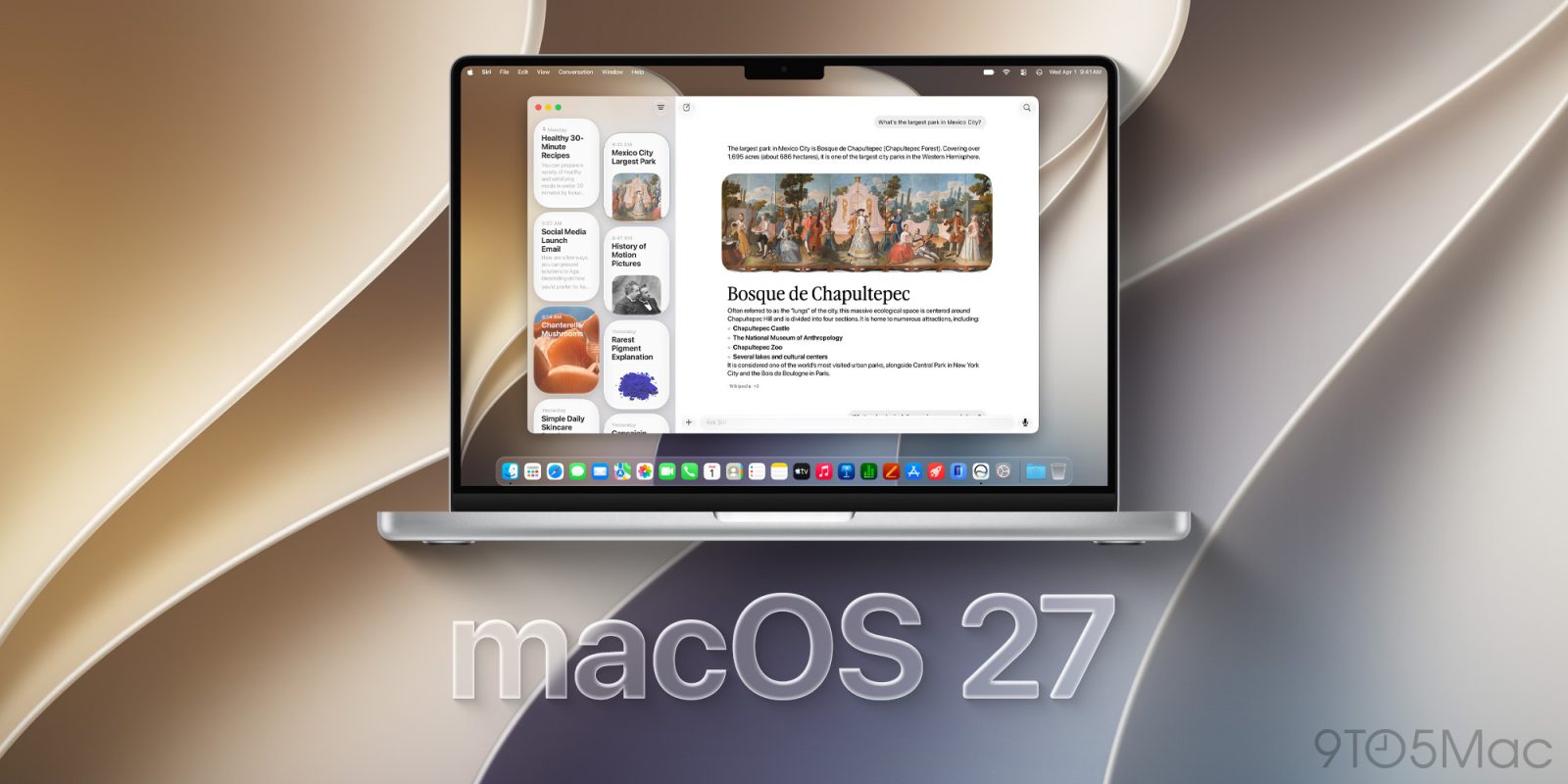
Among Apple’s slate of software platforms, macOS is an outlier in having its own brand name (e.g., macOS Golden Gate) instead of just a number. But some new signs indicate Apple may be shifting toward number versioning.
Apple is moving support documentation away from macOS version names, plus emphasizing ‘macOS 27’ for Golden Gate
Over the past day, Apple has updated a variety of its Mac-focused support pages to replace macOS version names with version numbers instead.
In several cases, switching to version numbers instead of names is the only change on each page.
Here are a few examples:
- this page on Spatial Audio, where “requires macOS Sequoia or later” now reads “requires macOS 15 or later”
- this page on Wi-Fi passwords, which changed “macOS Ventura” to “macOS 13”
- this page, where “macOS Monterey” was replaced with “macOS 12”
There are several more that have switched to numbers instead of names too, alongside broader content updates.
Interestingly, Apple also seems to be leaning more into numbering with the just-introduced macOS Golden Gate.
On its preview website for the update, it repeatedly uses the name “macOS 27 Golden Gate” rather than just “macOS Golden Gate.”
Some of Apple’s press releases from WWDC last week actually remove the name altogether, calling it simply “macOS 27.” You’ll find examples here in the first paragraph, and here in the availability section. Last year, the company used “macOS Tahoe 26” or “macOS Tahoe” in similar press releases.
This doesn’t necessarily mean macOS Golden Gate will be the last OS version with a name. But it could be a hint that we’re moving that direction.
Source: 9to5mac










