NEWS

New Apple or Beats Over-Ear Headphones Appear in FCC Database

Just now

8

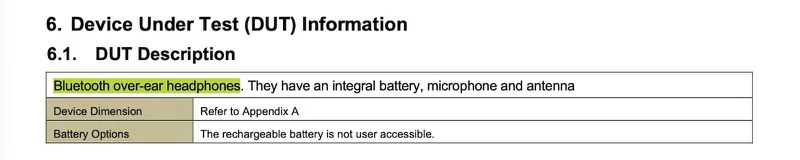
The U.S. Federal Communications Commission has just published documents related to an apparently unreleased Apple product with model number A3577, with the product described as "Bluetooth over-ear headphones."
 

 New Apple or Beats Over-Ear Headphones Appear in FCC Database


These headphones do not appear to be the AirPods Max 2, which carry a model number of A3454, and there is little other information to go on, so it is unclear what these headphones are.
 

 New Apple or Beats Over-Ear Headphones Appear in FCC Database


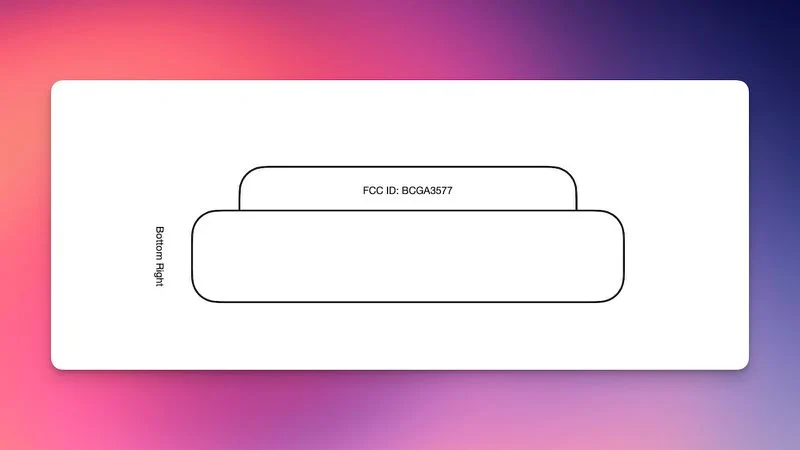
Most of the documents that would reveal details on this A3577 product are being temporarily withheld from publication under a confidentiality request, which is standard for Apple's product filings with the FCC. One figure showing the location of the FCC ID labeling on the product appears to show a generic-looking headphone ear cup, with no identifying design details.

 

 New Apple or Beats Over-Ear Headphones Appear in FCC Database

It is possible these are an upcoming Beats product, such as an updated version of the brand's over-ear Beats Studio Pro headphones, but this is purely speculation. The Beats Studio Pro were released nearly three years ago in July 2023, so they could be due for a revision.


We'll share additional information as we learn more.


Source: Macrumors
Windows
Mac OS
iOS
Linux
3uTools
Win 64-bit For this device
V9.06 2026-04-09
Download
Win 32-bit For this device
V9.06 2026-04-09
Download
3uTools
Intel Chip How to Identify Chip Type
V9.03 2026-03-27
Download
Apple Silicon
V9.03 2026-03-27
Download
How to Identify Chip Type
1.  Click the Apple icon in the top-left corner of the screen and select About This Mac.
2.  Check the Processor or Chip field to determine if it is "Intel" or "Apple".
Please use the 3uTools PC client to install the iOS client:
1、 Install either the Windows or Mac version of 3uTools on your computer
2、 Open the PC client and connect your device to the computer via USB cable
3、 After the connection is successful, wait for the computer to automatically install the mobile app for the device, or locate “Install Mobile App” on the computer and manually click to install.
3uTools
deb file
V9.0 2026-04-16
Download
rpm file
V9.0 2026-04-16
Download
Windows
Windows
iOS
iOS
Android
Android
TV
TV
3uAirPlayer
Win 64-bit For this device
V6.0.5 2026-04-23
Download
Win 32-bit For this device
V6.0.5 2026-04-23
Download
iOS Device Mirroring (No App Required)
1、 Install 3uAirPlayer on the Windows PC
2、 Open Control Center and select Screen Mirroring
3、 From the list, choose your PC to start mirroring
4、 Or connect your iOS device to the PC via USB to begin mirroring
Scan to get "3uAirPlayer" App
3uAirPlayer TV V1.0.18
2025-11-28
TV System Requirements: Android 7.0 or later
Download the TV installation package, copy it to a USB drive, insert it into your TV or set-top box, then select the file from the home screen to install.