NEWS

iOS 26.5 Won’t Let Users Downgrade to Prior Update Any Longer

05/21/2026

564

iOS 26.5 Won’t Let Users Downgrade to Prior Update Any Longer


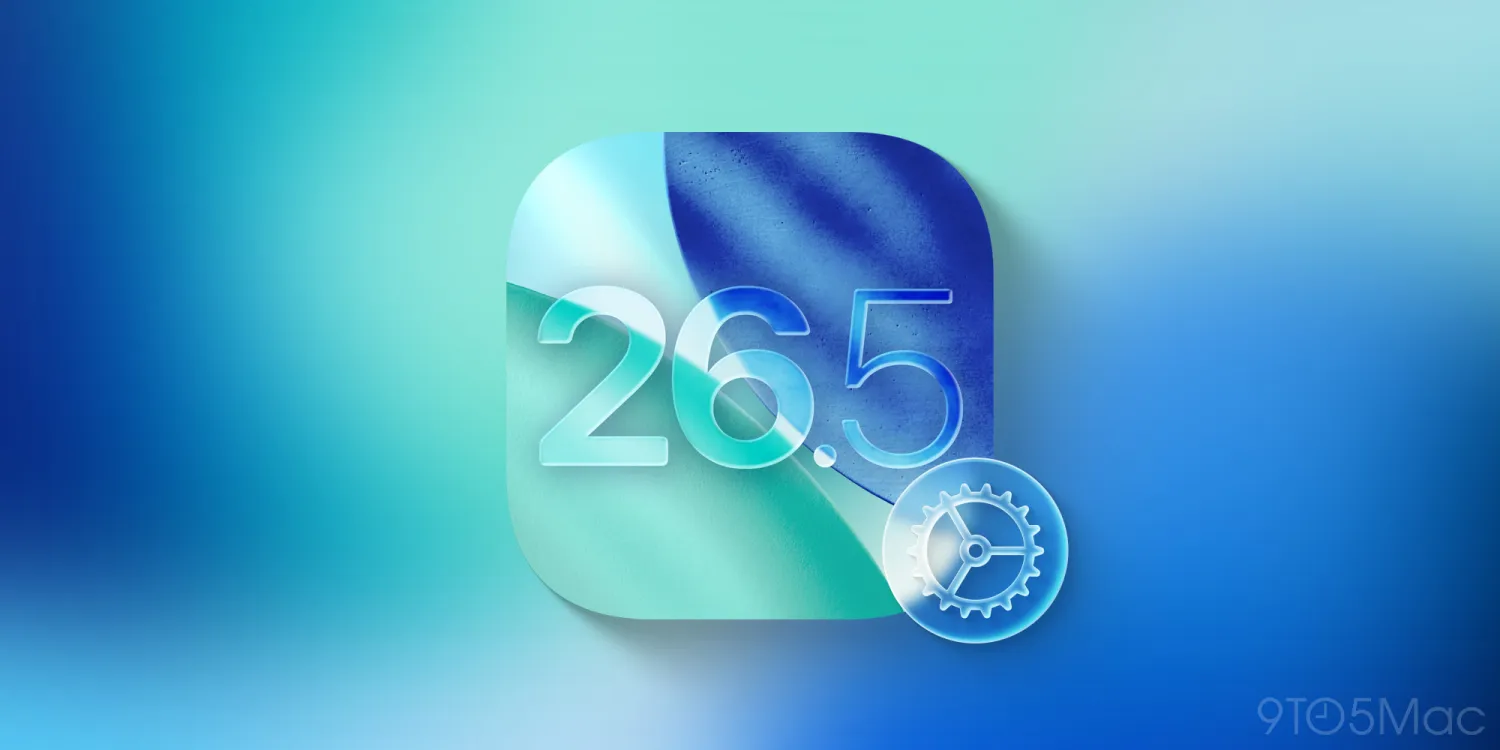
Apple shipped iOS 26.5 to all users last week, and now in the last 24 hours, the company has stopped signing iOS 26.4.2—thus preventing downgrades to a prior update.


iOS 26.4.2 no longer being signed by Apple, blocking downgrades from iOS 26.5

If you updated to iOS 26.5 in the past week, there’s no longer an option available to revert to the prior software release.


Apple typically offers a window of time following each new software update when it’s possible to downgrade if you encounter issues.


However, usually after that initial period of waiting to see if any major issues crop up, Apple then stops signing its previous update—thus blocking downgrades.


It’s standard practice, and that’s exactly what’s just happened for iOS 26.5 users.


As spotted by Aaron Zollo, Apple stopped signing the prior iOS 26.4.2 update some time yesterday.


  ●iOS 26.4.2 is no longer signed by Apple, meaning you can no longer downgrade to it. pic.twitter.com/MyapgXPFgy

  ●— Aaron Zollo (@zollotech) May 19, 2026


Anecdotally, iOS 26.5 seems to be a relatively solid release in terms of performance and stability. That’s usually true at this point in Apple’s software year, with a major new OS version around the corner.


Unless Apple has a bug fix release like iOS 26.5.1 in the works, we’re unlikely to see any new software updates before WWDC next month. That’s when iOS 27 will be unveiled and ship in beta, and we’ll likely get an iOS 26.6 beta around that time too.


Source: 9to5mac
Windows
Mac OS
iOS
Linux
3uTools
Win 64-bit For this device
V9.06 2026-04-09
Download
Win 32-bit For this device
V9.06 2026-04-09
Download
3uTools
Intel Chip How to Identify Chip Type
V9.03 2026-03-27
Download
Apple Silicon
V9.03 2026-03-27
Download
How to Identify Chip Type
1.  Click the Apple icon in the top-left corner of the screen and select About This Mac.
2.  Check the Processor or Chip field to determine if it is "Intel" or "Apple".
Please use the 3uTools PC client to install the iOS client:
1、 Install either the Windows or Mac version of 3uTools on your computer
2、 Open the PC client and connect your device to the computer via USB cable
3、 After the connection is successful, wait for the computer to automatically install the mobile app for the device, or locate “Install Mobile App” on the computer and manually click to install.
3uTools
deb file
V9.0 2026-04-16
Download
rpm file
V9.0 2026-04-16
Download
Windows
Windows
iOS
iOS
Android
Android
TV
TV
3uAirPlayer
Win 64-bit For this device
V6.0.5 2026-04-23
Download
Win 32-bit For this device
V6.0.5 2026-04-23
Download
iOS Device Mirroring (No App Required)
1、 Install 3uAirPlayer on the Windows PC
2、 Open Control Center and select Screen Mirroring
3、 From the list, choose your PC to start mirroring
4、 Or connect your iOS device to the PC via USB to begin mirroring
Scan to get "3uAirPlayer" App
3uAirPlayer TV V1.0.18
2025-11-28
TV System Requirements: Android 7.0 or later
Download the TV installation package, copy it to a USB drive, insert it into your TV or set-top box, then select the file from the home screen to install.