 NEWS
NEWS
iOS 26.4 Gave Your iPhone an Alarm Feature That’s Long Been Missing
 04/29/2026
 2017
2017

iOS 26.4 is packed with a bunch of new features for Apple Music, Apple Podcasts, and more, plus new ways to customize your iPhone. Apple also added a new alarm feature in iOS 26.4 that’s built specifically for Apple Watch owners.
iOS 26.4 lets your iPhone play alarm sounds even when you wear Apple Watch to bed
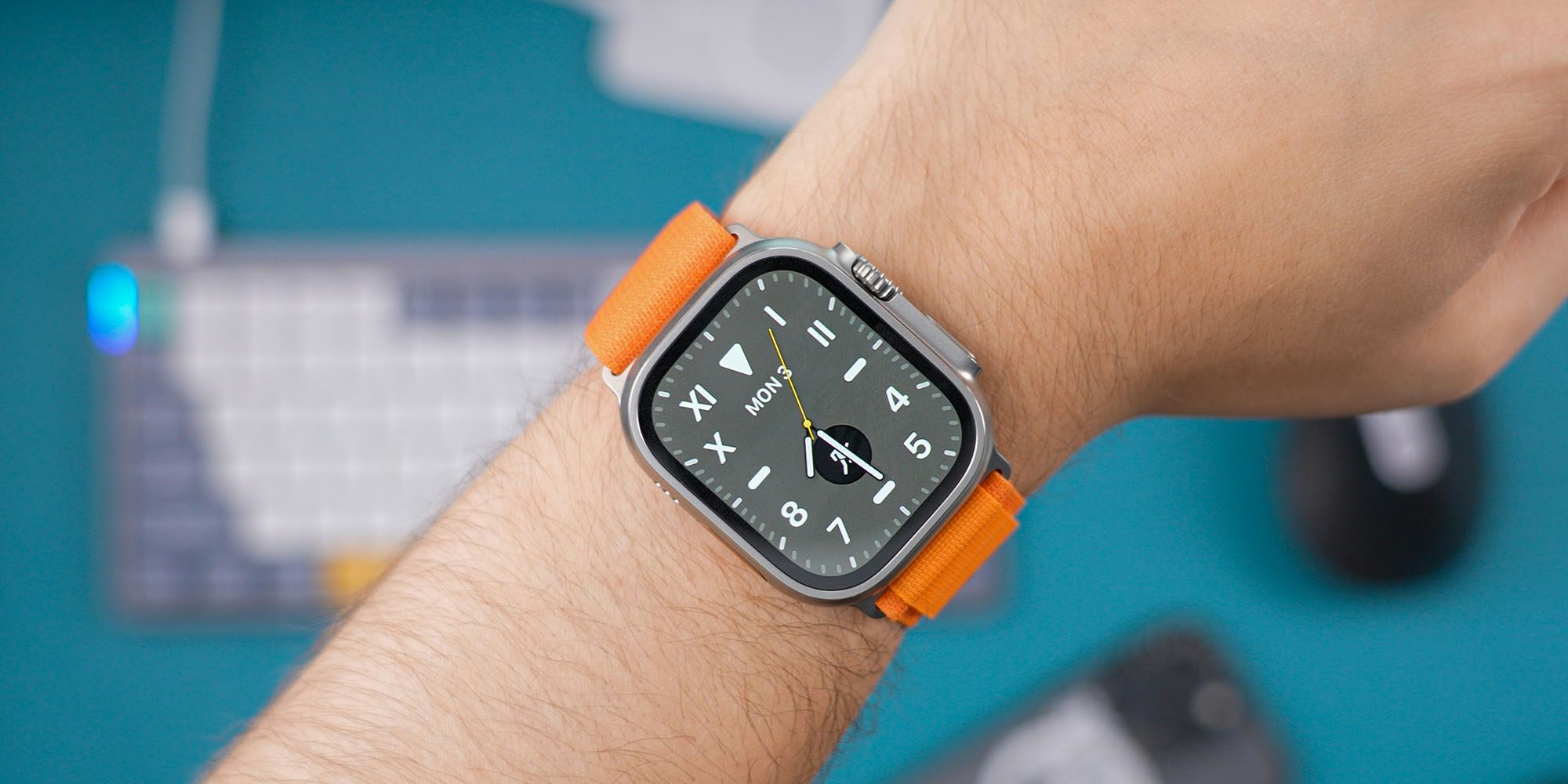
Alarms are one of my favorite Apple Watch features, and the thing that got me sleeping with a Watch before sleep tracking and sleep scores were a thing.
When you wear an Apple Watch to bed, alarms set on your iPhone will by default only trigger on your Watch.
My Apple Watch is almost always in silent mode, so alarms set off a series of haptic vibrations. This is fantastic when sleeping next to a partner, or if there are kids asleep nearby that I don’t want to wake.
But if you need a more forceful wake-up, the Apple Watch taking over alarms may not be a good thing.
Thankfully though, Apple now finally offers a solution. If you sleep with Apple Watch and need a loud iPhone alarm to get woken up, this one’s for you.
New in iOS 26.4, when adjusting your Sleep Schedule alarm, there’s a new toggle available: ‘Always Play on iPhone.’
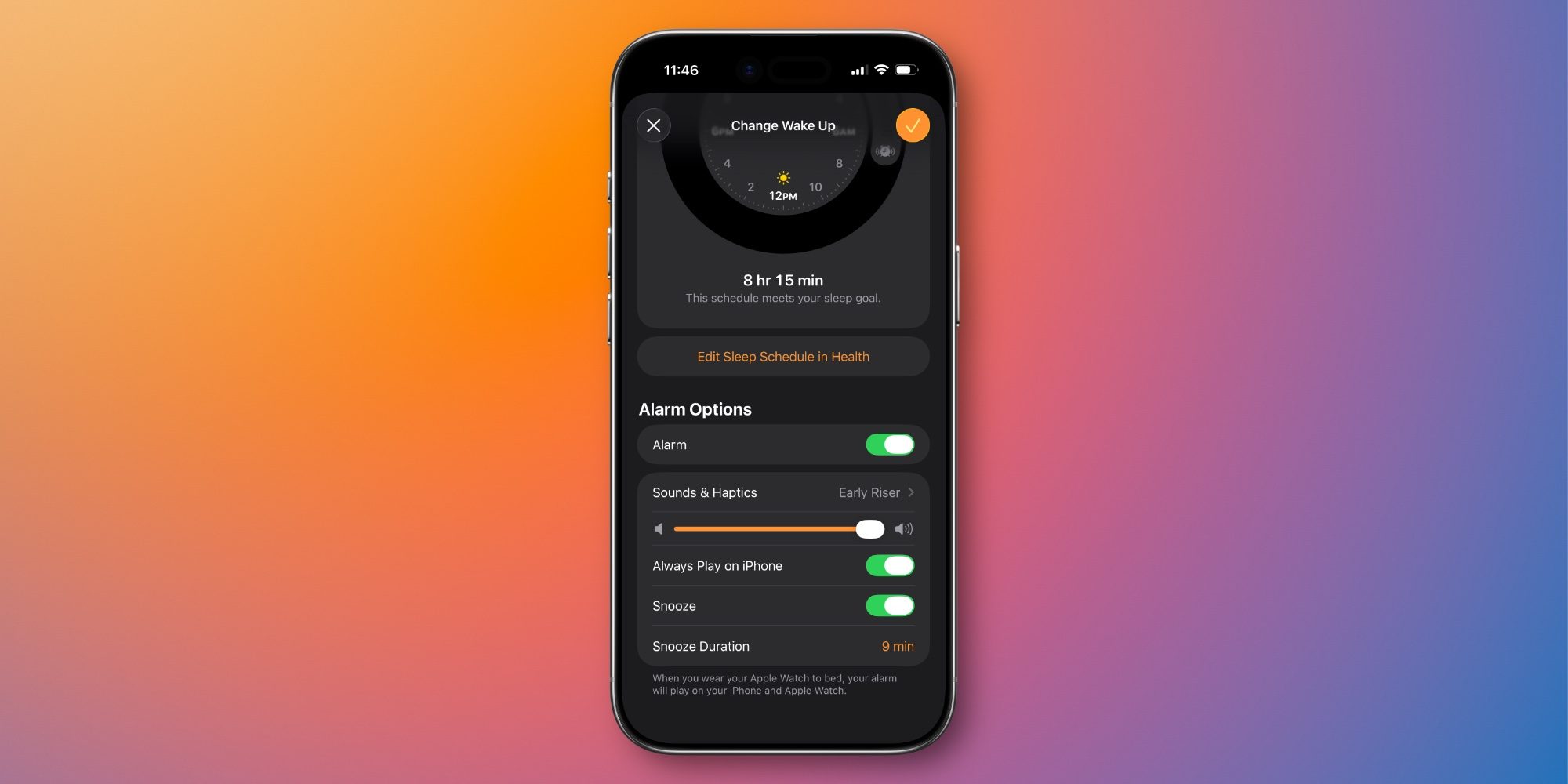
’Always Play on iPhone’ does the following, per Apple’s description:
When you wear your Apple Watch to bed, your alarm will play on your iPhone and Apple Watch.
The setting is disabled by default, but you can find it when editing your Sleep Schedule in either the Clock app on iPhone or in Apple’s Health app.
If you’re just using a one-off alarm, you won’t find this setting. But for anyone who’s set up a Sleep Schedule and has an Apple Watch, the new setting will be available.
So if you want the benefits of sleep tracking and watchOS 26’s new sleep score feature, but still need a loud alarm to start your day, iOS 26.4 has you covered.
Source: 9to5mac










