 NEWS
NEWS
iOS 26 Has New Home Screen Setting for App Icons, Here’s How to Use It
 04/15/2026
 2076
2076
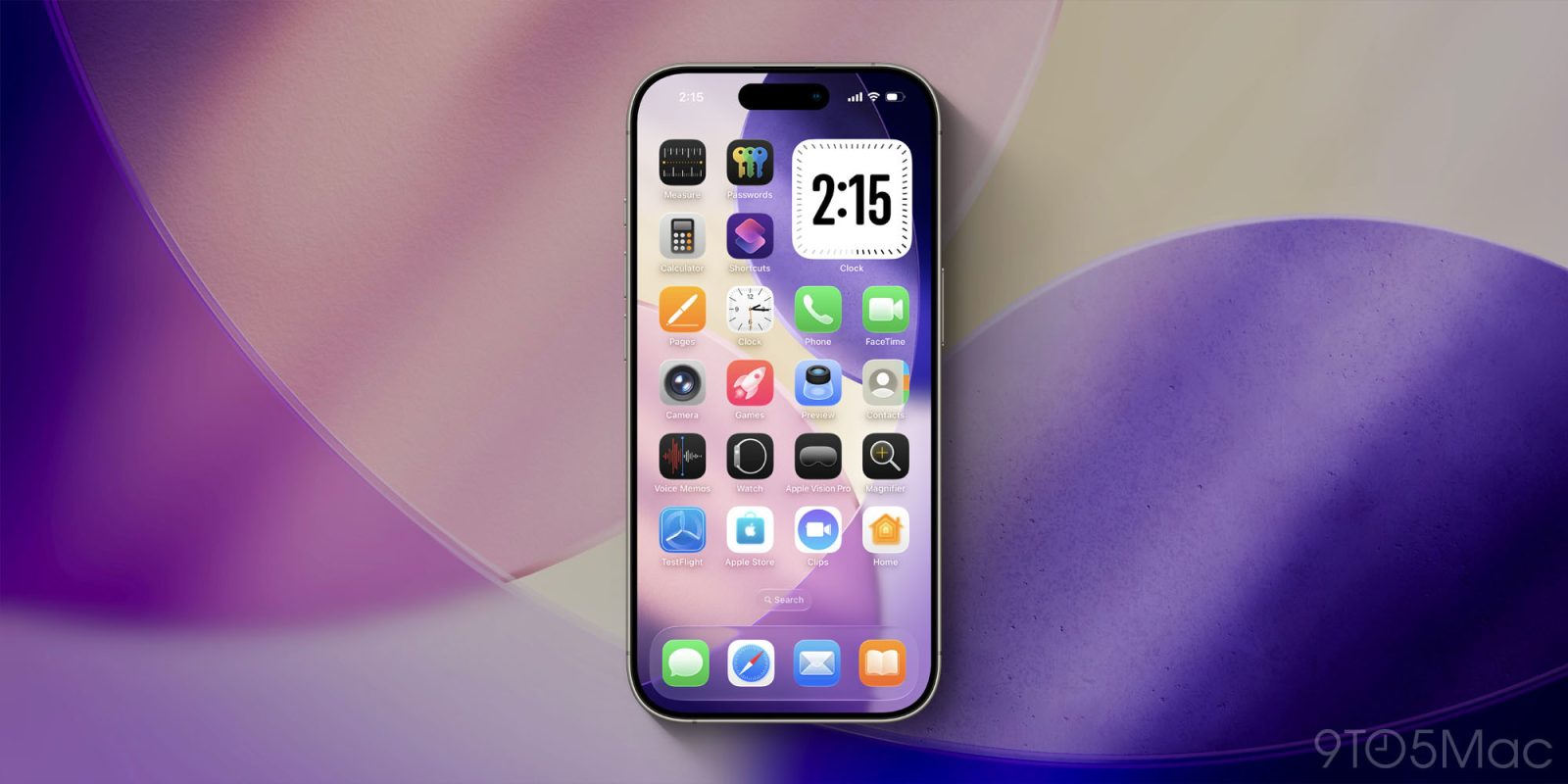
Apple has added a lot of new ways to customize your iPhone in recent years. One of my favorites is a Home Screen setting in iOS 26 for your app icons that tints the icon color to match that of your iPhone or its case. Here’s how to use it.
iOS 26 app icons can be automatically color-matched to your iPhone or case color
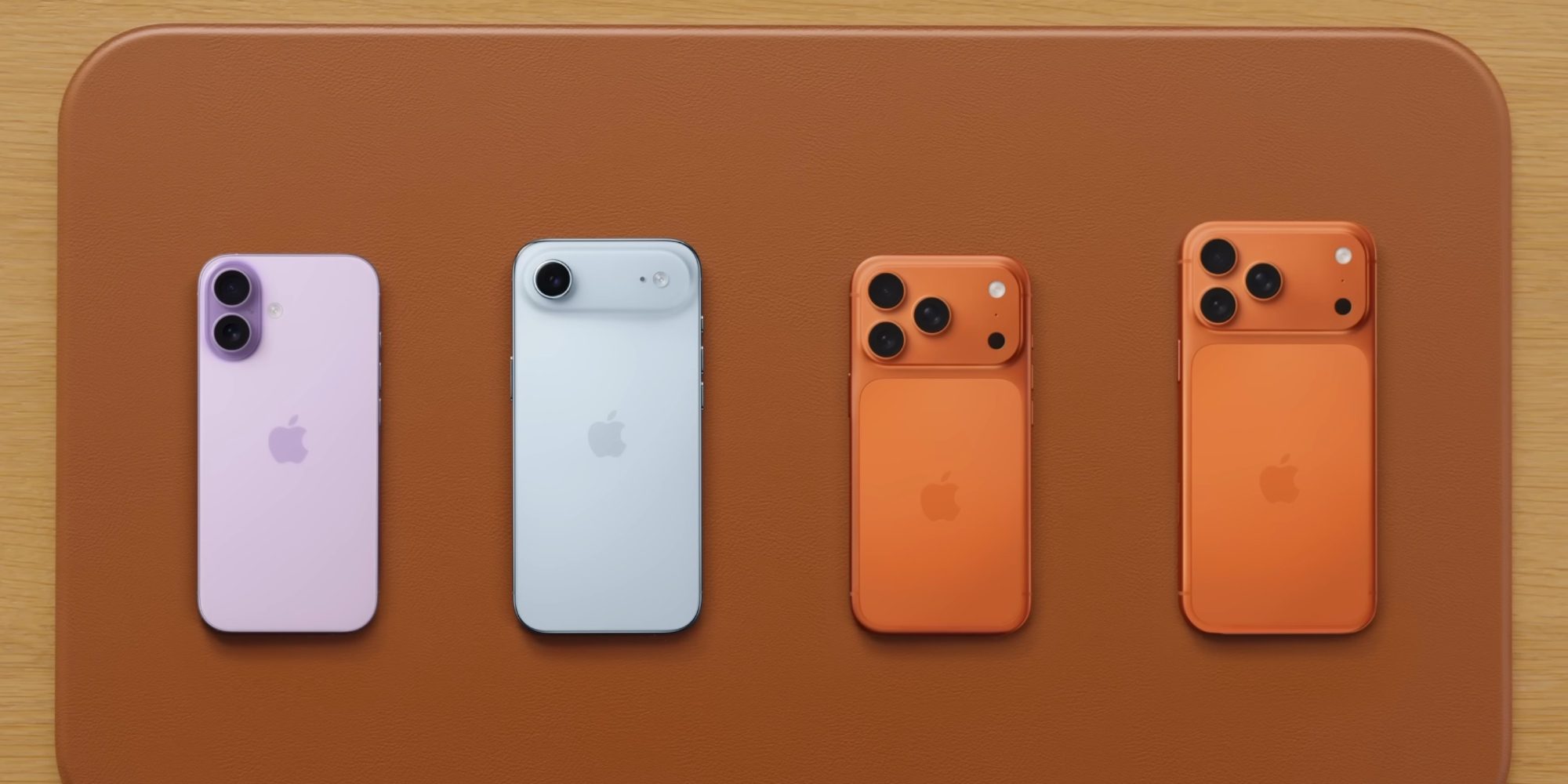
In the last few years, Apple has really embraced letting iPhone users personalize their device more than ever.
iOS 18 was a prominent example because it enabled custom designs for app icons on the Home Screen, including a Tinted look.
But in iOS 26, Apple enhanced the available Tinted options with two fun new ones:
- tint that matches your iPhone’s color
- or tint that matches your iPhone’s case color
Essentially, while still providing the ability to custom-tint icons however you want, Apple knows that lots of users simply want a consistent aesthetic for their iPhone, with color theming that carries across hardware and software.
And to get that consistency, it’s now extremely easy to color-match your Home Screen app icons to the color of your iPhone or its case.
Here’s how it works.
How to color-match your Home Screen icons to your iPhone

To tint your app icons with your iPhone or its case’s color, follow these steps:
1. Long-press on your Home Screen in a blank spot
2. Tap the ‘Edit’ button that appears in the top-left corner
3. Hit ‘Customize’
4. Tap ‘Tinted’
You’ll then see four icons near the bottom, just above where it says ‘Light,’ ‘Dark,’ and ‘Auto.’
The leftmost button will color-match your app icons to your iPhone’s color. Just right of it is the button to color-match to your iPhone’s case color.
This gets especially fun if you like to swap out cases based on what you‘re wearing, as you can quickly get a Home Screen aesthetic that complements your outfit.
The one catch is that the case matching doesn’t work with all cases. It will work with Apple’s official MagSafe cases, and some third-party options work too, but it depends on the case.
Source: 9to5mac










