 NEWS
NEWS
iOS 26.4 Has Convenient Change for iPhone Personal Hotspot Users
 04/01/2026
 1402
1402
iOS 26.4 launched last week, packing a wide array of new features, including a change for personal hotspot that makes it easy to see who’s using your data.
Personal Hotspot menu in Settings gets more informative in iOS 26.4
Until I went all-in on cellular iPads in the last couple years, I relied on personal hotspot on my iPhone all the time.
I would connect my iPad or MacBook to my iPhone’s cellular connection whenever I worked outside of the house.
But I always had to be very careful about data usage. I’ve historically stuck with cellular plans that offer set amounts of data, since they tend to be much more affordable.
In iOS 26.4’s Settings app though, you’ll now find convenient data usage statistics on a per-device basis right inside the Personal Hotspot menu.
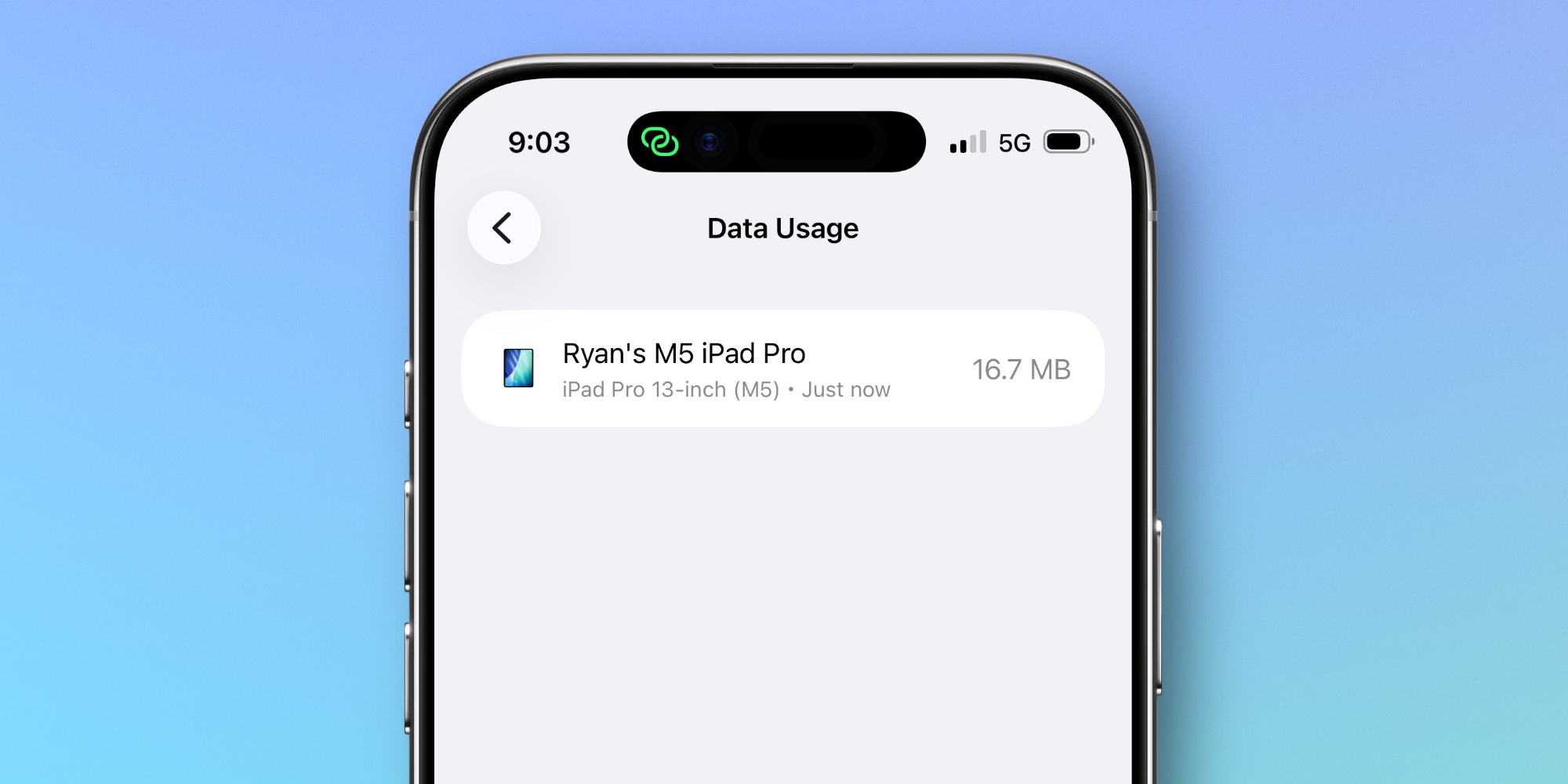
Go to Settings ⇾ Personal Hotspot, and at the bottom of the screen you’ll see a Data Usage menu. This only appears when you have used your hotspot recently.
Inside the Data Usage menu, you’ll get a breakdown of how much data has been used per device via hotspot. You can reset this data by resetting your overall cellular usage statistics inside Settings ⇾ Cellular.
This is great for tracking usage across your own devices, or if you regularly let others connect to your hotspot.
Though I never realized it before, Apple apparently used to keep this data in a different place in Settings. But despite being a longtime iPhone user who has written about iOS for years, I never knew it existed. I suspect I’m not alone in that.
If you use hotspot a lot, and need to keep a close eye on data usage, iOS 26.4 offers a convenient way to do that.
Source: 9to5mac










