NEWS

Apple's First Lightning iPhone is Now Obsolete

03/17/2026

61

Apple's First Lightning iPhone is Now Obsolete


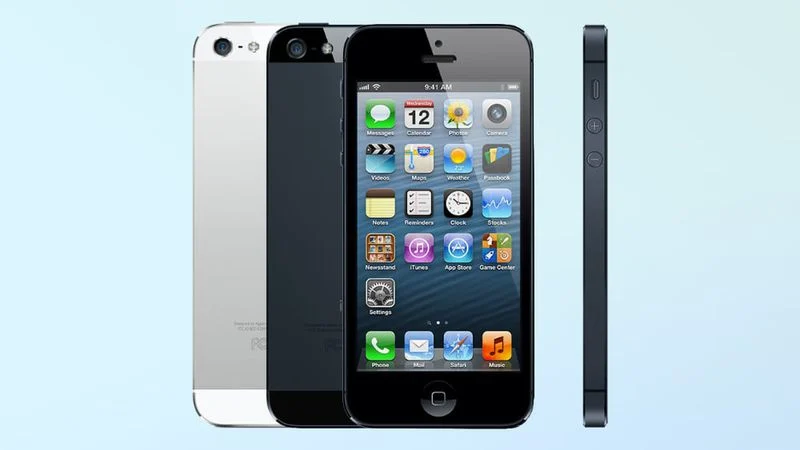
The iPhone 5 that launched back in 2012 is now considered obsolete, according to Apple's list of vintage and obsolete products. Apple moved the iPhone 5 and the 8GB iPhone 4 from the vintage list to the obsolete list today.


A device is "vintage" when it has been five years since it was last distributed for sale, and "obsolete" at the seven-year mark, though Apple sometimes stretches its timelines. For vintage products, Apple retail stores and Apple Authorized Service Providers can provide repairs if the required parts are available. Devices that are obsolete are generally not eligible for repair and Apple stops providing repair components.


Apple released the iPhone 5 in 2012 and discontinued it in 2013 after launching the iPhone 5s and the iPhone 5c. The iPhone 5 was added to the vintage products list in 2018, at which point repairs became limited based on parts availability. Now that the device has moved to the obsolete list, repairs will be largely unavailable.


The iPhone 5 featured an updated design with a glass and aluminum body, a taller 4-inch display, LTE support, and the first-ever Lightning port that replaced the 30-pin connector.


As for the 8GB iPhone 4 that was also added to the obsolete list, Apple introduced it in 2011 and then discontinued it in 2013. Both the 8GB iPhone 4 and the iPhone 5 were sold as low-cost devices in emerging markets after being discontinued in the United States.


Source: Macrumors



Windows
Mac OS
iOS
Linux
3uTools
Win 64-bit For this device
V9.03 2026-03-12
Download
Win 32-bit For this device
V9.03 2026-03-12
Download
3uTools
Intel Chip How to Identify Chip Type
V9.01 2025-12-31
Download
Apple Silicon
V9.01 2025-12-31
Download
How to Identify Chip Type
1.  Click the Apple icon in the top-left corner of the screen and select About This Mac.
2.  Check the Processor or Chip field to determine if it is "Intel" or "Apple".
Please use the 3uTools PC client to install the iOS client:
1、 Install either the Windows or Mac version of 3uTools on your computer
2、 Open the PC client and connect your device to the computer via USB cable
3、 After the connection is successful, wait for the computer to automatically install the mobile app for the device, or locate “Install Mobile App” on the computer and manually click to install.
3uTools
deb file
V3.01 2025-11-20
Download
rpm file
V3.01 2025-11-20
Download
Windows
Windows
iOS
iOS
Android
Android
TV
TV
3uAirPlayer
Win 64-bit For this device
V6.0.3 2026-03-11
Download
Win 32-bit For this device
V6.0.3 2026-03-11
Download
iOS Device Mirroring (No App Required)
1、 Install 3uAirPlayer on the Windows PC
2、 Open Control Center and select Screen Mirroring
3、 From the list, choose your PC to start mirroring
4、 Or connect your iOS device to the PC via USB to begin mirroring
Scan to get "3uAirPlayer" App
3uAirPlayer TV V1.0.18
2025-11-28
TV System Requirements: Android 7.0 or later
Download the TV installation package, copy it to a USB drive, insert it into your TV or set-top box, then select the file from the home screen to install.