 NEWS
NEWS
Apple Stops Signing Newly Released iOS Updates for Older iPhones
 01/29/2026
 4551
4551
Apple has stopped signing several iOS updates released earlier this week, preventing users from installing them even if they still appear in Software Update. The affected versions include iOS 12, iOS 15, iOS 16, and iOS 18.
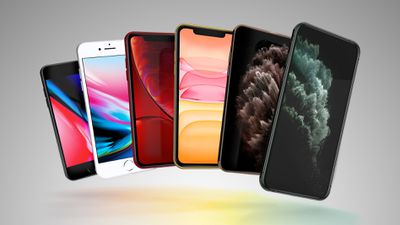
On Monday, Apple released iOS 18.7.4, iOS 16.7.13, iOS 15.8.6, and iOS 12.5.8 for older iPhone models, along with iPadOS 15.8.6, iPadOS 16.7.3, and iPadOS 18.7.4 for iPad models.
The updates were intended to keep core system services functioning on devices that no longer receive major iOS releases, as well as fix an issue preventing some devices from being able to make emergency calls. Affected iPhone models include the following:
- iPhone SE (1st generation)
- iPhone SE (2nd generation)
- iPhone 5s
- iPhone 6 and iPhone 6 Plus
- iPhone 6S and iPhone 6S Plus
- iPhone 7 and iPhone 7 Plus
- iPhone 8 and iPhone 8 Plus
- iPhone X
- iPhone XS and iPhone XS Max
- iPhone XR
- iPhone 11, iPhone 11 Pro, iPhone 11 Pro Max
- iPhone 12, iPhone 12 mini, iPhone 12 Pro, iPhone 12 Pro Max
The following iPad models are also affected:
- iPad mini 2
- iPad mini 3
- iPad Air
- iPad Air 2
- iPad mini 4
- iPad Pro (9.7-inch)
- iPad Pro (12.9-inch) (1st generation)
- iPad (5th generation)
- iPad (7th generation)
- iPad (8th generation)
None of the updates address security vulnerabilities or introduce new features. According to Apple's release notes for the iOS 12 and iOS 15 updates, the main purpose is to replace an expiring security certificate. Without that replacement, services such as iMessage, FaceTime, and Apple Account sign-in would stop working after January 2027, when the original certificate expires.
Apple has not explained why it stopped signing the updates. In the past, however, the company has prevented installations of newly released iOS versions after discovering bugs or other issues, and then typically re-enabled updates once revised builds become available. iOS 26.2.1 remains available to download, suggesting it has not been affected by the issue. We'll update this article when we learn more.
Update: In a support document, spotted by 9to5Mac, Australia telecommunications company Telstra says that it is "currently investigating an issue preventing some older Apple devices from connecting to our network, including calls to 000. We're working on this as a priority with Apple and will share updates as we have them. We recommend customers using these devices delay updating the software on their device until we confirm the issue is resolved."
Update 12:40 pm: Apple is once again signing iOS 12.5.8, iOS 15.8.6, and iOS 18.7.4, so these can once again be installed. iOS 16.7.13 remains unsigned, suggesting Apple has determined the issue is limited to only that release.
Source: Macrumors










