NEWS

iOS 26 Lets You Customize Liquid Glass on Your iPhone, Here’s How

12/24/2025

40

iOS 26 Lets You Customize Liquid Glass on Your iPhone, Here’s How

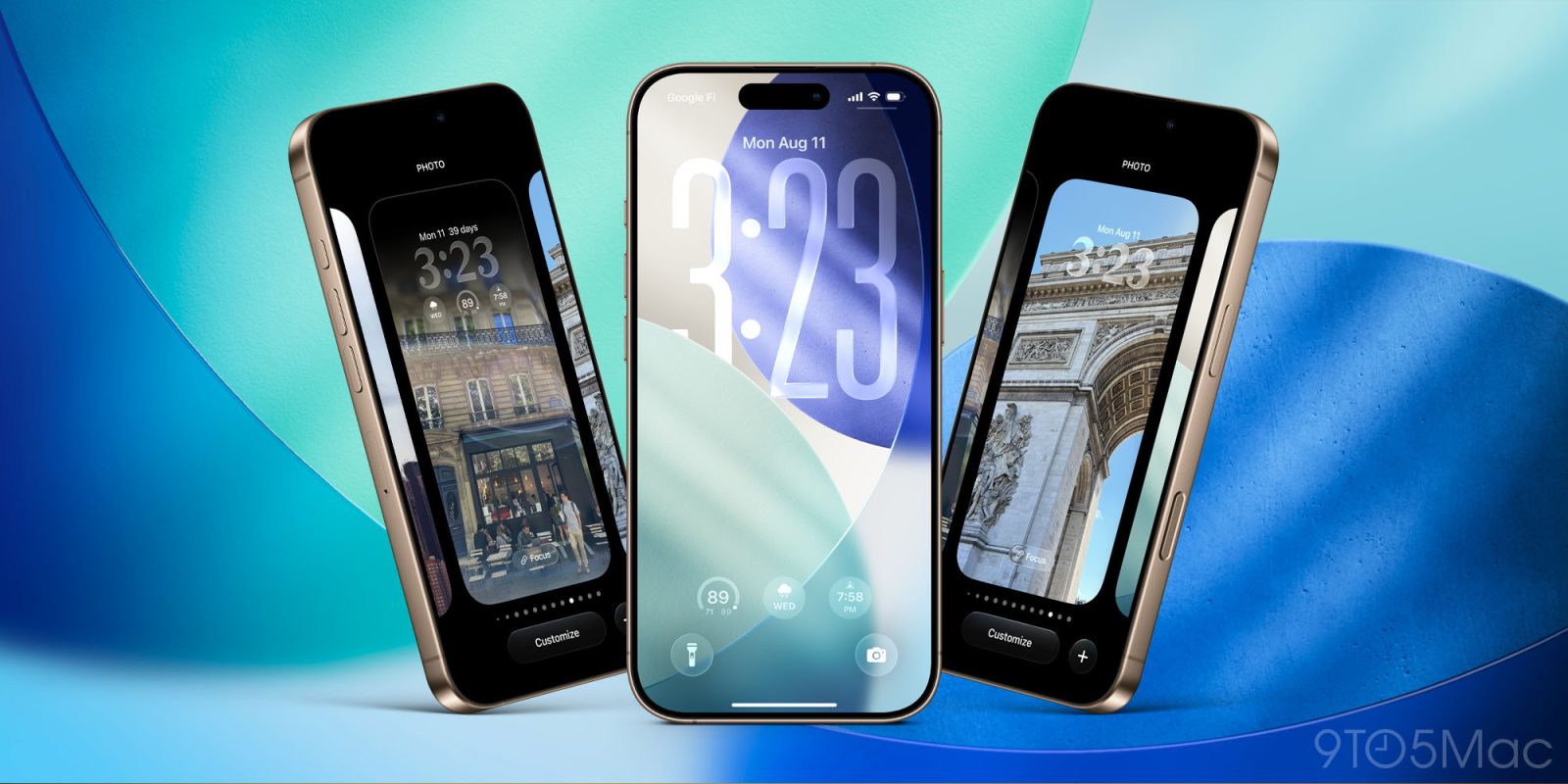
iOS 26 launched in the fall, but with 26.1 and 26.2 updates it added more tools for customizing the new Liquid Glass design. And now that a new wave of users is upgrading to iOS 26 for the first time, here’s an overview of two ways to personalize your iPhone’s Liquid Glass style.

#1: Choose your preferred Liquid Glass look
iOS 26 Lets You Customize Liquid Glass on Your iPhone, Here’s How

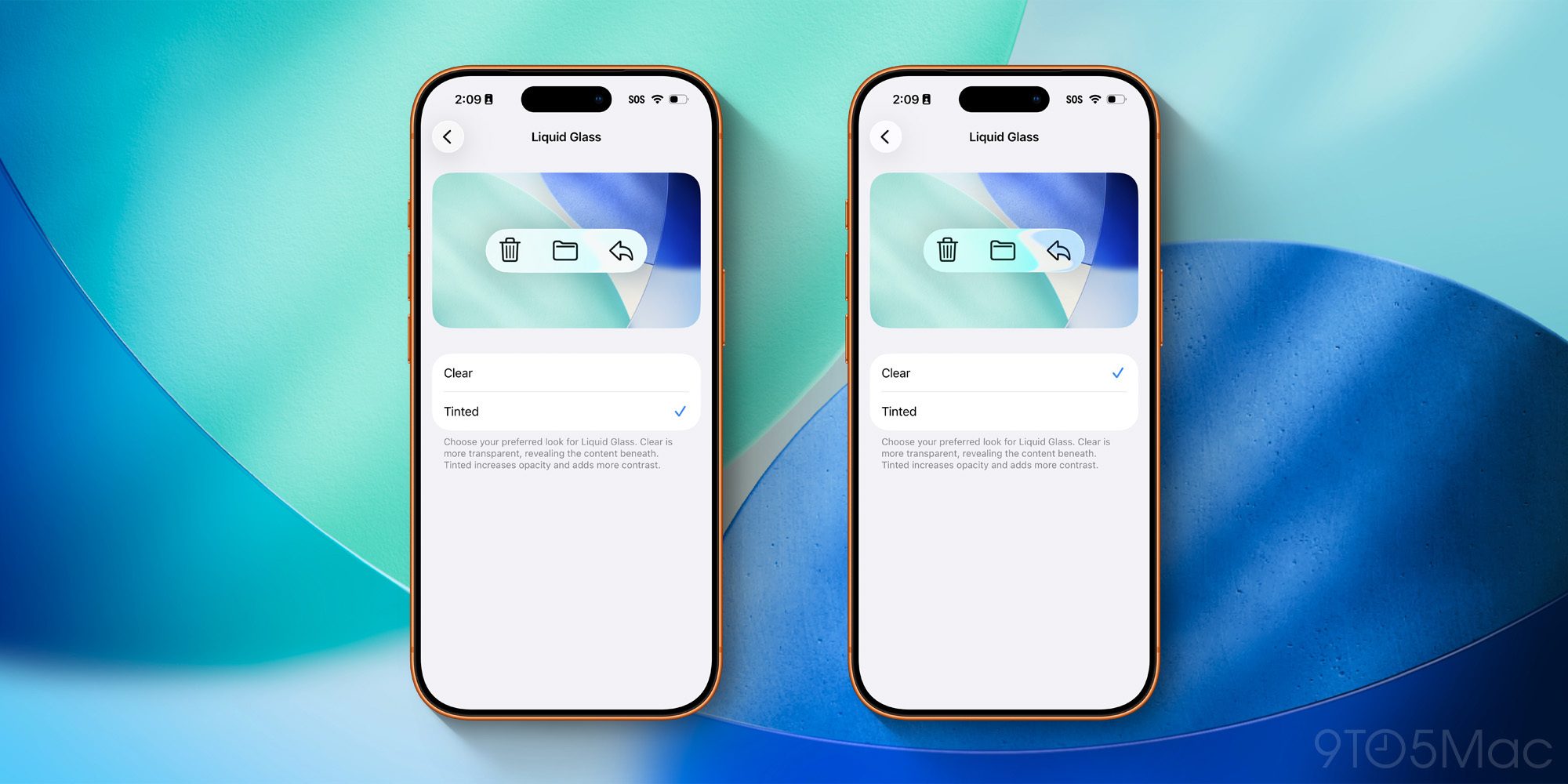
Liquid Glass comes in two main versions in iOS 26:

  • Clear
  • Tinted

You can find and compare the two options inside Settings ⇾ Display & Brightness ⇾ Liquid Glass.

Both share plenty of traits in common, but the Clear option features more transparent UI elements, while Tinted increases opacity and adds more contrast.

If you’re unsure which option is best for you, you can give each one a try for a while before settling on your favorite. The ‘Clear’ style looks more modern and different, while ‘Tinted’ retains more of the classic iOS 18 look.

#2: Customize your Lock Screen clock
iOS 26 Lets You Customize Liquid Glass on Your iPhone, Here’s How

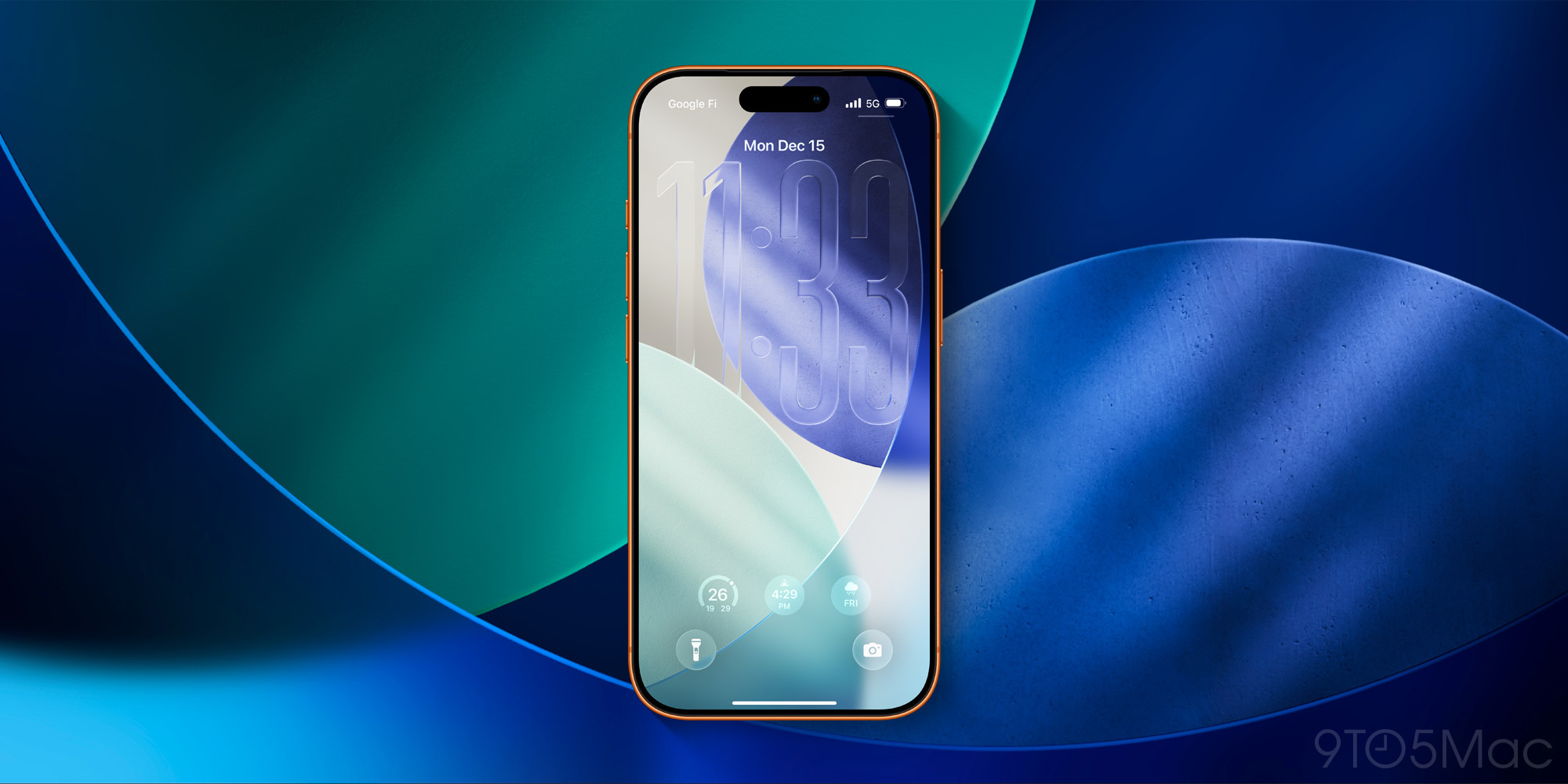
The iPhone’s Lock Screen is one of the parts of iOS that you see most often. And in iOS 26, you can customize the look of the Lock Screen clock with Liquid Glass.

To get started, long-press on your wallpaper then hit ‘Customize.’ From there, you can tap on the clock and choose the ‘Glass’ option for its design.

Above the ‘Glass’ and ‘Solid’ options there’s a slider when ‘Glass’ is selected. This slider lets you make the clock as transparent or opaque as you’d like.

For the default font option, you can also stretch out the clock to make it larger on-screen. Grab the little dragger in the bottom-right corner of the clock, and pull it down to expand the clock size.

Source: 9to5mac

Windows
Mac OS
iOS
Linux
3uTools
Win 64-bit For this device
V9.0 2025-11-11
Download
Win 32-bit For this device
V9.0 2025-11-11
Download
3uTools
Intel Chip How to Identify Chip Type
V9.0 2025-12-02
Download
Apple Silicon
V9.0 2025-12-02
Download
How to Identify Chip Type
1.  Click the Apple icon in the top-left corner of the screen and select About This Mac.
2.  Check the Processor or Chip field to determine if it is "Intel" or "Apple".
Please use the 3uTools PC client to install the iOS client:
1、 Install either the Windows or Mac version of 3uTools on your computer
2、 Open the PC client and connect your device to the computer via USB cable
3、 After the connection is successful, wait for the computer to automatically install the mobile app for the device, or locate “Install Mobile App” on the computer and manually click to install.
3uTools
deb file
V3.01 2025-11-20
Download
rpm file
V3.01 2025-11-20
Download
Windows
Windows
iOS
iOS
Android
Android
TV
TV
3uAirPlayer
Win 64-bit For this device
V6.0.2 2025-11-19
Download
Win 32-bit For this device
V6.0.2 2025-11-19
Download
iOS Device Mirroring (No App Required)
1、 Install 3uAirPlayer on the Windows PC
2、 Open Control Center and select Screen Mirroring
3、 From the list, choose your PC to start mirroring
4、 Or connect your iOS device to the PC via USB to begin mirroring
Scan to get "3uAirPlayer" App
3uAirPlayer TV V1.0.18
2025-11-28
TV System Requirements: Android 7.0 or later
Download the TV installation package, copy it to a USB drive, insert it into your TV or set-top box, then select the file from the home screen to install.