 NEWS
NEWS
iOS 26’s Reminders App Got a New Feature Inspired by Calendar
 12/23/2025
 2609
2609
Apple’s Reminders app keeps getting better, including a key iOS 26.2 addition I’ve long wanted. But one of the most overlooked recent changes is an iOS 26 feature inspired by Apple Calendar that’s perfect for travelers: time zone support.
Reminders adds time zone upgrades in iOS 26
The end-of-year holiday rush can be a very busy time, with lots of to-dos and checklists. Travel at this time of year is at its peak too.
Perfect for both such occasions is a new Reminders addition in iOS 26: time zone support.
This comes with two specific benefits:
1. You can now specify a time zone for individual reminders, and
2. You can set a time zone for all reminders to be displayed in
Reminders’ new level of time zone support is directly inspired by Apple’s Calendar app, which has long offered more robust time zone options inside Settings.
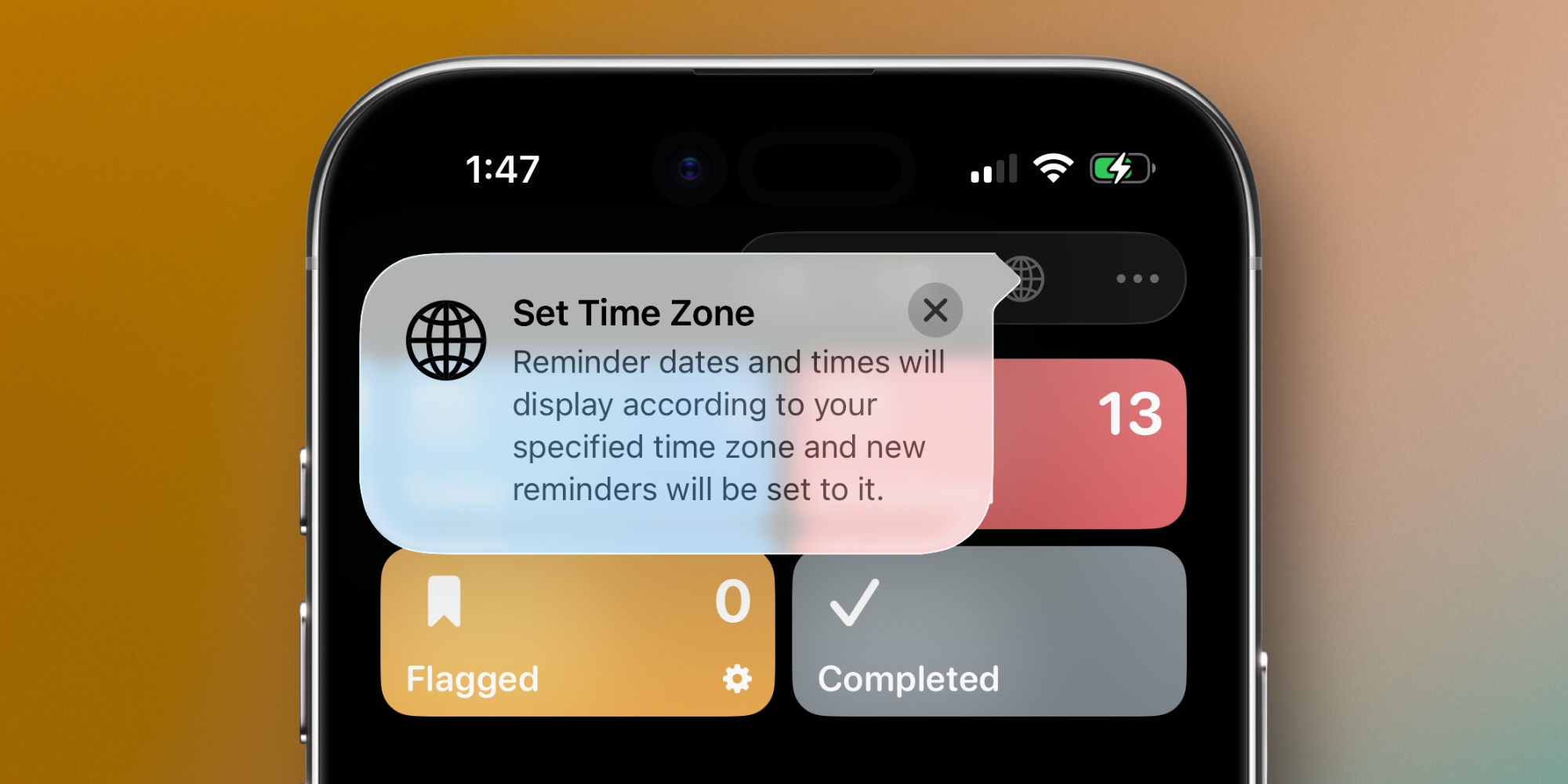
There are a couple places you can access the new controls in iOS 26.
By default, new reminders will have due times assigned in your current time zone. But when setting the time, you’ll see a new Time Zone option underneath. That’s where you can modify time zone on a per-reminder basis.
If you’re traveling though, and want to make sure all you always see due times in a specific time zone, you’ll want to head to the Settings app.
Inside Settings ⇾ Apps ⇾ Reminders, scroll down to find the Time Zone menu. Here, you can decide to override the standard location-based behavior for due times with a time zone of your choice.
After you’ve toggled the ‘Set Manually’ option inside Settings, the Reminders app will gain a new time zone icon at the top of the main screen. From here, you can easily view the default time zone and change it without needing to re-open Settings.
Whether you’re traveling for the holidays, or simply travel a lot for work, Reminders in iOS 26 is now a lot better at handling shifting time zones.
Source: 9to5mac










