 NEWS
NEWS
iOS 26’s Apple Maps Feature Can Save You from Traffic, Here’s How to Set It Up
 12/10/2025
 3014
3014

iOS 26 brought several solid upgrades to Apple Maps, including a feature centered on your typical routes and patterns that might save you from unexpected traffic delays.
Apple Maps in iOS 26 can learn your routines and offer proactive delay alerts
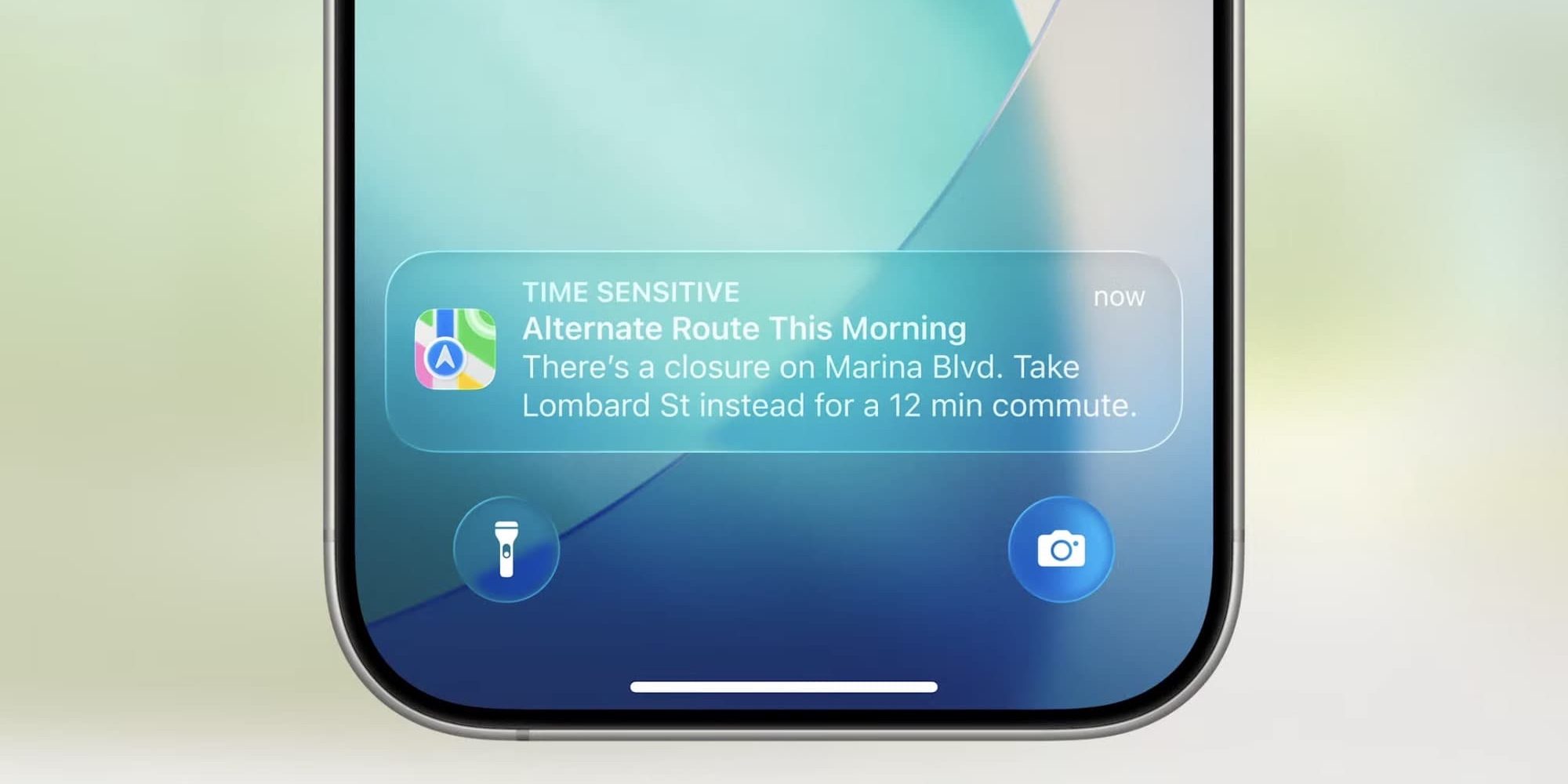
When Apple unveiled iOS 26 in June, it showed off a new feature for Apple Maps centered around your everyday routines.
Per the company’s website, here’s what the feature does:
Maps learns the routes you travel regularly and can alert you about significant delays, even before you head out. If your routine changes, iPhone adapts to it so you can conquer your commute.
Based on this information, Maps can send you push notifications when there’s a delay along your typical route. It’s great because you can find out about possible issues even before getting in the car.
Beyond these notifications, Maps can also surface timely route-related info inside the Maps ‘Suggestions’ widget.
But users first need to opt-in before this new feature is enabled. Here’s how that works.
How to enable Maps’ new feature in iOS 26
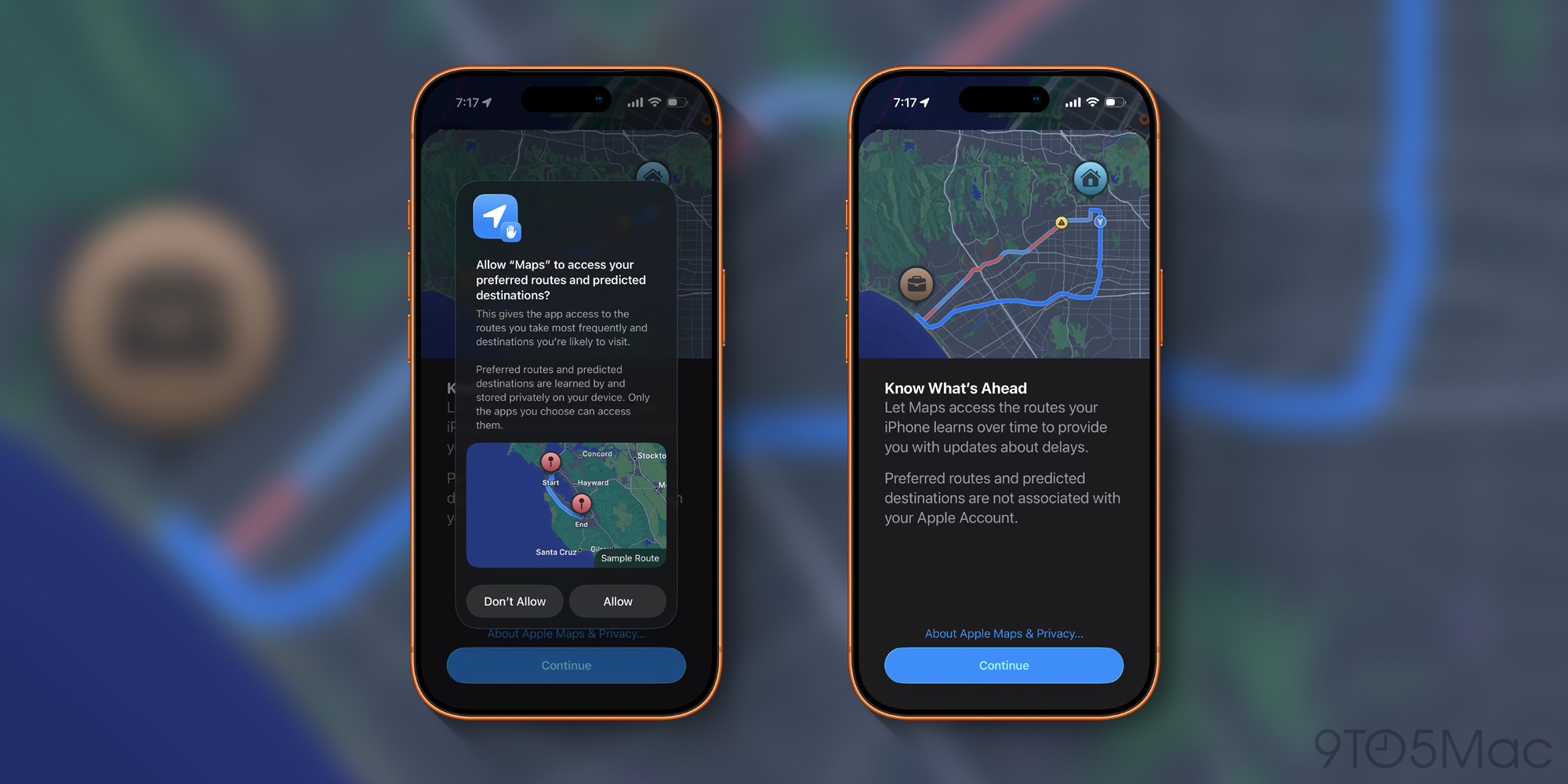
To enable Maps’ new feature, Apple requires that users opt in via a permission prompt. This is due to the especially sensitive nature of your location data.
Here’s how the prompt explains Apple’s privacy protections:
Preferred routes and predicted destinations are learned by and stored privately on your device. Only the apps you choose can access them…Preferred routes and predicted destinations are not associated with your Apple Account.
You’ll need to hit the ‘Continue’ and ‘Allow’ buttons to opt in.
This permission screen may pop up inside the Maps app during normal use. But if you’ve missed it, you can head to the Settings app ⇾ Apps ⇾ Maps ⇾ Location, and find the toggle for ‘Preferred Routes & Predicted Destinations.’
Source: 9to5mac










