 NEWS
NEWS
iOS 26 Made Live Activities Even Better on iPhone, Here’s What’s New
 12/08/2025
 2758
2758
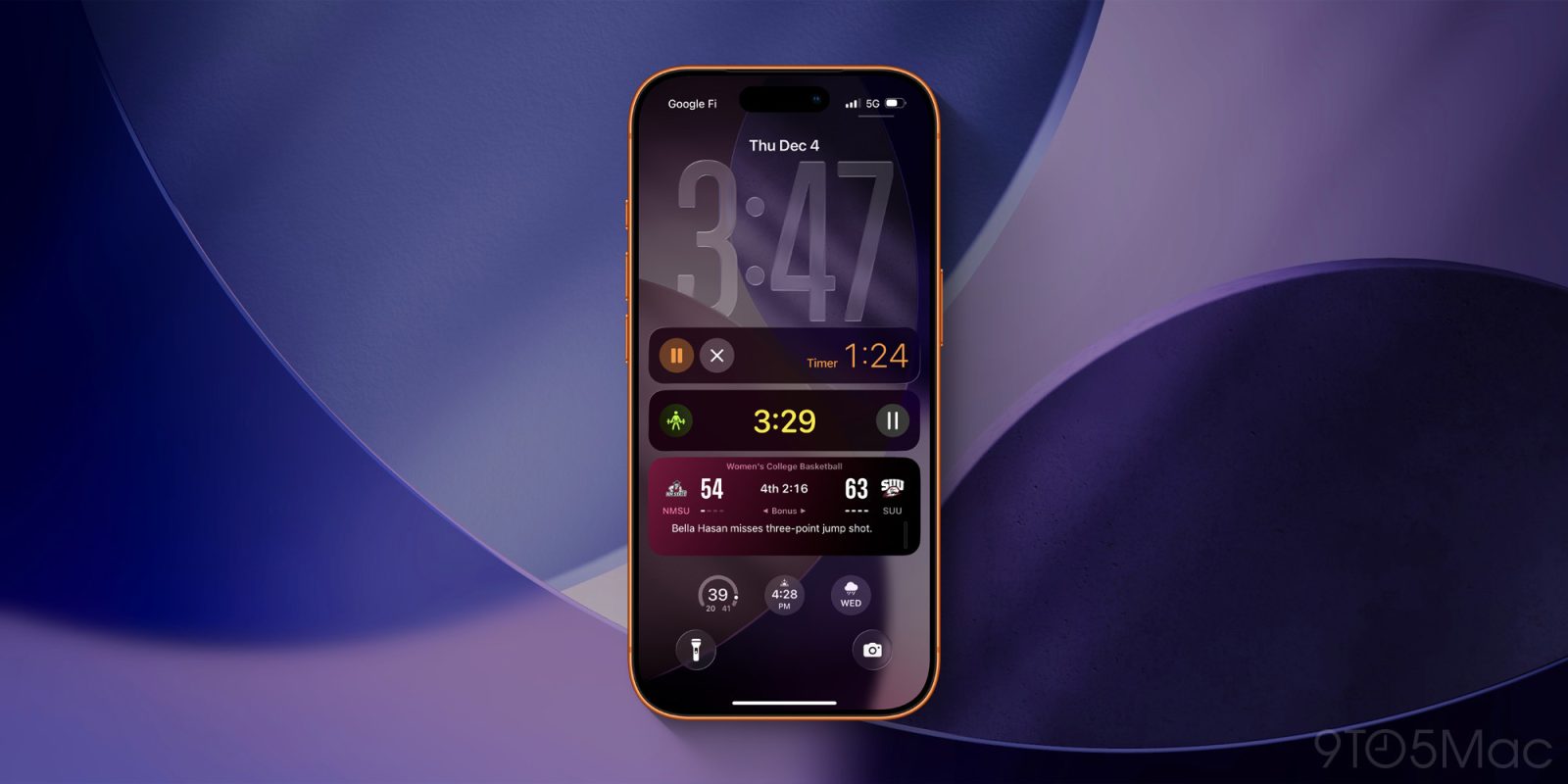
Live Activities have become one of my favorite iPhone features, and they recently got even better thanks to upgrades and expansions in iOS 26. Here’s everything new.
Fitness app adds Live Activities for workouts
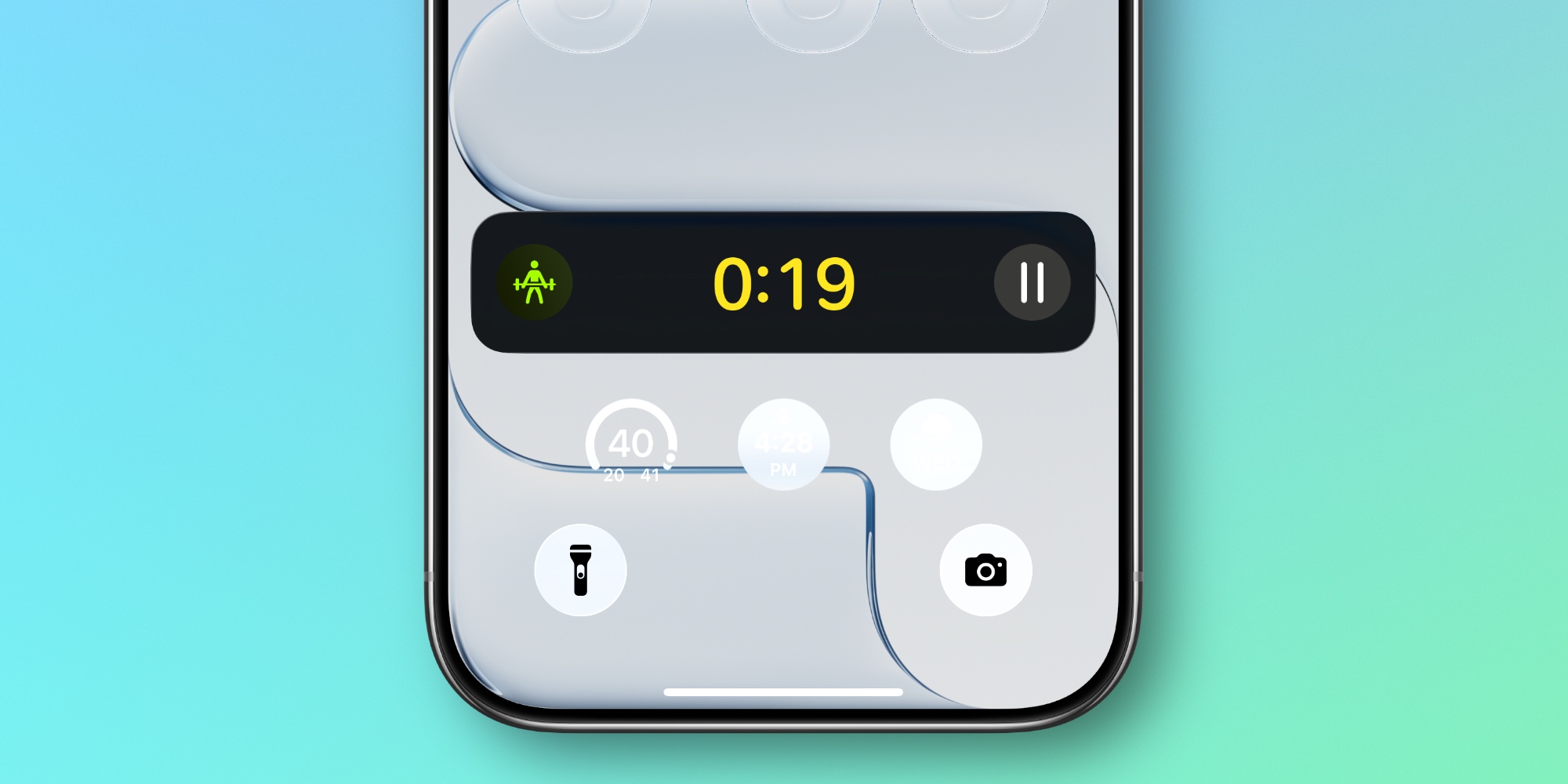
Running workouts used to be an Apple Watch-only feature. But when AirPods Pro 3 introduced heart rate monitoring, Apple brought full workout support to the Fitness app on iPhone too.
One side benefit is that iOS 26’s Fitness app now starts a Live Activity whenever you start a workout.
Whether you begin the workout from your iPhone or Apple Watch, you’ll notice the new Live Activity on your Lock Screen and in the Dynamic Island. This makes it easy to keep track of how long you’ve been exercising, and lets you pause the workout as needed.
Scheduling Live Activities for later
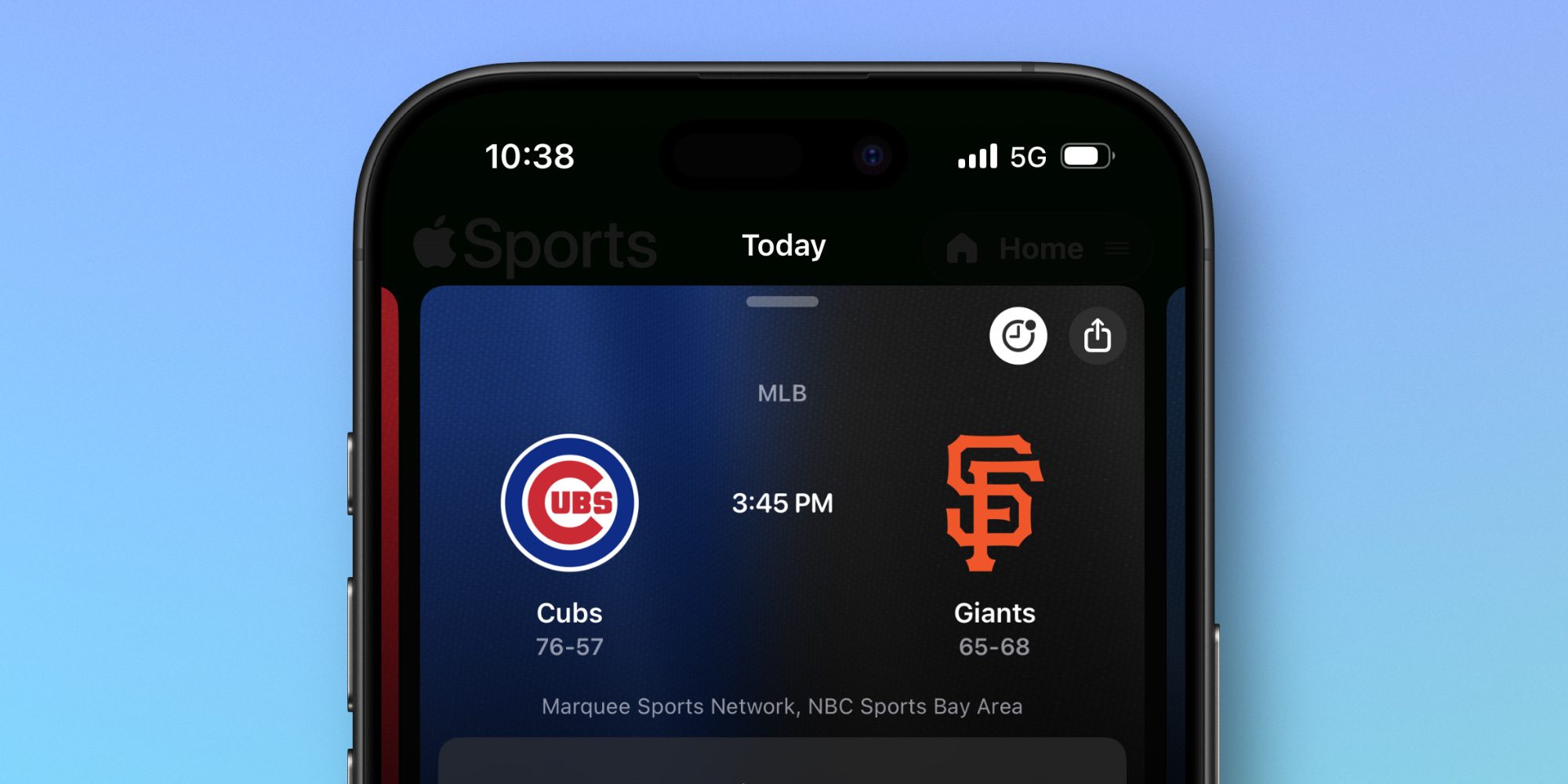
Last year, Apple’s Sports app gained support for scheduling Live Activities so that they automatically trigger when a game starts.
In iOS 26, that same scheduling capability is now available to all third-party apps via a new developer API.
Once apps implement the scheduling feature, there could be all kinds of fascinating new use cases for Live Activities.
Live Activities for Wallet’s new boarding passes
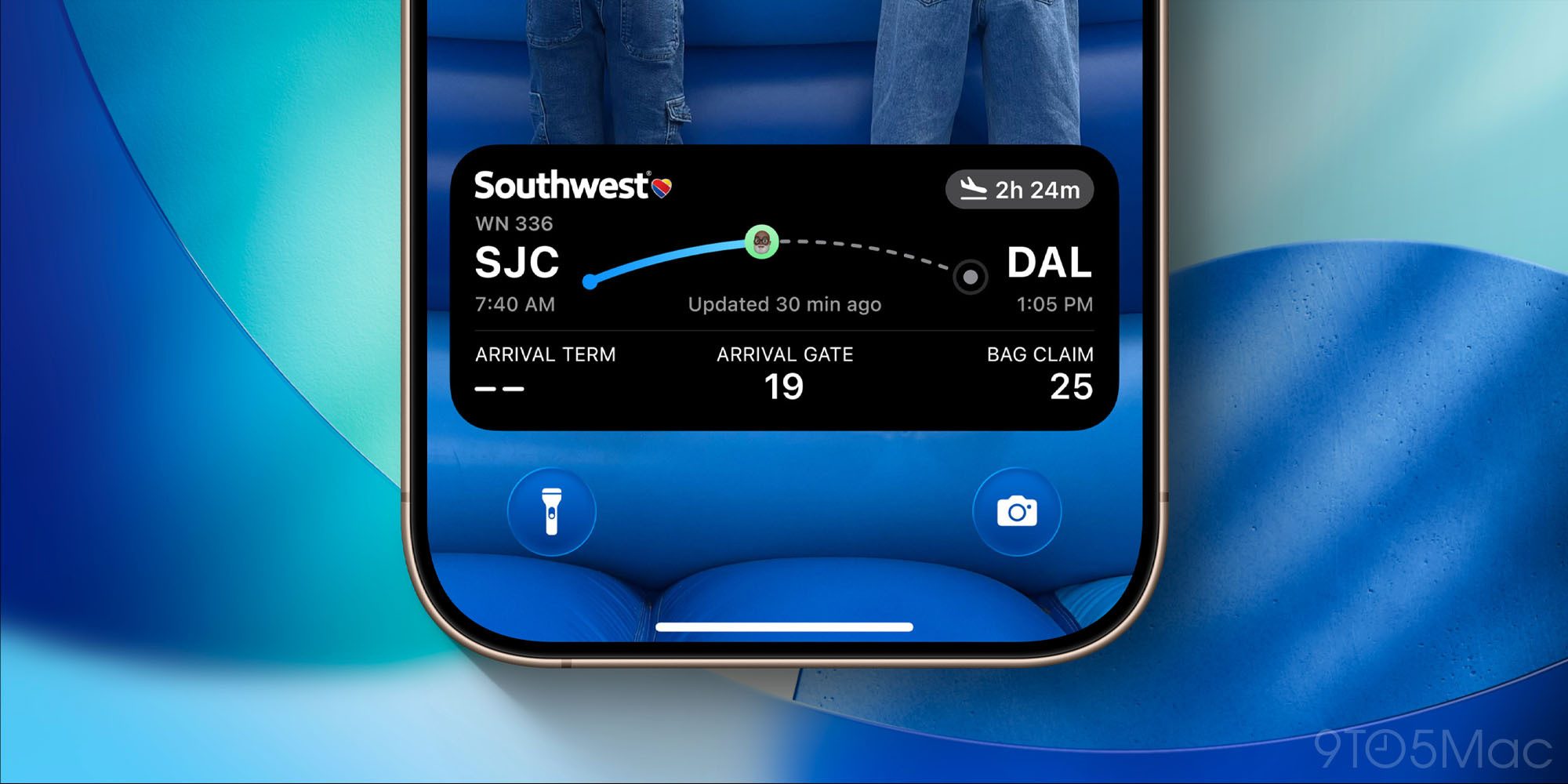
Apple’s Wallet app got a lot of new features in iOS 26, including an upgraded boarding pass experience that’s rolling out to partner airlines.
A key aspect of iOS 26’s new boarding passes is Live Activity support.
Live Activities will let you see important flight information that goes beyond what Wallet previously showed on your Lock Screen.
Additionally, these boarding pass Live Activities will be shareable, so you can send one to a friend or family member who needs to track your flight.
CarPlay in iOS 26 adds Live Activities
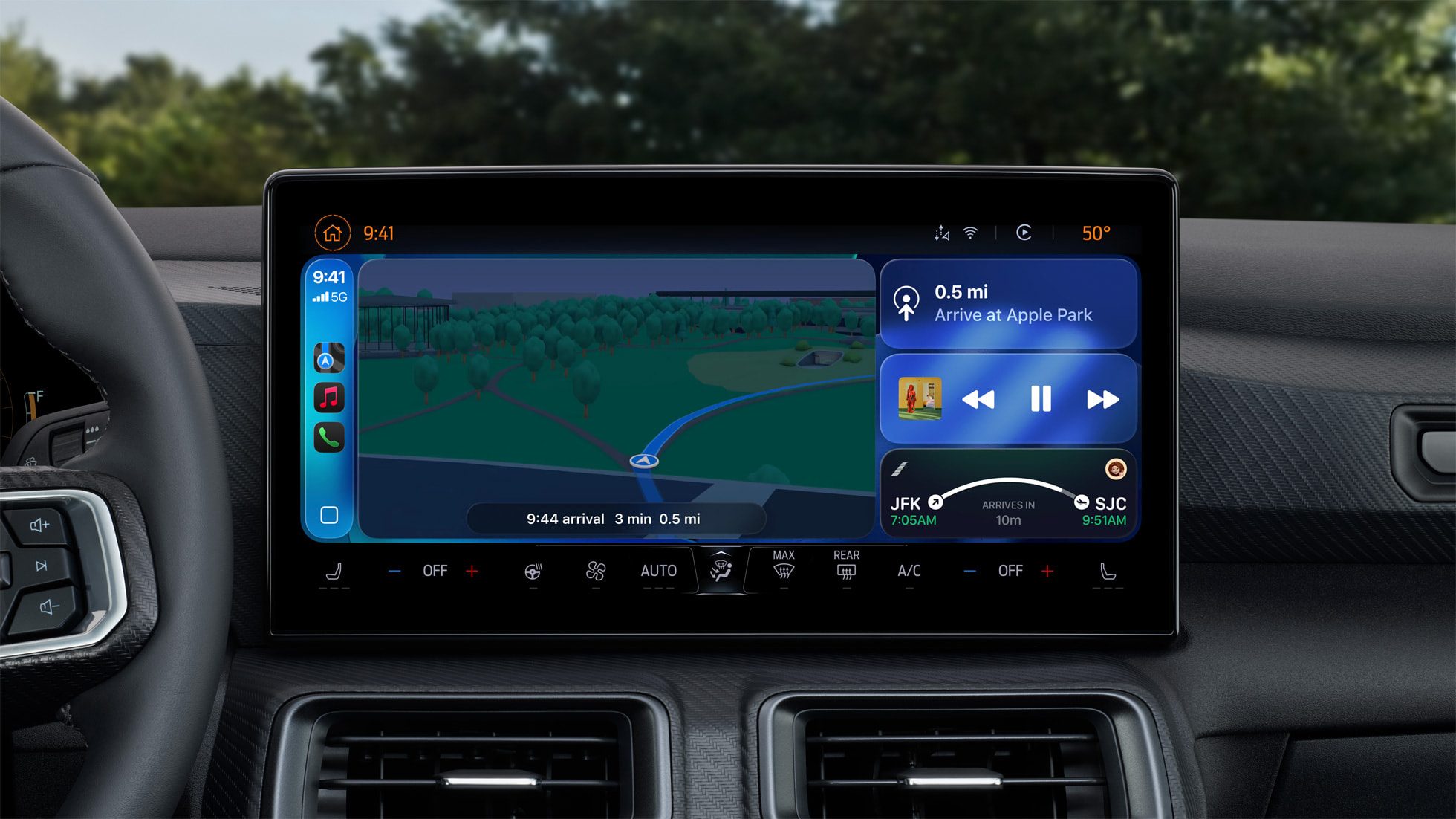
One major Apple focus for Live Activities this year involves bringing them to more platforms.
Among the many other new CarPlay features that just arrived, iOS 26 adds Live Activities to CarPlay too.
Live Activities running on your iPhone will be automatically added to your CarPlay Home Screen, so you can track things like flights, food deliveries, sports scores, and more.
Mac and iPad now support Live Activities too
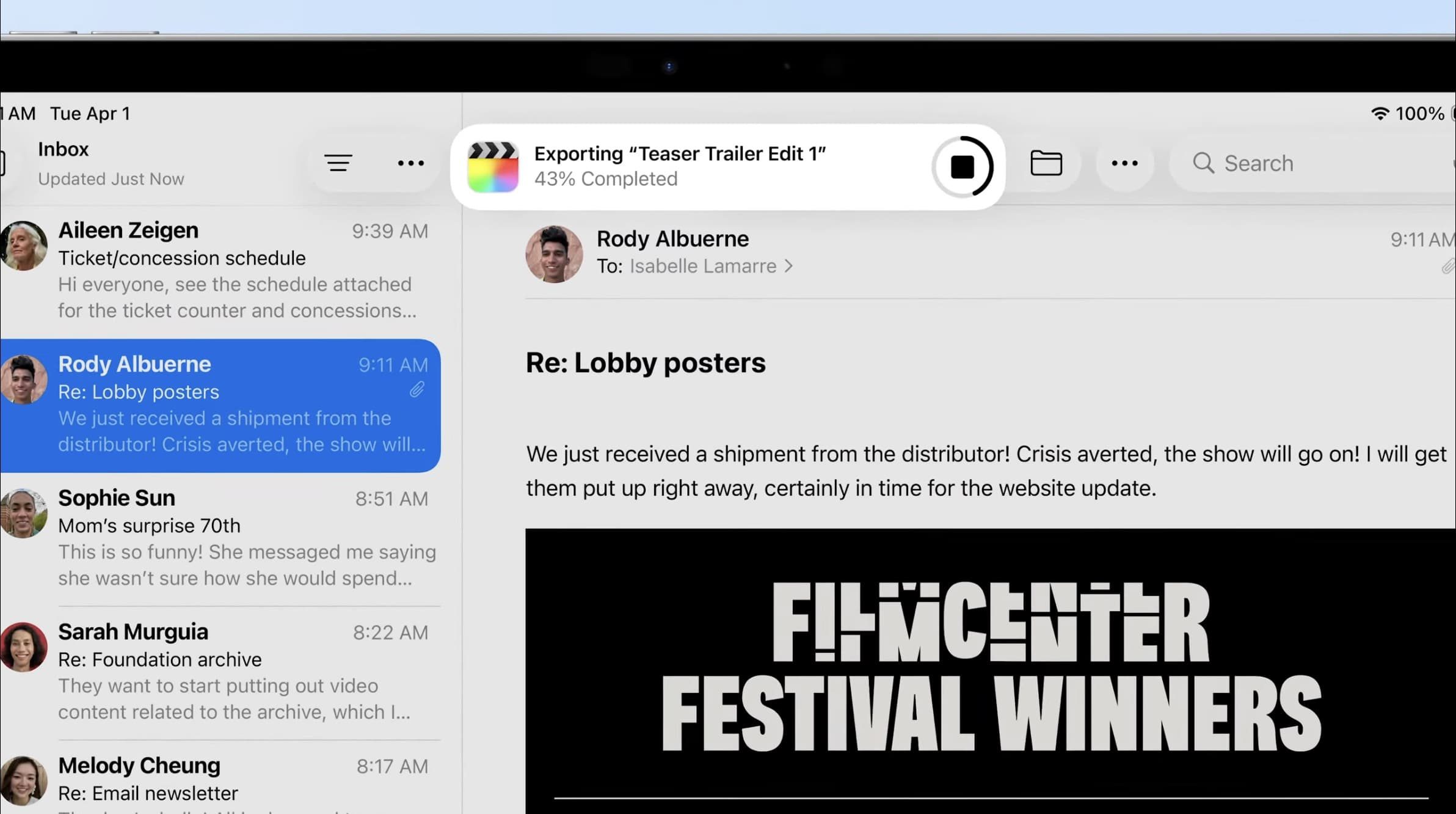
Finally, alongside the above iOS 26 improvements to Live Activities, Apple is also bringing the feature to Mac and iPad this year via macOS Tahoe and iPadOS 26.
Each platform offers a unique implementation of Live Activities:
- On the Mac, your iPhone’s Live Activities will automatically be available in macOS Tahoe as an extension of iPhone Mirroring.
- On the iPad, Live Activities are used as part of the new Background Tasks feature for intensive app processes.
macOS Tahoe uses the menu bar to display Live Activities, but you can always expand them to see the full view. Clicking a Live Activity will open the corresponding app from your iPhone via iPhone Mirroring.
iPadOS 26 offers a much more limited use for Live Activities, but Background Tasks will prove especially handy for professionals doing intensive tasks like video exports. Thanks to Live Activities, you’ll be able to track a lengthy export without needing to keep that app on screen.
Source: 9to5mac










