
NEWS

Screen Protectors Without AR Coating Cancel Out iPhone 17's Anti-Reflective Display

Just now

20

The Ceramic Shield 2 material that Apple uses for the iPhone 17 display includes an anti-reflective coating that's designed to cut down on glare. It's a coating that prior-generation iPhone models didn't have, and it can make a difference in bright lighting conditions.
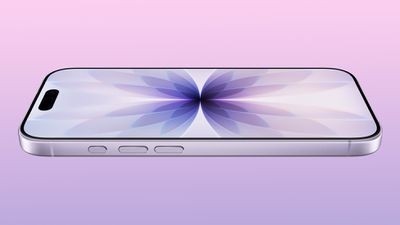
Screen Protectors Without AR Coating Cancel Out iPhone 17's Anti-Reflective Display
If you're someone who likes to use a screen protector with your ‌iPhone‌, you might be nullifying the anti-reflective property of the ‌iPhone 17‌ display, based on testing done by Astropad.

Compared to the ‌iPhone 17‌, Astropad found that the anti-reflective coating reduces reflections by approximately 50 percent when compared to the iPhone 16, but applying a screen protector without an anti-reflective coating of its own makes the anti-reflective Ceramic Shield 2 coating less effective. According to Astropad, this is because AR coatings are created for direct contact with air, and covering them with an extra layer of material cancels the effect.

Astropad did screen protector testing because it sells Fresh Coat, a screen protector with an anti-reflective coating, and it is promoting Fresh Coat through its testing and report. Astropad says that Fresh Coat and other screen protectors with an anti-reflective coating can replace or even outperform the anti-reflective properties of the ‌iPhone 17‌'s display.

Astropad did controlled testing with a light meter, and full testing results can be found on the Astropad website.

Source: Macrumors

Windows
Mac OS
iOS
Linux
3uTools
Win 64-bit For this device
V9.0 2025-11-11
Download
Win 32-bit For this device
V9.0 2025-11-11
Download
3uTools
Intel Chip How to Identify Chip Type
V9.0 2025-12-02
Download
Apple Chip
V9.0 2025-12-02
Download
How to Identify Chip Type
1.  Click the Apple icon in the top-left corner of the screen and select About This Mac.
2.  Check the Processor or Chip field to determine if it is "Intel" or "Apple".
Please use the 3uTools PC client to install the iOS client:
1、 Install either the Windows or Mac version of 3uTools on your computer
2、 Open the PC client and connect your device to the computer via USB cable
3、 After the connection is successful, wait for the computer to automatically install the mobile app for the device, or locate “Install Mobile App” on the computer and manually click to install.
3uTools
deb file
V3.01 2025-11-20
Download
rpm file
V3.01 2025-11-20
Download
Windows
Windows
iOS
iOS
Android
Android
TV
TV
3uAirPlayer
Win 64-bit For this device
V6.0.2 2025-11-19
Download
Win 32-bit For this device
V6.0.2 2025-11-19
Download
iOS Device Mirroring (No App Required)
1、 Install 3uAirPlayer on the Windows PC
2、 Open Control Center and select Screen Mirroring
3、 From the list, choose your PC to start mirroring
4、 Or connect your iOS device to the PC via USB to begin mirroring
Scan to get "3uAirPlayer" App
3uAirPlayer TV V1.0.18
2025-11-28
TV System Requirements: Android 7.0 or later
Download the TV installation package, copy it to a USB drive, insert it into your TV or set-top box, then select the file from the home screen to install.




