 NEWS
NEWS
Jaguar Shell App Lets UK Drivers Refuel Using Apple Pay from Inside Their Car
 02/16/2017
 3807
3807
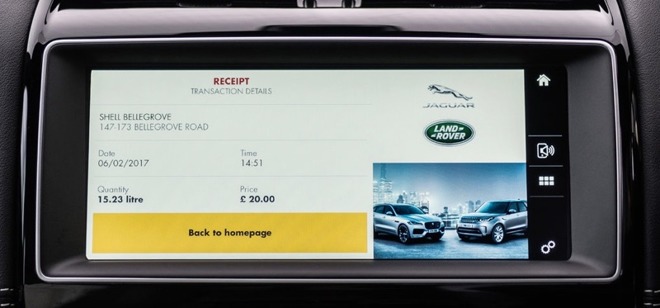
Once the driver's iPhone is connected to the entertainment system using USB, the Shell app will appear on the car's touchscreen. When selected on the in-car display, the app will show where the nearest Shell gas station that supports the app is located, providing navigation assistance to get there.
The driver tells the app which pump they are going to use, and after providing a security PIN to start the transaction, confirming how much they wish to spend on filling to the car. After pumping, the app will show transaction details in a receipt, including how much the fuel costs, how much fuel was pumped, the time, and the location, which is also sent to the driver's email address.
Jaguar Land Rover claims the app uses a combination of geolocation technology and a "cloud-based pre-payment check" to function, with the app seemingly not requiring any direct data connection with the gas station's local facilities. Apple Pay and PayPal wallets are currently supported by the app, with Android Pay support expected later this year.
"Making a payment directly from a car's touchscreen will make refueling quicker and easier," claims Jaguar Land Rover's Director of Connected Car and Future Technology Peter Virk. "With this new system you can choose any pump at the gas station and pay for the fuel even if you've forgotten your wallet or can't find your credit or debit card.
Virk advises Jaguar is working with other companies to provide similar payment functions for other services via the car's touchscreen. "Whether it's paying for fuel, parking, tolls, or even at a drive-through restaurant, the aim of cashless motoring is to make life easier for our customers."
The Shell app will be compatible with all Jaguar and Land Rover models that use the car manufacturer's InControl Apps system, the company claims. Available in the United Kingdom today, the app will roll out into the United States and other markets later in 2017.
Source: appleinsider










