 NEWS
NEWS
New Feature iOS 10.3 Beta's 'Find My AirPods'
 01/25/2017
 4423
4423
Apple in its latest iOS 10.3 beta release addresses the concerns of many new AirPods owners by incorporating a software feature that helps users locate misplaced earbuds through the Find My iPhone app.
When Apple introduced AirPods last September, some noted the distinct lack of a tracking system for the $160 device.
As a pair of completely untethered —and small —earbuds, owners are bound to misplace one or both from time to time. Apple, of course, offers replacements for $69 per earbud, but that's a steep price to pay for being forgetful.
Filling the void, a third-party developer earlier this month launched an app that uses AirPods' Bluetooth signal strength to track down a missing bud. Apple quickly yanked the title from the App Store, and now we know why.
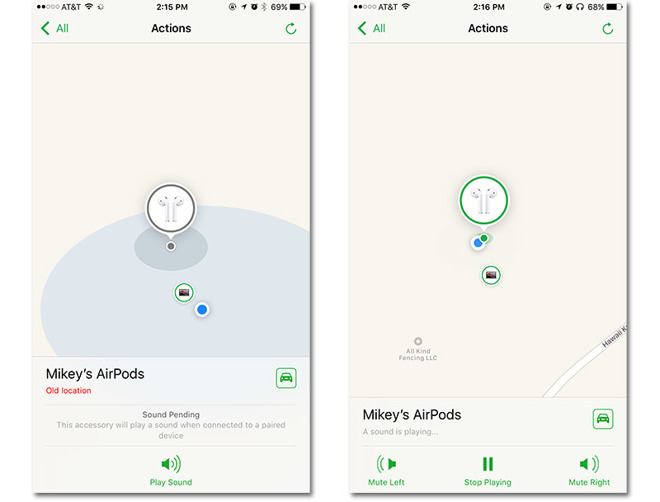
Unofficially dubbed "Find My AirPods," Apple's first-party AirPods finder solution debuted in beta form as part of today's iOS 10.3 test release.
Apple relies on a connected device to make Find My AirPods work. Specifically, when AirPods connects to an iPhone or Mac, the finder feature queries the host device's positioning hardware —GPS, Wi-Fi or other component package —to log the earbuds' location. This information is fed to the Find My iPhone app for later retrieval, perhaps when a user realizes they are missing the left side of their AirPods pair.
Opening the Find My iPhone app, users who have previously paired AirPods with an iOS or macOS device enrolled with iCloud will find a new AirPods option under the "My Devices" section. Unless the headphones are in use, Find My iPhone will show the headphone's last known position, as well as information when the positioning data was gathered.
Considering AirPods incorporates the new W1 chip, users might have to scour hundreds of square feet. Luckily, Find My AirPods includes a pinging feature.
Like other "Find My X" solutions, such as Apple Watch, users can remotely command AirPods to play an audible alert. Tapping on the "Play Sound" option under "Actions" logs the request, which is then sent to AirPods when an earbud next connects to a logged-in device. The feature also lets users selectively mute the left or right earbud for narrowing down their search.
Source: appleinsider










