 NEWS
NEWS
Apple Tests Face ID and Touch ID Sign-in for iCloud․com on iOS 13 and macOS Catalina Betas
 07/08/2019
 4965
4965
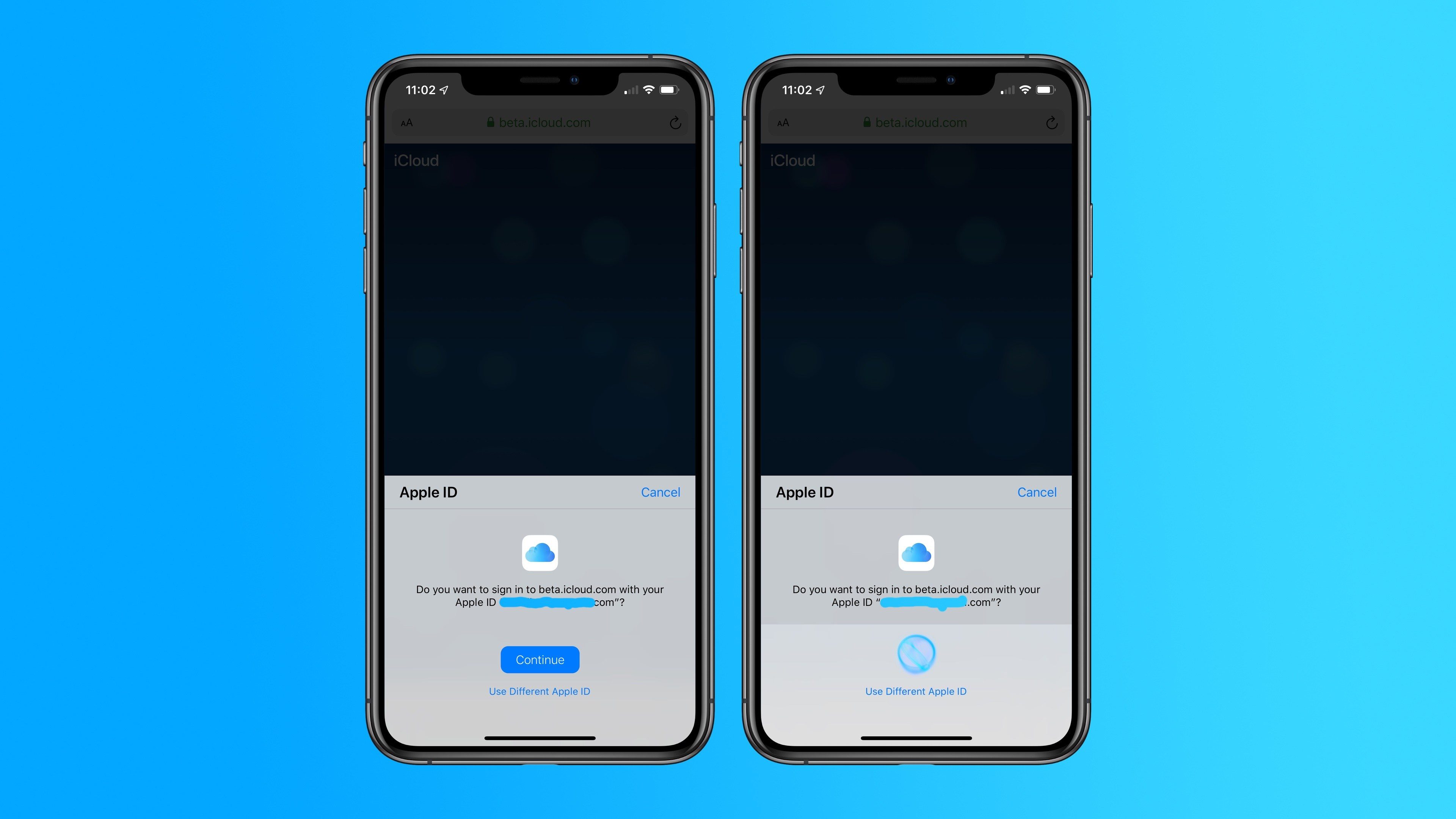
For iOS 13, iPadOS 13, and macOS Catalina beta testers, Apple is trying out a new sign-in process for iCloud on the web. When you head to beta.icloud.com on a device running the betas, you can now sign-in to your account using Face ID or Touch ID.
When you visit iCloud in Safari on a device running the iOS, iPadOS, or macOS betas, you’ll see a new pop-up asking if you’d like to sign-in using your Apple ID with biometrics. On a Face ID-equipped device, this means signing in with Face ID, while other devices, including Touch Bar-capable MacBook Pros, use Touch ID. The above screenshots show the Face ID sign-in process on an iPhone XS Max running the developer beta of iOS 13.
When you visit iCloud.com on a device running the betas, you should automatically be redirected to beta.icloud.com. If you aren’t, you can manually enter the URL in your address bar to try out this new feature. Either way, however, you must be running iOS 13, iPadOS 13, or macOS Catalina to use the new sign-in feature. It also doesn’t require two-factor confirmation.
This is a pretty nifty new feature and is likely part of Apple’s early efforts to test out Sign in with Apple. The company has previously said that it will make Sign in with Apple tools available to developer this summer, ahead of the feature’s public launch in September.
Signing in using Face ID and Touch ID on iCloud.com is a lot easier and more secure than manually entering your sign-in information. The process should be familiar to anyone that has signed in to the App Store or iTunes Store in the past.
Source: 9to5Mac










