NEWS

Apple Will Exclusively Use Intel Modems in 2018 iPhones, According to Qualcomm

07/26/2018

2942

Apple Will Exclusively Use Intel Modems in 2018 iPhones, According to Qualcomm


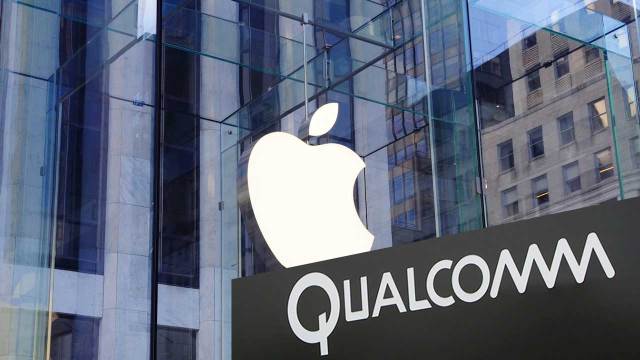
You might see the practical impact of the Apple-Qualcomm royalty feud in the very near future. As part of an earnings call, Qualcomm financial chief George Davis told investors that his company believed Apple would "solely use our competitor's modems" (read: Intel's) in the next iPhones. Given that Qualcomm would know whether or not Apple was a customer this close to an iPhone launch (new models usually appear in September), it's safe to say that the chip maker has been shut out this time around.


It's not shocking that Apple would drop Qualcomm like a hot potato. There was word that Apple was designing Qualcomm-free iPhones back in October 2017, and relations haven't exactly warmed up since then with more lawsuits on both sides in addition to antitrust measures. It wouldn't be surprising for Apple to go Intel-only for wireless chipsets in the near future, for that matter. Intel is the only other company to have provided those chipsets to Apple in recent memory, and a wholesale switch to someone else's technology wouldn't happen overnight.


Whether or not Apple sticks to Intel is another story. Calcalists sources recently claimed that Apple had turned down Intel's Bluetooth and WiFi parts for 2020 mobile devices. That doesn't preclude use of Intel-made cellular modems, but it also shows that Intel's involvement isn't guaranteed to last long.


Source: engadget

Windows
Mac OS
iOS
Linux
3uTools
Win 64-bit For this device
V9.0 2025-11-11
Download
Win 32-bit For this device
V9.0 2025-11-11
Download
3uTools
Intel Chip How to Identify Chip Type
V9.0 2025-12-02
Download
Apple Silicon
V9.0 2025-12-02
Download
How to Identify Chip Type
1.  Click the Apple icon in the top-left corner of the screen and select About This Mac.
2.  Check the Processor or Chip field to determine if it is "Intel" or "Apple".
Please use the 3uTools PC client to install the iOS client:
1、 Install either the Windows or Mac version of 3uTools on your computer
2、 Open the PC client and connect your device to the computer via USB cable
3、 After the connection is successful, wait for the computer to automatically install the mobile app for the device, or locate “Install Mobile App” on the computer and manually click to install.
3uTools
deb file
V3.01 2025-11-20
Download
rpm file
V3.01 2025-11-20
Download
Windows
Windows
iOS
iOS
Android
Android
TV
TV
3uAirPlayer
Win 64-bit For this device
V6.0.2 2025-11-19
Download
Win 32-bit For this device
V6.0.2 2025-11-19
Download
iOS Device Mirroring (No App Required)
1、 Install 3uAirPlayer on the Windows PC
2、 Open Control Center and select Screen Mirroring
3、 From the list, choose your PC to start mirroring
4、 Or connect your iOS device to the PC via USB to begin mirroring
Scan to get "3uAirPlayer" App
3uAirPlayer TV V1.0.18
2025-11-28
TV System Requirements: Android 7.0 or later
Download the TV installation package, copy it to a USB drive, insert it into your TV or set-top box, then select the file from the home screen to install.