
 4910
4910
 2016-11-16
iOS 10.2, currently being beta tested, introduces new artwork for many existing emoji. Apple has made an effort to add more detail to emoji, for a more realistic, vivid look that works well with the Messages feature in iOS 10 and macOS Sierra that displays larger emoji.
Almost all of the food emojis were redesigned in iOS 10.2, but one redesign received a lot more attention than others - the peach. The iOS peach emoji, in addition to representing the fruit, has long been used as a symbol for a person's rear end due to its design and angling, which Apple changed in iOS 10.2 beta 1.
The iOS 10.2 beta 1 peach emoji was much rounder and more peach-like, eliminating its resemblance to a butt. The shift was widely noted (and mourned) on the internet, and the attention the redesign received seems to have prompted Apple to change the emoji back to its original look.
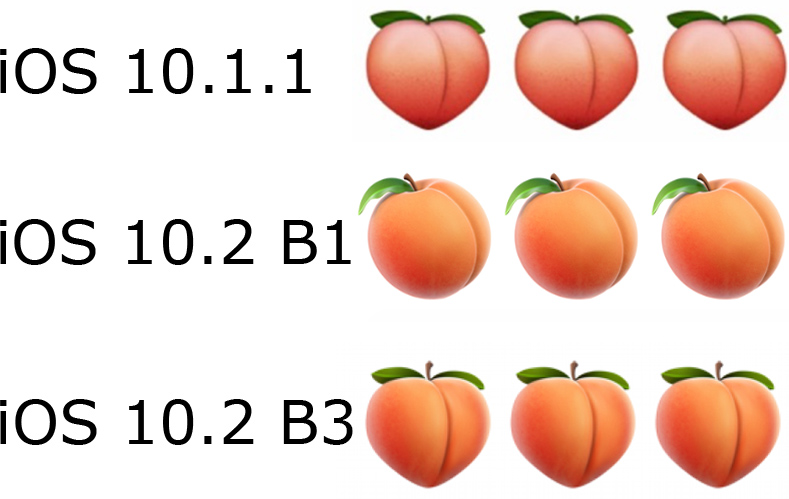
As The Next Web points out, the peach emoji has been overhauled again in iOS 10.2 beta 3, and now it once again resembles a derriere. The colors have shifted a bit and there's more detail included, but it is undeniably -- and perhaps more so -- butt-like.
It's an insignificant change, but the reversion of the peach emoji to its original state suggests Apple listens to and takes into account the feedback of its users, even when it comes to small details.
In addition to changing the look of the peach emoji, iOS 10.2 beta 3 also further refined the new TV app, adding "Up Next" functionality and fully eliminating the Videos app in the United States. iOS 10.2 is still in beta testing, but we expect to see a public release in December, which is when Apple has said many of the iOS 10.2 features will debut.
Source: macrumors



 Win(x86)
 macOS
macOS


 Android