
NEWS

Apple Adding Touch Controls & Optical Bar Code Elements to an iPad Smart Cover

08/09/2017

3449

On March 28, 2013, the US Patent & Trademark Office published a patent application from Apple that revealed that the iPad's Smart Cover could over time add a few sophisticated features. In August 2012 Apple revealed a mind boggling set of new possible features for the Smart Cover that ranged from inductive charging to built-in solar panels and the use of a flexible display to name a few of innovations being explored. Today's granted patent, while not as elaborate as the 2012 patent filing, still introduces some nice refinements that could jazz up the iPad's Smart Cover. In particular, Apple's granted patent covers adding physical soft buttons to the Smart Cover so that users could easily control their iTunes volume and be able to fast forward or put tunes on hold or see the time and more.  
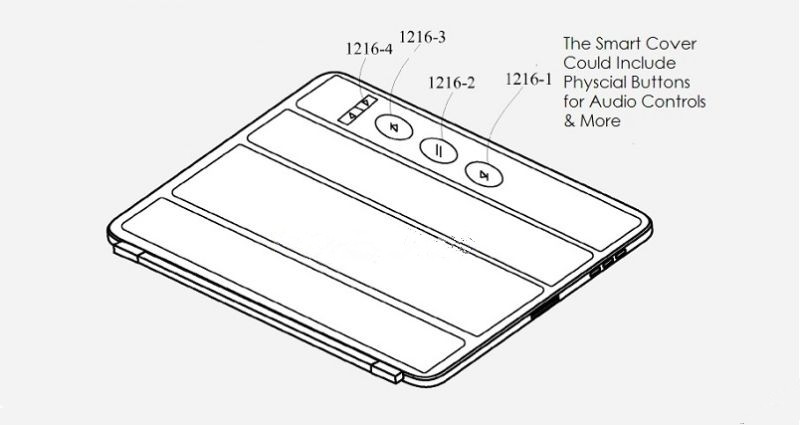
 

Apple Adding Touch Controls & Optical Bar Code Elements to an iPad Smart Cover


In patent FIG. 10 noted below Apple shows us system #1000 that includes protective cover pivotally connected to tablet device that includes perimeter capacitive elements #1006 arrayed along a perimeter of the flap #1008. In one embodiment, perimeter capacitive elements #1006 can resemble an optical bar code that can store information based upon the spacing, size, and electrical properties of each constituent capacitive element.


Apple's granted patent 9,729,685 was originally filed in Q3 2011 and published today by the US Patent and Trademark Office.


Source: patentlyapple

Windows
Mac OS
iOS
Linux
3uTools
Win 64-bit For this device
V9.0 2025-11-11
Download
Win 32-bit For this device
V9.0 2025-11-11
Download
3uTools
Intel Chip How to Identify Chip Type
V9.0 2025-12-02
Download
Apple Silicon
V9.0 2025-12-02
Download
How to Identify Chip Type
1.  Click the Apple icon in the top-left corner of the screen and select About This Mac.
2.  Check the Processor or Chip field to determine if it is "Intel" or "Apple".
Please use the 3uTools PC client to install the iOS client:
1、 Install either the Windows or Mac version of 3uTools on your computer
2、 Open the PC client and connect your device to the computer via USB cable
3、 After the connection is successful, wait for the computer to automatically install the mobile app for the device, or locate “Install Mobile App” on the computer and manually click to install.
3uTools
deb file
V3.01 2025-11-20
Download
rpm file
V3.01 2025-11-20
Download
Windows
Windows
iOS
iOS
Android
Android
TV
TV
3uAirPlayer
Win 64-bit For this device
V6.0.2 2025-11-19
Download
Win 32-bit For this device
V6.0.2 2025-11-19
Download
iOS Device Mirroring (No App Required)
1、 Install 3uAirPlayer on the Windows PC
2、 Open Control Center and select Screen Mirroring
3、 From the list, choose your PC to start mirroring
4、 Or connect your iOS device to the PC via USB to begin mirroring
Scan to get "3uAirPlayer" App
3uAirPlayer TV V1.0.18
2025-11-28
TV System Requirements: Android 7.0 or later
Download the TV installation package, copy it to a USB drive, insert it into your TV or set-top box, then select the file from the home screen to install.




