 TUTORIALS
How to Fix Cydia Error “Could Not Open File /var/lib/dpkg/status” on iOS 10?
 07/07/2017
 45679
45679
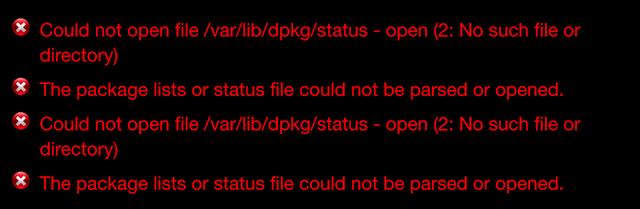
One of the major issues of this jailbreak is that some users have been facing is that they get the following message after opening Cydia:
-Could not open file /var/lib/dpkg/status — open (2: No such file or directory)
-This package lists or status file could not be parsed or opened.
If you’re facing this error, then you’ve come to the right place as we will show you how to fix this issue in a matter of a few minutes.
Step 1: The first step is to download all the necessary files and tools for fixing this issue.
Download 3uTools – allows you to navigate and edit the iOS file system.
Next, download the necessary “Cydia Fix” files from here and unzip it.
Finally, you need the Cydia Impactor tool which can be downloaded from cydiaimpactor.com.
Step 2: Once you have all the necessary files and tools, you are ready to start. Connect your jailbroken device to your computer via USB cable and then launch 3uTools.
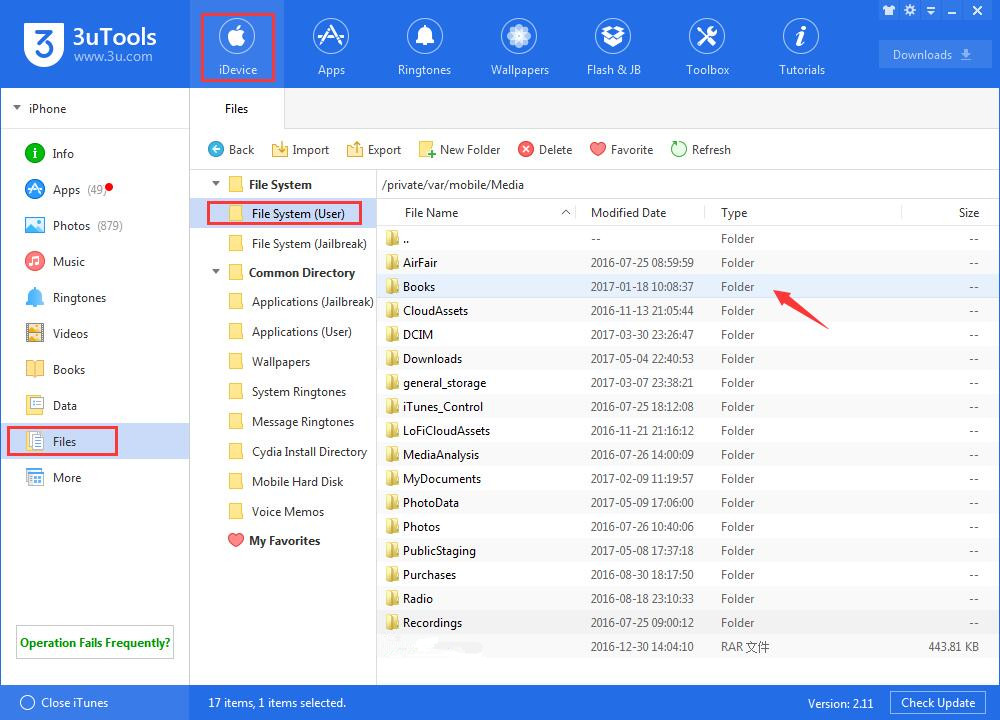
Step 3: Click Files on the sidebar of 3uTools, go to FileSystem(User), open Books as shown below.
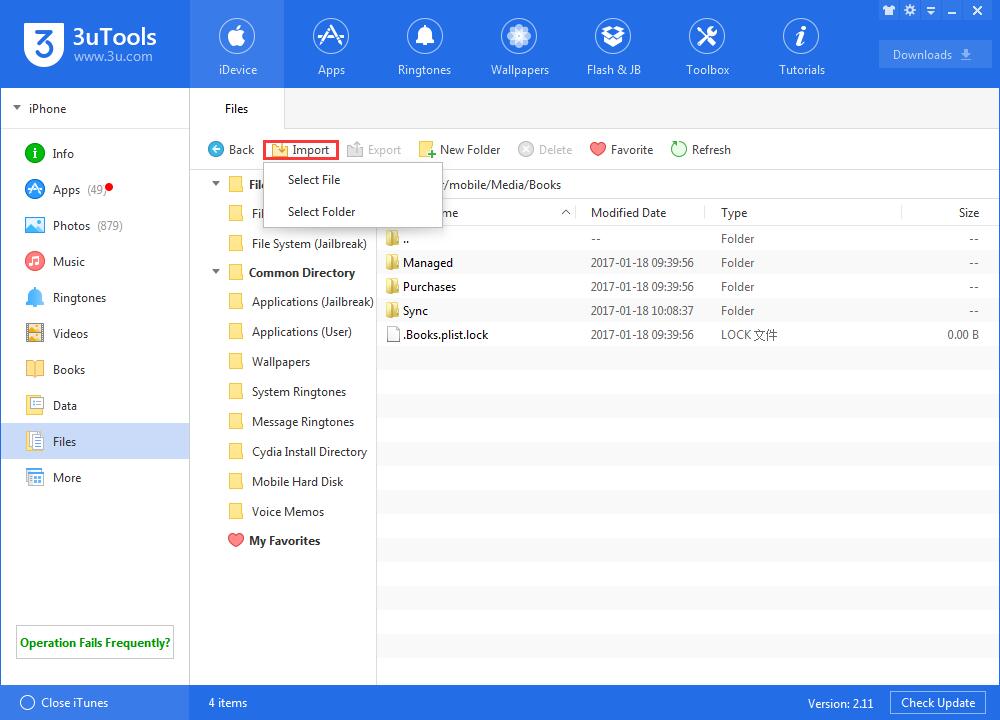
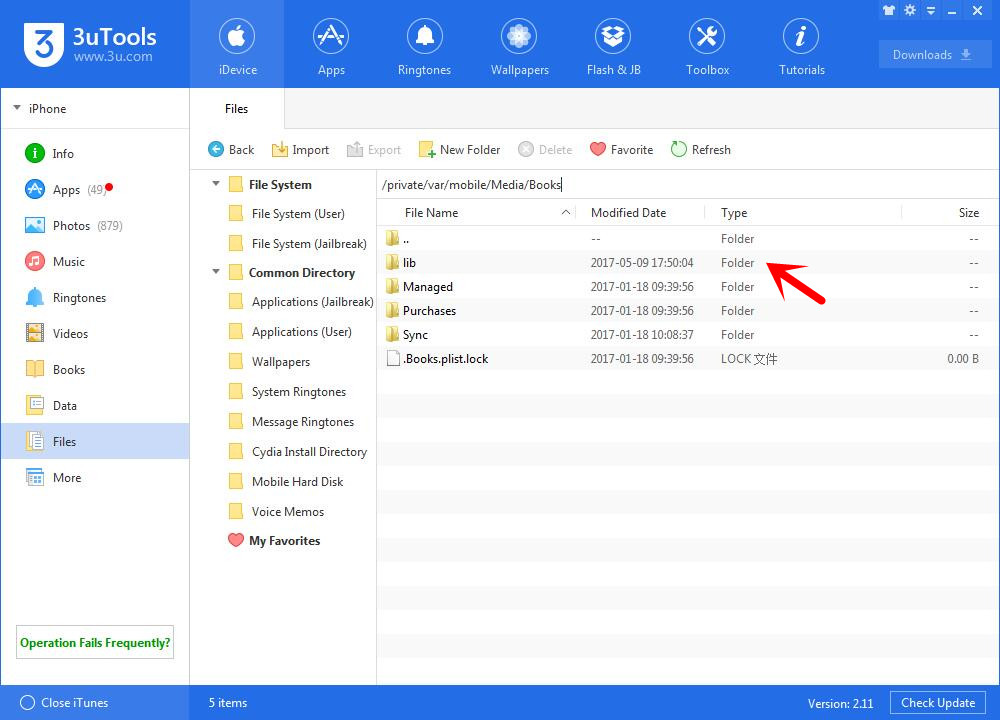
Step 4: Click "Import" -> "Select Folder" and select “lib”folder from the“Cydia Fix”folder which you downloaded earlier.
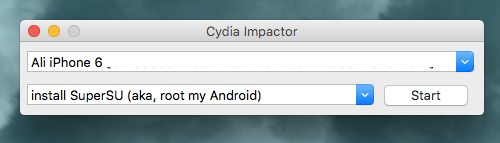
Step 5: Next, launch Cydia Impactor and make sure that it has detected your device as shown below.
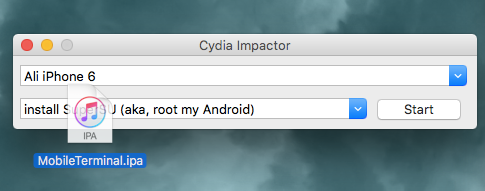
Step 6: Now drag the MobileTerminal.ipa file from the “Cydia Fix” folder and drop it onto Cydia Impactor.
Step 7: Cydia Impactor will ask for your Apple ID and password. This information is only sent to Apple to generate the certificates required to sign and install the MobileTerminal IPA file onto your jailbroken device. Enter the required information and Cydia Impactor will start to install the IPA file.
Step 8: After the installation completes, you should see the Mobile Terminal app on your device’s Home screen. Go to Settings -> General -> Profiles & Device Management (for some users, it may be called “Profiles” or “Device Management”).
Step 9: Open the profile labelled with your Apple ID and then press the Trust button.
Step 10: Now go back to the Home screen and launch the Mobile Terminal app (make sure that your device is in jailbroken state).
Step 11: The command line interface will be displayed with a black background. Type in the following commands, pressing Enter/Return after each line:
su
alpine
cp -R /var/mobile/Media/Books/lib /var
mkdir /var/log/apt
Step 12: Once you’ve entered all the commands, reboot your device.
Put your device back into jailbreak state and then launch Cydia. The error “Could Not Open File /var/lib/dpkg/status” should no longer appear and you can successfully proceed with installing new tweaks on your device.










