 TUTORIALS
Beginner Quick Guide: Streaming with the 3uAirPlayer Virtual Camera
 03/10/2026
 162
162
Have you already mirrored your phone screen to your computer, but got stuck on the step of getting that screen into your livestream? Don’t worry! The Virtual Camera feature in 3uAirPlayer is the key.
It converts your mirrored screen into a camera signal, allowing livestream tools like Douyin Live Companion or OBS to use it just like a normal webcam. No complicated configuration is required—you can set everything up in about 5 minutes.
I. What Is a Virtual Camera and Why Use It?
A virtual camera works like a video signal converter.
It turns the content mirrored from your phone (such as slides, gameplay, or product demonstrations) into a webcam-style video source that livestream software can recognize.
This means:
●You don’t need to buy an external camera
●Livestream software can directly capture your phone screen
●Perfect for teaching, e-commerce streaming, or game commentary
Key Advantages
●Low latency
●Clear image quality (up to 1080p)
●Supports phone audio synchronization
●More flexible than streaming directly from a phone
II. Quick Preparation (Only Two Things to Check)
No complex setup is required. Just make sure these two things are ready:
1. Screen Mirroring Is Already Working
●Install 3uAirPlayer on your computer
●Successfully mirror your phone screen to the computer
(either wireless or wired; wired is more stable)
If you haven’t mirrored yet: Simply connect your phone to the computer using a USB cable and open 3uAirPlayer. It will automatically detect the device and start mirroring within seconds.
2. Livestream Software Is Installed
Prepare your livestream software.
This guide uses Douyin Live Companion as an example, but the same logic works for:
●OBS
●Other livestream platforms
III. Core Steps: Enable the Virtual Camera and Connect It to Your Livestream
These are the three essential steps. Just follow them one by one.
Step 1: Enable the 3uAirPlayer Virtual Camera
Once the mirrored phone screen appears on your computer:
1. Open the 3uAirPlayer menu bar
2. Click Virtual Camera
If you see the message “Virtual camera started”, it is successfully enabled.
⚠️ Important:
Do not close 3uAirPlayer.
You can minimize it and let it run in the background.
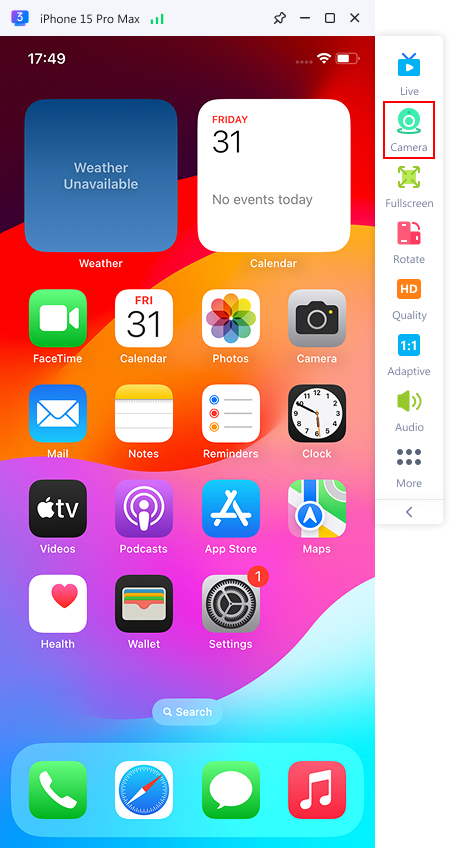
Step 2: Add the 3uAirPlayer Virtual Camera to Your Streaming Software
Example using Douyin Live Companion:
1. Open the software and log in
2. Enter the stream preparation page
3. Click “+ Add Source”
4. Select Camera (do NOT choose window capture)
Now comes the key step:
In the camera list, select “3uAirPlayer” (not your computer’s built-in webcam).
If everything is correct, the preview window will immediately show your mirrored phone screen.
This means the virtual camera is successfully connected.
Step 3: Adjust the Video and Start Streaming
Spend about 10 seconds optimizing the display.
1. Adjust Screen Orientation
●Vertical screen → best for short-video livestreaming
●Horizontal screen → better for presentations or gaming
Rotate the screen inside the streaming software if necessary.
2. Adjust Video Quality
In the camera settings:
●Resolution: 1080P (recommended)
●If network speed is limited → choose 720P
●Frame rate: keep 30 FPS
After these adjustments, click Start Streaming.
Your phone content will now appear in the livestream room.
Using OBS Instead (Optional)
If you use OBS, the steps are slightly different but still simple:
1. In the Sources panel at the bottom of OBS, click “+”
2. Select Video Capture Device
3. Choose 3uAirPlayer as the device
For better image quality:
●Set Color Range to Full
Click OK, and the mirrored screen will appear on the OBS canvas.
You can then proceed with normal streaming settings and pushing the stream.
IV. Common Problems and Quick Fixes
Most beginners encounter one of these three issues.
1. Black Borders Around the Video
This is usually caused by resolution mismatch.
Fix it in two steps:
1. In 3uAirPlayer settings, set the mirroring resolution to 1080P
2. In Douyin or OBS, set:
●Canvas resolution
●Output resolution
to the same value (for example 1080 × 1920).
2. Black Screen After Selecting “3uAirPlayer”
Check the following:
1. Make sure the virtual camera is enabled in 3uAirPlayer
2. Ensure the phone screen is not locked
3. Restart the streaming software and add the 3uAirPlayer camera again
Additional fix for Window Capture settings:
In the Window Capture settings window:
1. Locate the Capture Method dropdown
2. If it is set to:
BitBlt (Windows 7 or later)
Change it to:
Windows 10 (1903 or later)
You can also enable Borderless Mode to improve display quality.
V. Advanced Tips for Better Streaming
1. Record Your Stream
During livestreaming, click Record in 3uAirPlayer.
The video will be saved locally as an MP4 file for editing or replay.
2. Reduce Streaming Delay
For the lowest latency:
Use USB wired mirroring
Close heavy background programs such as games or video software
This reduces memory usage and improves stability.
Quick Summary
The virtual camera workflow is simply:
Enable → Add → Adjust
1. Enable the 3uAirPlayer Virtual Camera
2. Add 3uAirPlayer as the camera in your streaming software
3. Adjust resolution and orientation
4. Start streaming
You don’t need to understand the technical details.
Just follow the buttons and steps, and even beginners can finish the setup in under 5 minutes.
Before going live, use the Preview feature to test for about 10 seconds and make sure both video and audio are working properly.









