
TUTORIALS

How to Install the Unc0ver Jailbreak Without a Computer?

10/26/2018

22489

Pwn20wnd’s unc0ver jailbreak tool has been receiving lots of updates lately, and if you’re like me, then you’re not always at a computer to download them. Fortunately, a handy online tool called Ignition can help you sidestep Cydia Impactor when you’re nowhere near your computer.

In this tutorial, we’ll walk you through how to use the online Ignition utility to install the unc0ver jailbreak on your iOS 11.0-11.4 beta 3 iPhone or iPad without a computer.


Installing unc0ver without a computer


If you’re nowhere near a computer and want to install unc0ver on a supported device, then follow these steps:


1) Check the official Ignition Twitter page to ensure that the latest version of unc0ver is available for download.

Pro tip: the site’s maintainers are meticulous about timeliness, but it’s always a good practice to double-check.


2) Enter the following URL in the mobile Safari web browser:

https://www.ignition.fun/

How to Install the Unc0ver Jailbreak Without a Computer?


3) Wait for the splash screen to disappear:


4) Close any ads that appear.


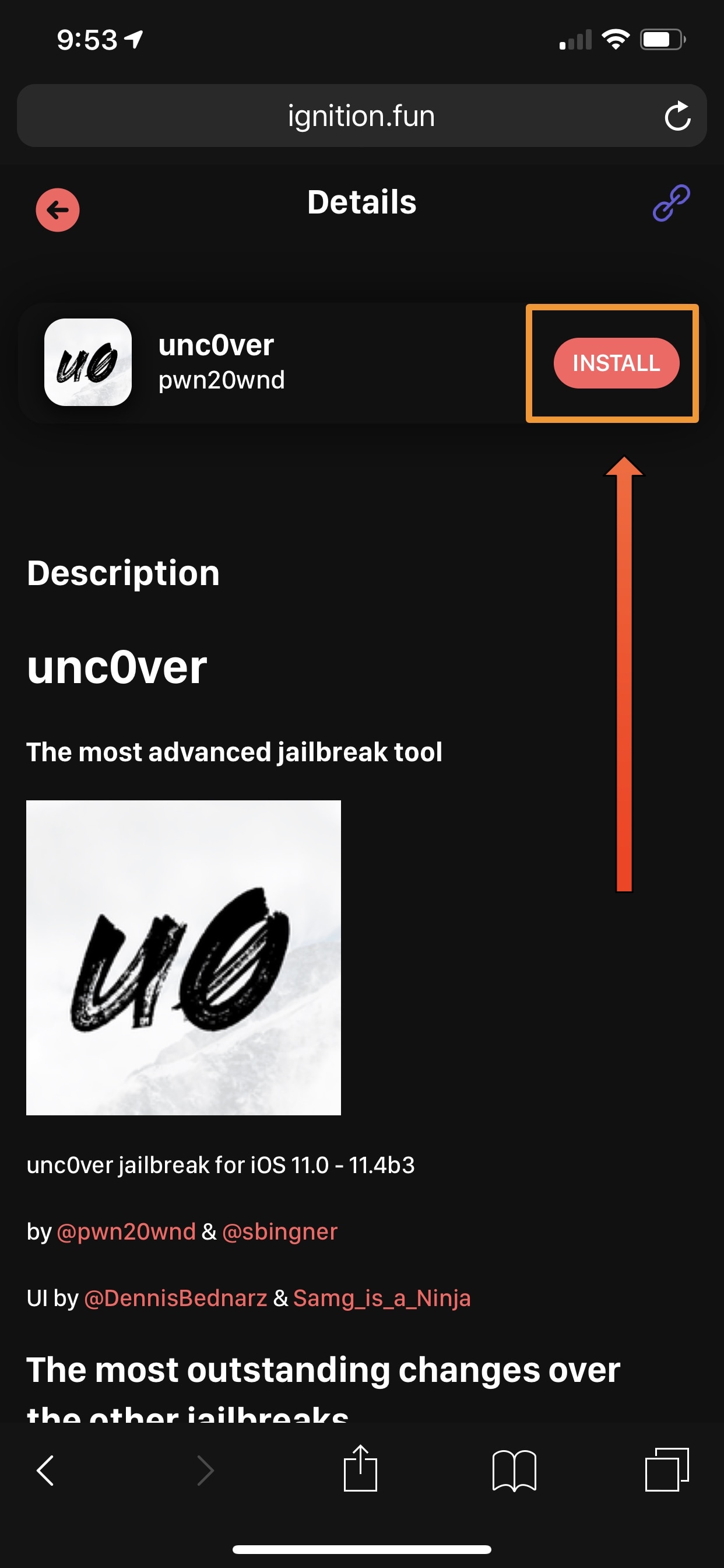
5) Tap on the unc0ver (Proper) option:


6) Tap on the orange Install button.

How to Install the Unc0ver Jailbreak Without a Computer?


7) Confirm that you want to install unc0ver by tapping on the Install button in the pop-up prompt:


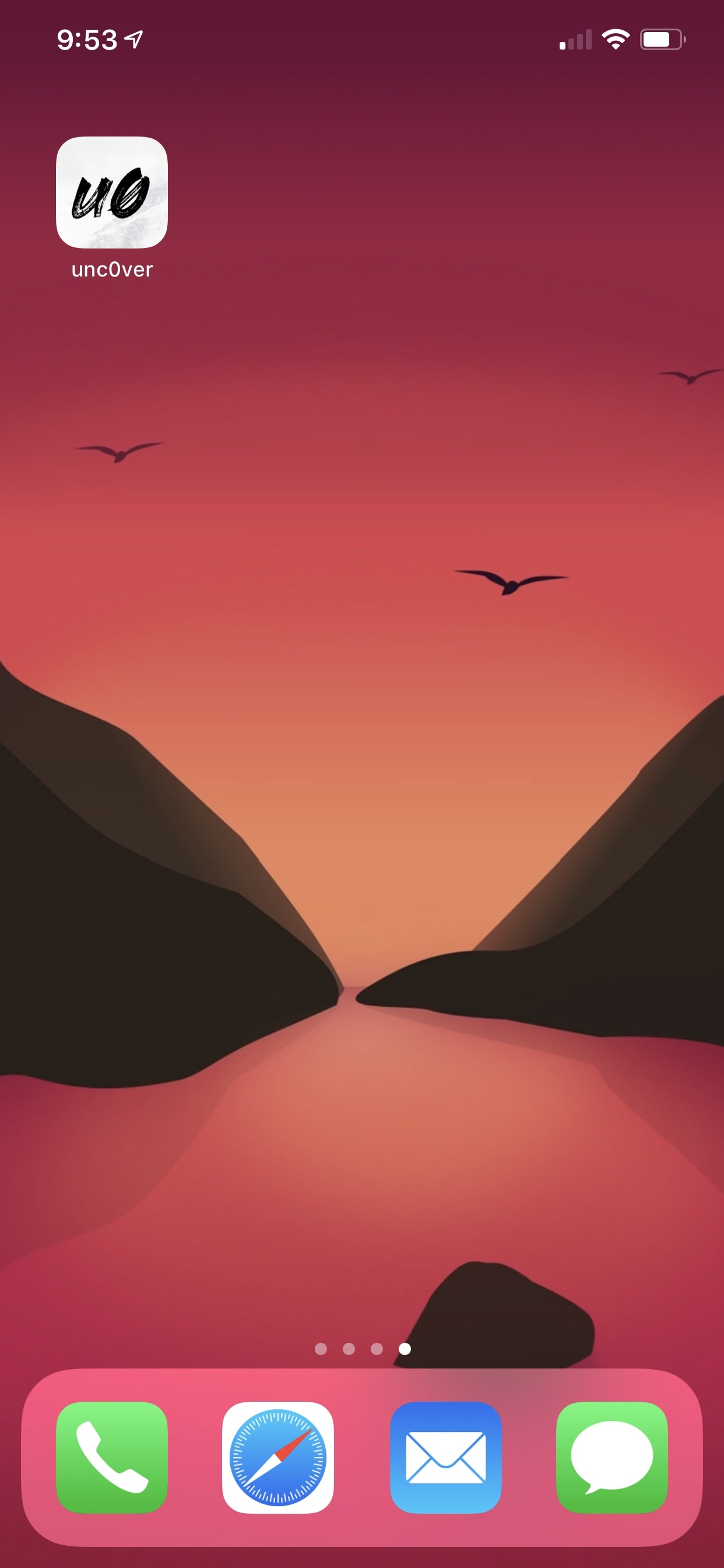
8) The unc0ver jailbreak app will now be installed on your Home screen:
How to Install the Unc0ver Jailbreak Without a Computer?

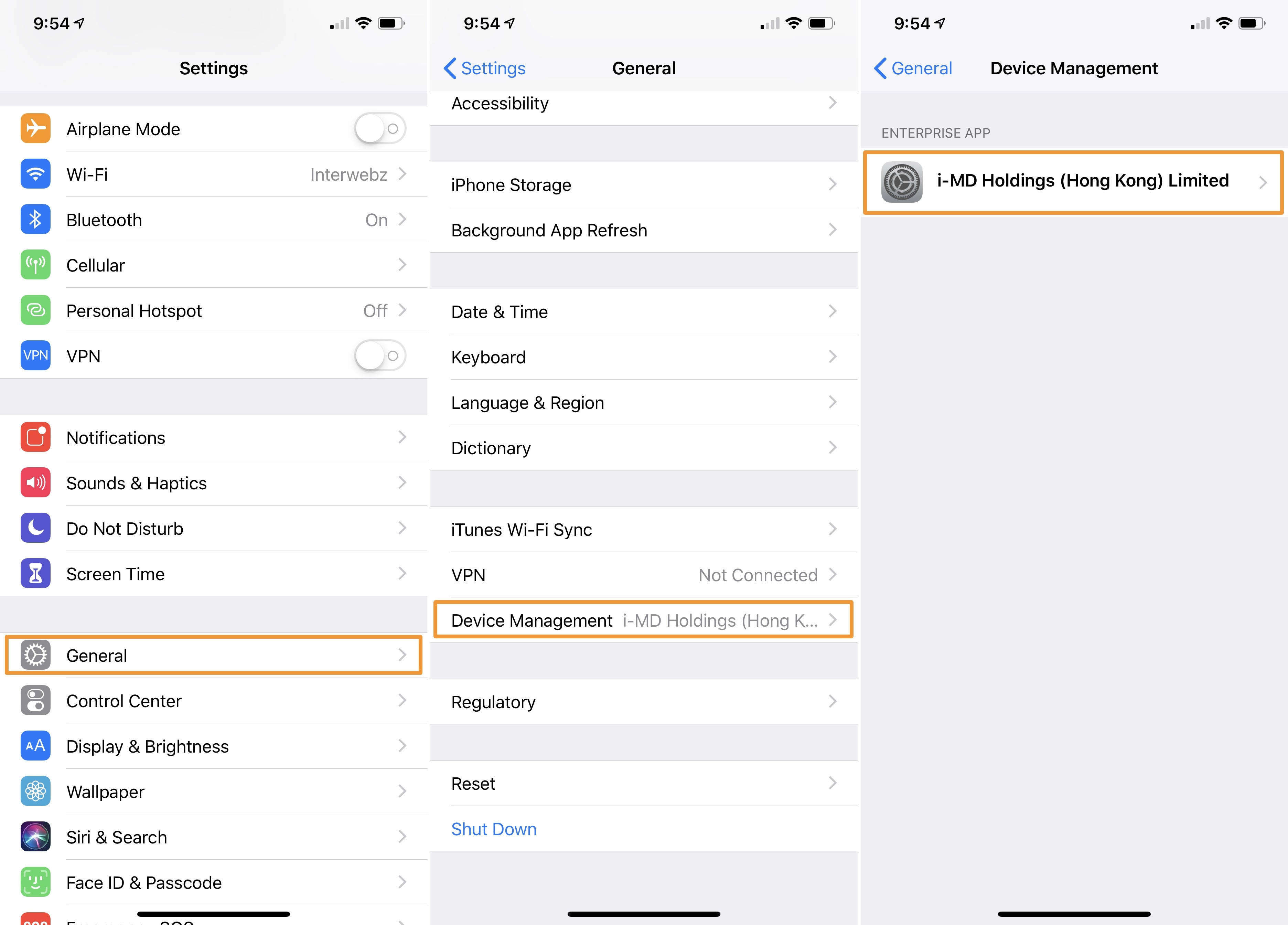
9) Next, navigate to Settings → General → Profiles & Device Management and tap on the Enterprise App profile:

How to Install the Unc0ver Jailbreak Without a Computer?


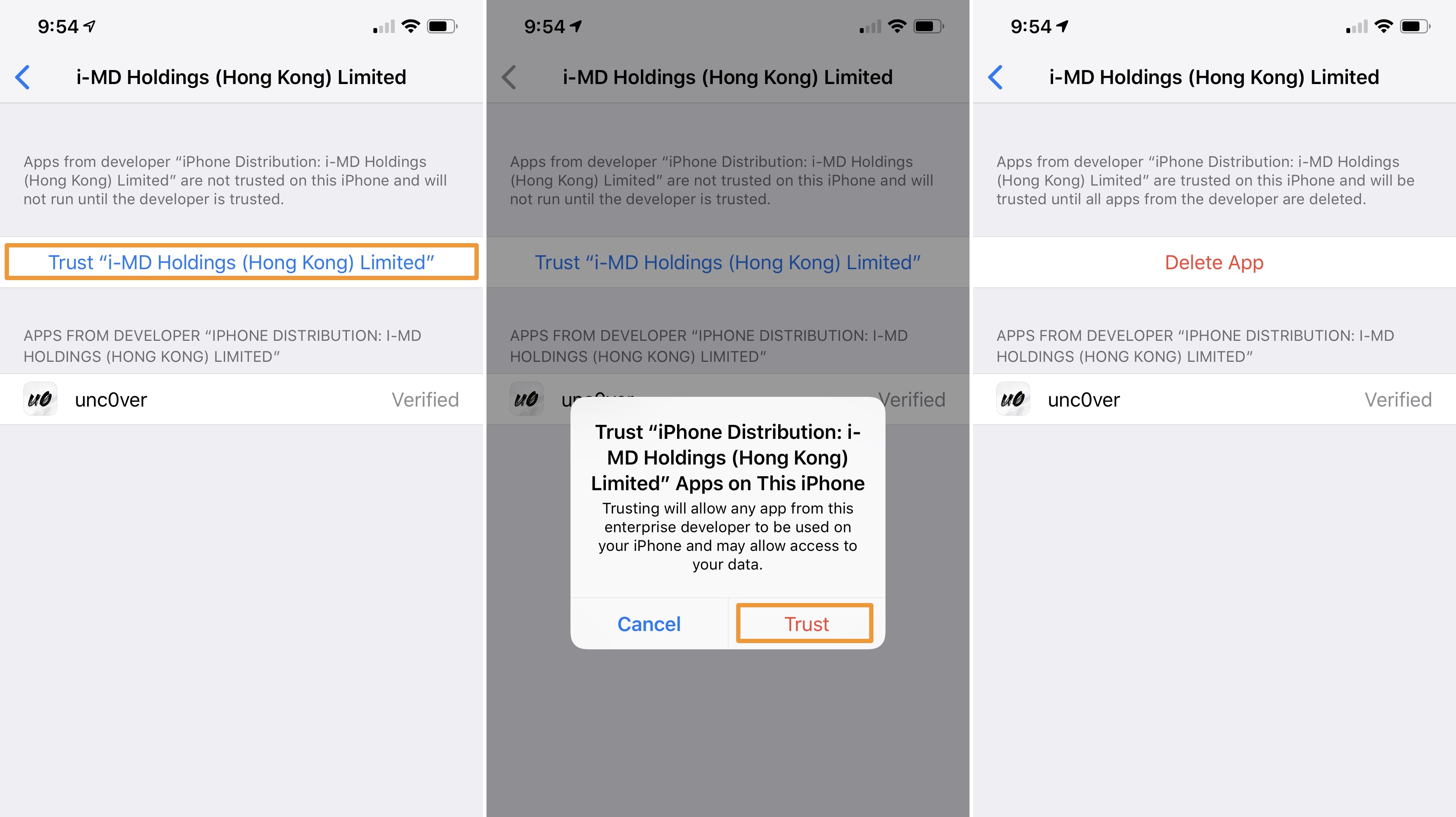
10) Tap on the blue Trust button, and then tap on the red Trust button inside the pop-up that appears:

How to Install the Unc0ver Jailbreak Without a Computer?

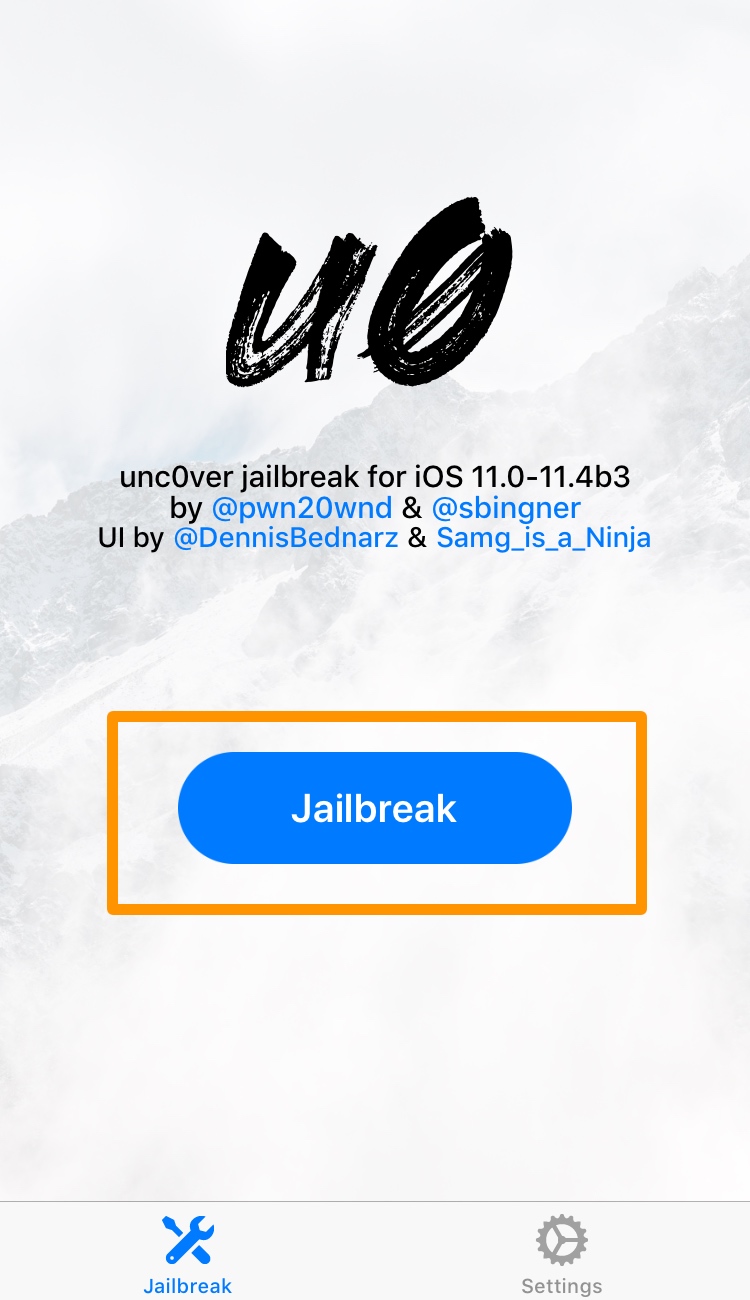
11) After you’ve trusted everything, you can proceed with the unc0ver jailbreak as you usually would by launching the app and following the on-screen instructions:

How to Install the Unc0ver Jailbreak Without a Computer?


If you’ve never jailbroken with unc0ver before, then we recommend following our in-depth tutorial encompassing how to jailbreak iOS 11.0-11.4 beta 3.



Windows
Mac OS
iOS
Linux
3uTools
Win 64-bit For this device
V9.01 2025-12-27
Download
Win 32-bit For this device
V9.01 2025-12-27
Download
3uTools
Intel Chip How to Identify Chip Type
V9.01 2025-12-31
Download
Apple Silicon
V9.01 2025-12-31
Download
How to Identify Chip Type
1.  Click the Apple icon in the top-left corner of the screen and select About This Mac.
2.  Check the Processor or Chip field to determine if it is "Intel" or "Apple".
Please use the 3uTools PC client to install the iOS client:
1、 Install either the Windows or Mac version of 3uTools on your computer
2、 Open the PC client and connect your device to the computer via USB cable
3、 After the connection is successful, wait for the computer to automatically install the mobile app for the device, or locate “Install Mobile App” on the computer and manually click to install.
3uTools
deb file
V3.01 2025-11-20
Download
rpm file
V3.01 2025-11-20
Download
Windows
Windows
iOS
iOS
Android
Android
TV
TV
3uAirPlayer
Win 64-bit For this device
V6.0.2 2025-11-19
Download
Win 32-bit For this device
V6.0.2 2025-11-19
Download
iOS Device Mirroring (No App Required)
1、 Install 3uAirPlayer on the Windows PC
2、 Open Control Center and select Screen Mirroring
3、 From the list, choose your PC to start mirroring
4、 Or connect your iOS device to the PC via USB to begin mirroring
Scan to get "3uAirPlayer" App
3uAirPlayer TV V1.0.18
2025-11-28
TV System Requirements: Android 7.0 or later
Download the TV installation package, copy it to a USB drive, insert it into your TV or set-top box, then select the file from the home screen to install.




