 TUTORIALS
How to Fix Common Cydia Problems on Electra iOS 11.3.1 Jailbreak?
 07/16/2018
 13979
13979
In this article, we show you how to fix some of the most common Cydia problems users are facing with Electra Jailbreak for iOS 11.2 – iOS 11.3.1.
Fix Cydia Not Appearing
Step 1 Enable localhost SSH access on your device using the steps given below. This will ensure your device has SSH access enabled before you move onto the subsequent steps.
Open Filza file manager and navigate to /etc/ssh.
Open the sshd_config file that contains all your SSH data.
Remove “#” before Port 22.
Input Port 2222 on the following line.
Save the file and exit.
Step 2 Download and install the iTerminal app from the App Store. This application will let you start SSH sessions on-device, thus negating the need for a computer or a Wifi network.
Step 3 Turn on Wifi from the Settings app on your device.
Step 4 Open iTermainal, start a new SSH session, and input the following details –
IP Address – 127.0.0.1
Port – 2222
Username – root
Password – alpine
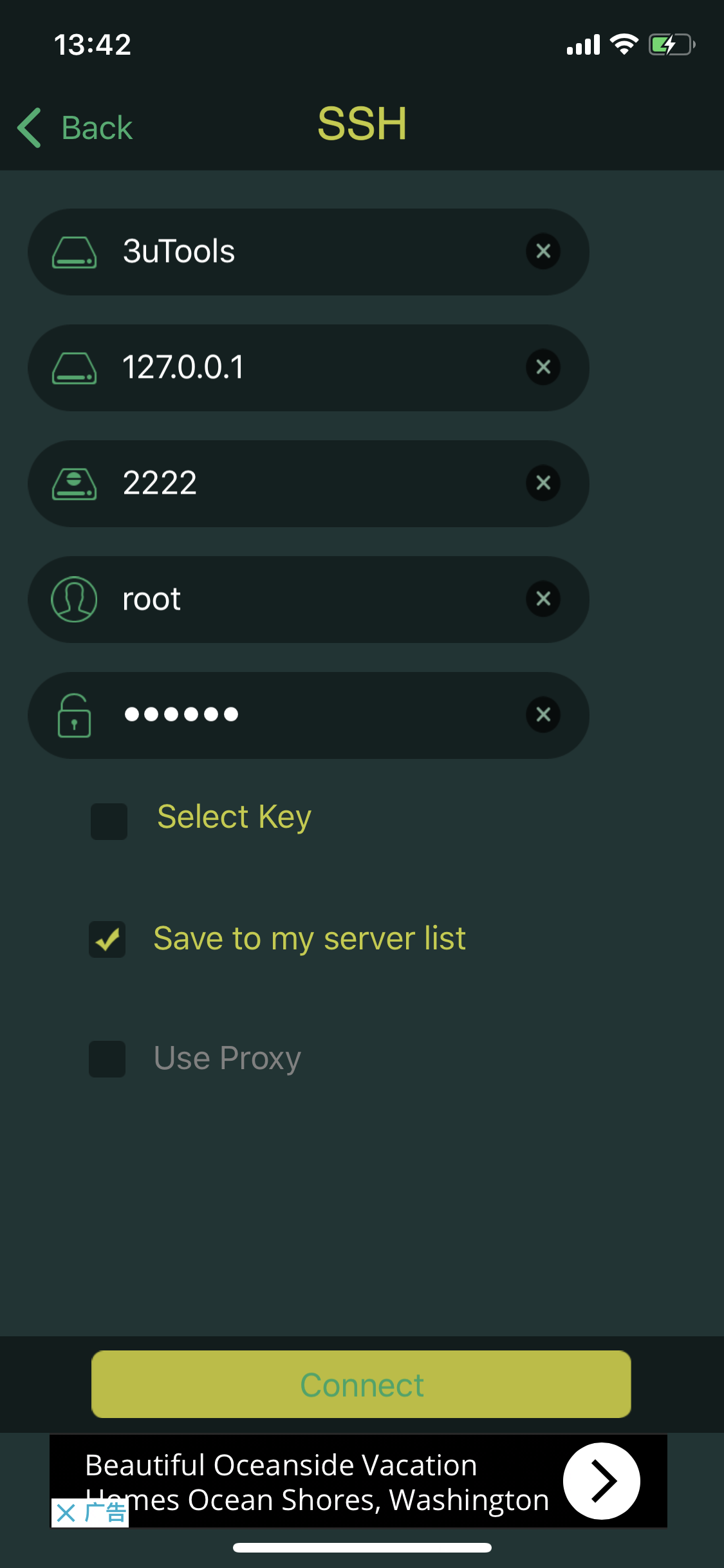
Step 5 Enter the following commands in the exact same order as they are listed below.
uicache
killall -9 springboard
Step 6 Cydia should now appear on your home screen. Open it and ensure it is in working order. You can now close your SSH connection.
Fix Cydia Keeps Crashing
Electra Jailbreak for 11.3.1 – iOS 11.2 is a semi-tethered jailbreak. So if Cydia keeps crashing after successfully jailbreaking your iPhone or iPad with Electra Jailbreak for iOS 11.3.1 – iOS 11.2 then it is most likely because your device is not in a jailbroken state yet.
To find out, launch the Electra app again. If you see Enable Jailbreak button instead of Share Electra then it means your device is not in a jailbroken state. You will need to tap the Enable Jailbreak to put your device in a jailbroken state. You may need to try a few times to put your device in jailbroken state as Electra Jailbreak is not very reliable yet. So you need to be patient and keep trying.
If you mean any Electra error, please refer: Roundup: iOS 11.3.1 Electra Jailbreak Errors and Fixes










