 TUTORIALS
Tutorial: Fix the “GPU Scheduling Priority Incompatible” Warning in 3uAirPlayer
 03/02/2026
 156
156
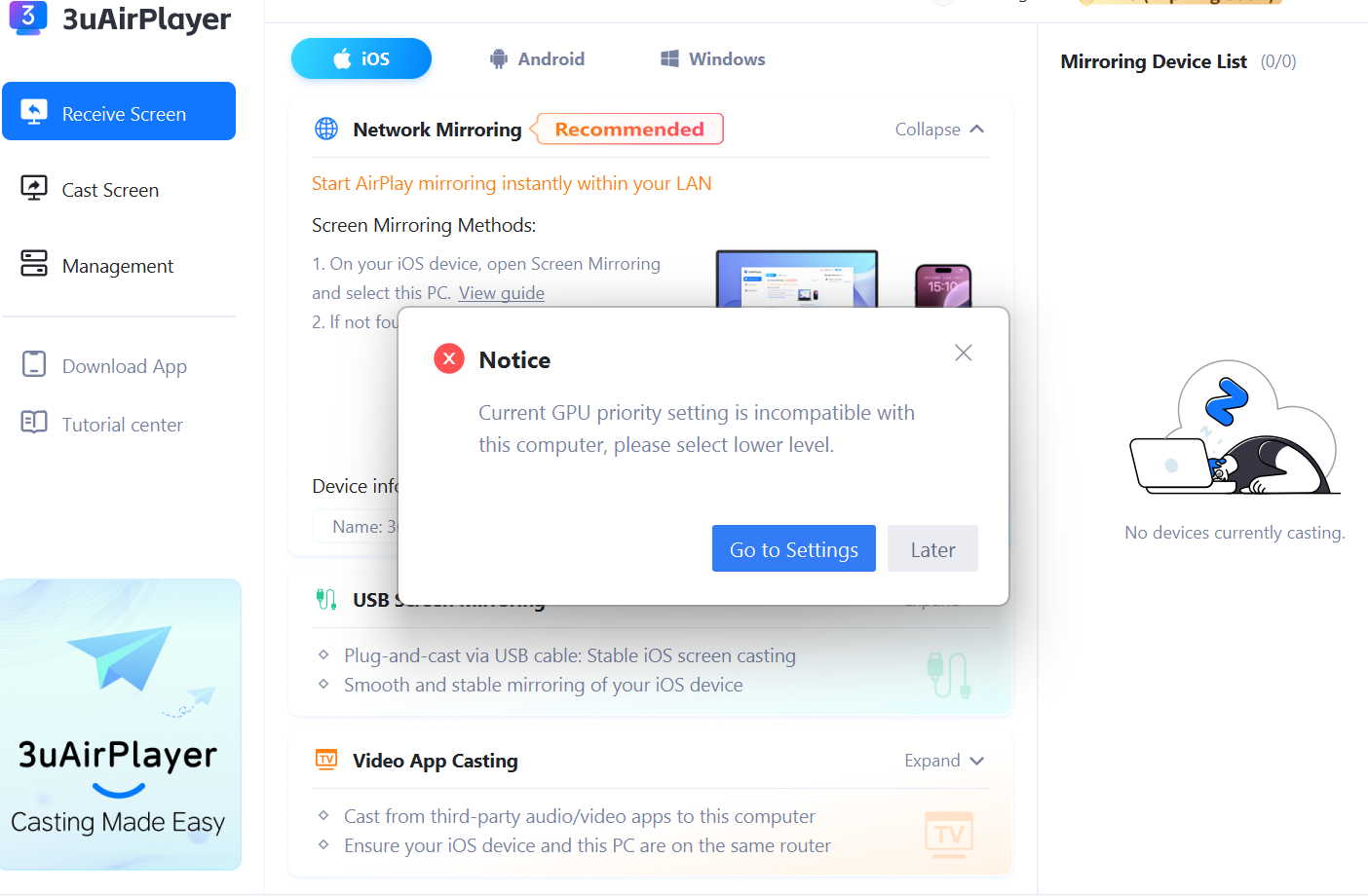
If 3uAirPlayer displays the message “The current GPU priority is incompatible with this computer. Please select a lower level,” follow the steps below to resolve the issue.
Step 1: Open Casting Settings
Open 3uAirPlayer, click the three-line menu button in the upper-right corner, and select “Casting Settings” to open the casting settings page.
Step 2: Adjust GPU Scheduling Priority
In Casting Settings, locate “GPU Scheduling Priority” and set it to “Medium” or “Low.” Lowering the GPU priority resolves the warning caused by an incompatible priority level.
Step 3: Save Settings and Restart the App
After adjusting the priority, save the settings and restart 3uAirPlayer. When you start casting again, the “GPU Scheduling Priority Incompatible” warning should no longer appear, and casting should work normally.









