 TUTORIALS
OBS Virtual Camera Shows No Video
 02/27/2026
 23
23
If you add a virtual camera in OBS and see no video, it is usually due to incompatible resolution/frame rate settings. You can fix it using the following two methods.
Solution 1: Switch to “Device Default” Resolution / Frame Rate
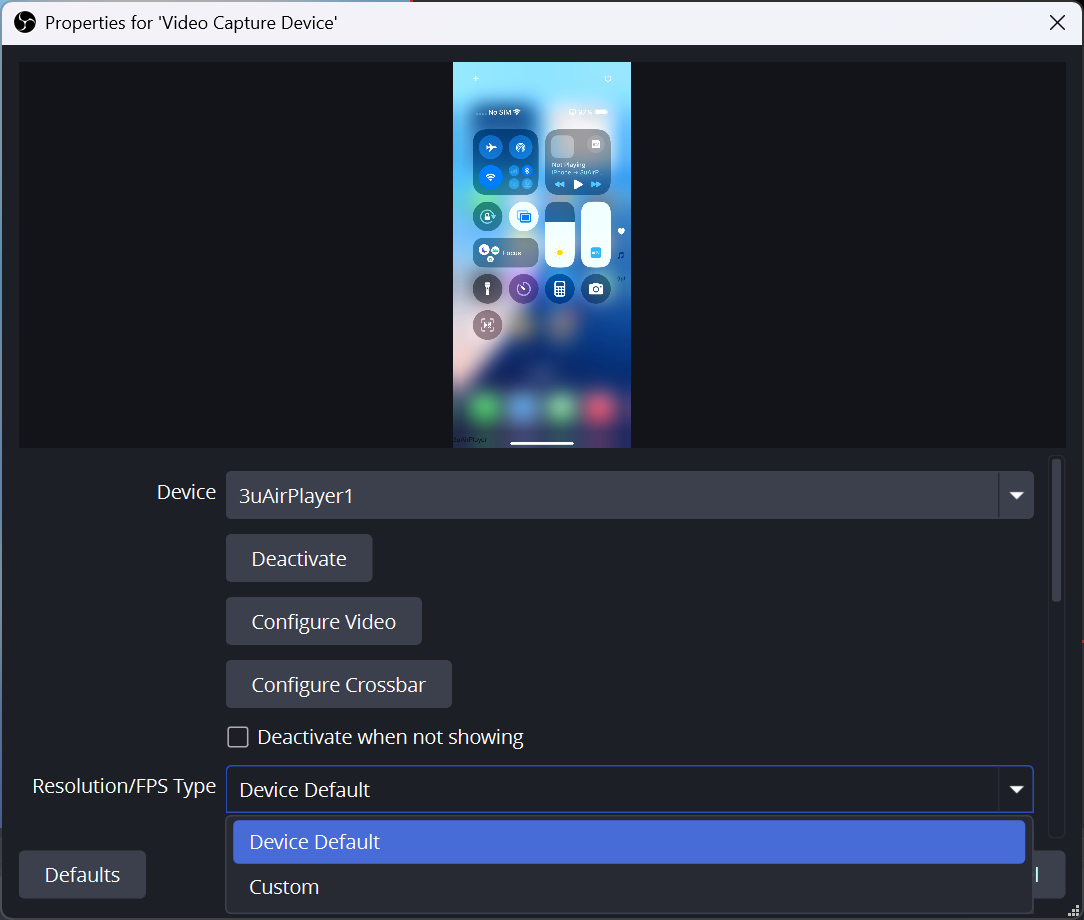
a. Open OBS and locate the Video Capture Device (the source corresponding to the virtual camera)—open Settings by double-clicking the Video Capture Device to access the Video Capture Device Settings window.
b. Find the “Resolution / FPS Type” dropdown menu and switch from “Custom” to “Device Default”.
c. Click OK to apply settings. Then, the virtual camera video usually returns to normal.
Solution 2: Select a Supported Resolution
a. Open the Video Capture Device Settings window and make sure “Resolution / FPS Type” is set to Custom.
b. Click the dropdown next to “Resolution” and choose a resolution supported by your device.
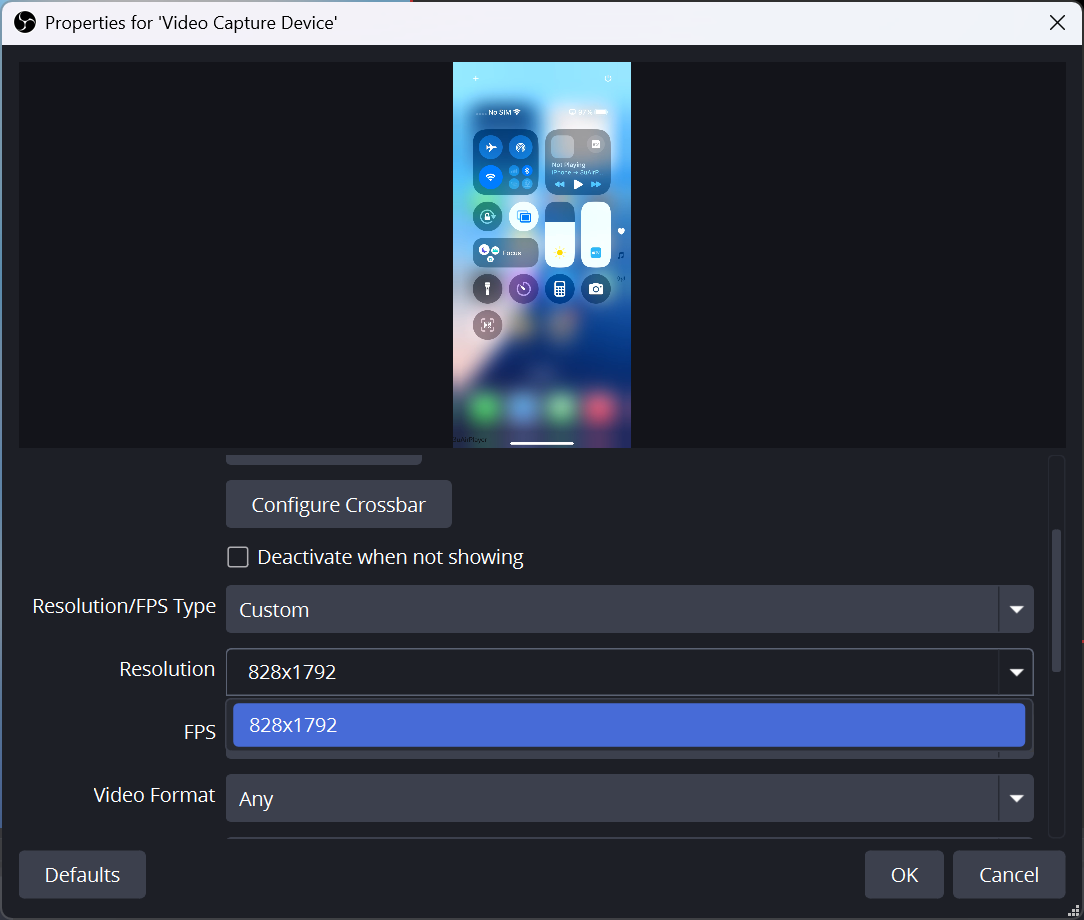
c. Confirm Settings. Click OK. The virtual camera should now display video normally.
Explanation
Virtual cameras have compatibility requirements for resolution and frame rate. If unsupported parameters are set in Custom mode, the video will not display.
Switching to Device Default or selecting a resolution explicitly supported by your device ensures the settings match your device’s capabilities, which resolves the no-video issue.









