NEWS

Screens VNC Client for iOS Updated With Mouse and Trackpad Support on iPadOS

04/01/2020

3161

Screens VNC Client for iOS Updated With Mouse and Trackpad Support on iPadOS

There are many solutions available to remotely control a computer via an iPhone or iPad, and Screens 4 is one of them. Screens app for iOS was updated today with some great new features, including full compatibility for mouse and trackpad on iPad with iPadOS 13.4.


We have recently announced that the Darkroom photo editor was one of the first apps that was updated with advanced mouse support on iPad, and now Screens 4 joins the club. As Screens is a VNC client app that lets you control a Mac or PC from anywhere, using it with the iPad gets even better with the latest update.


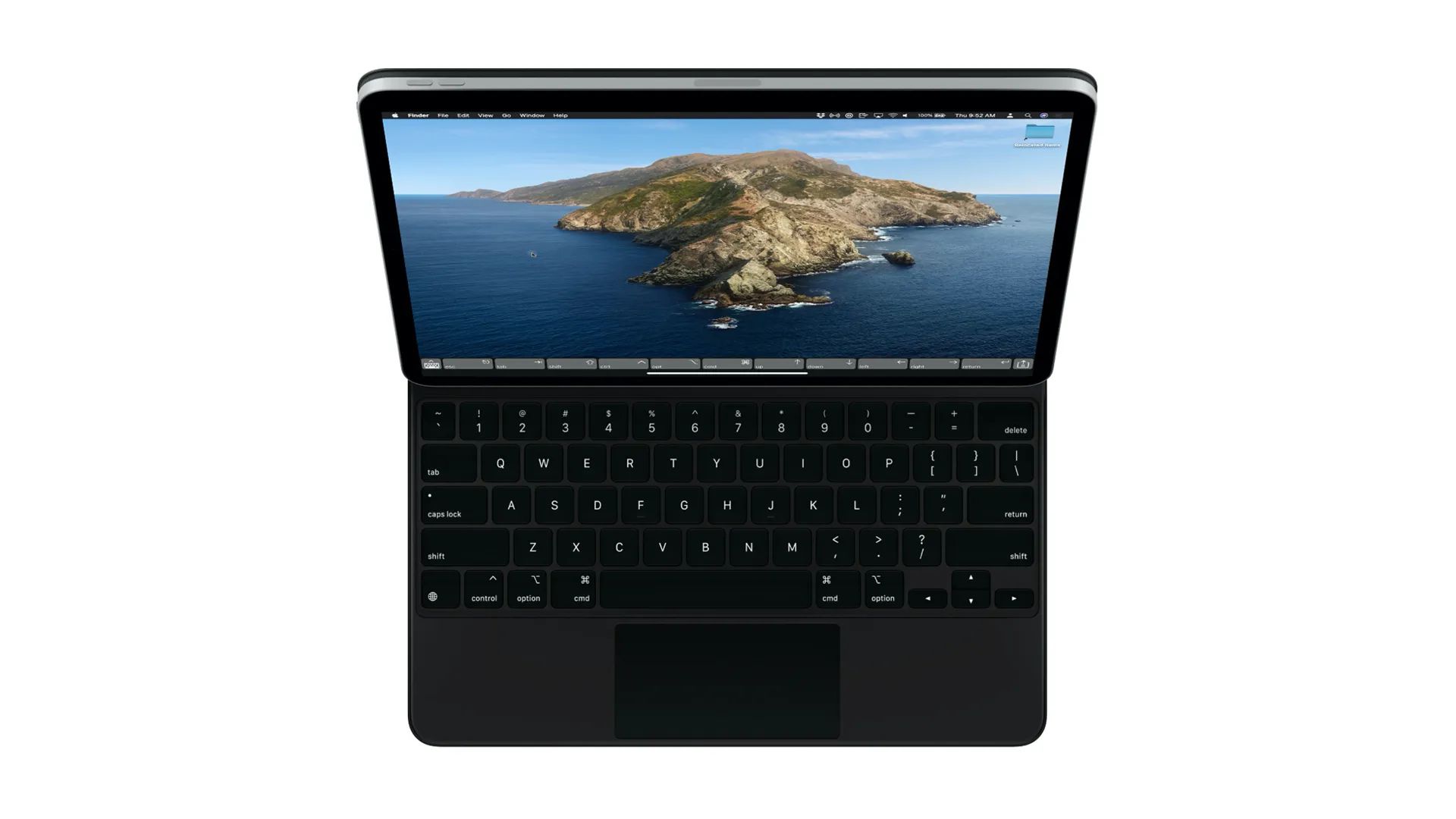
Screens fully supports hardware keyboards and pointing devices*, including mice, trackpads, and the soon to be released Magic Keyboard. With this, Screens really turns your iPad into a mini computer powerhouse.


Users can now control their computer through the app with the native cursor available on iPadOS 13.4. Developers have improved clicks and gestures such as drag-and-drop using the mouse, and it’s also possible to scroll with a compatible trackpad. Version 4.9.13 also fixes several issues and improves app stability and performance.


Screens 4 is available on the App Store for $19.99. It works with any iPhone, iPod touch, and iPad model running iOS 13.1 or iPadOS 13.1 and later, but the advanced mouse support requires iPadOS 13.4.


Source: 9to5mac

Windows
Mac OS
iOS
Linux
3uTools
Win 64-bit For this device
V9.0 2025-11-11
Download
Win 32-bit For this device
V9.0 2025-11-11
Download
3uTools
Intel Chip How to Identify Chip Type
V9.0 2025-12-02
Download
Apple Chip
V9.0 2025-12-02
Download
How to Identify Chip Type
1.  Click the Apple icon in the top-left corner of the screen and select About This Mac.
2.  Check the Processor or Chip field to determine if it is "Intel" or "Apple".
Please use the 3uTools PC client to install the iOS client:
1、 Install either the Windows or Mac version of 3uTools on your computer
2、 Open the PC client and connect your device to the computer via USB cable
3、 After the connection is successful, wait for the computer to automatically install the mobile app for the device, or locate “Install Mobile App” on the computer and manually click to install.
3uTools
deb file
V3.01 2025-11-20
Download
rpm file
V3.01 2025-11-20
Download
Windows
Windows
iOS
iOS
Android
Android
TV
TV
3uAirPlayer
Win 64-bit For this device
V6.0.2 2025-11-19
Download
Win 32-bit For this device
V6.0.2 2025-11-19
Download
iOS Device Mirroring (No App Required)
1、 Install 3uAirPlayer on the Windows PC
2、 Open Control Center and select Screen Mirroring
3、 From the list, choose your PC to start mirroring
4、 Or connect your iOS device to the PC via USB to begin mirroring
Scan to get "3uAirPlayer" App
3uAirPlayer TV V1.0.18
2025-11-28
TV System Requirements: Android 7.0 or later
Download the TV installation package, copy it to a USB drive, insert it into your TV or set-top box, then select the file from the home screen to install.