 NEWS
NEWS
Apple Confirms You Can Clean Your iPhone With Disinfecting Wipes
 03/10/2020
 2670
2670
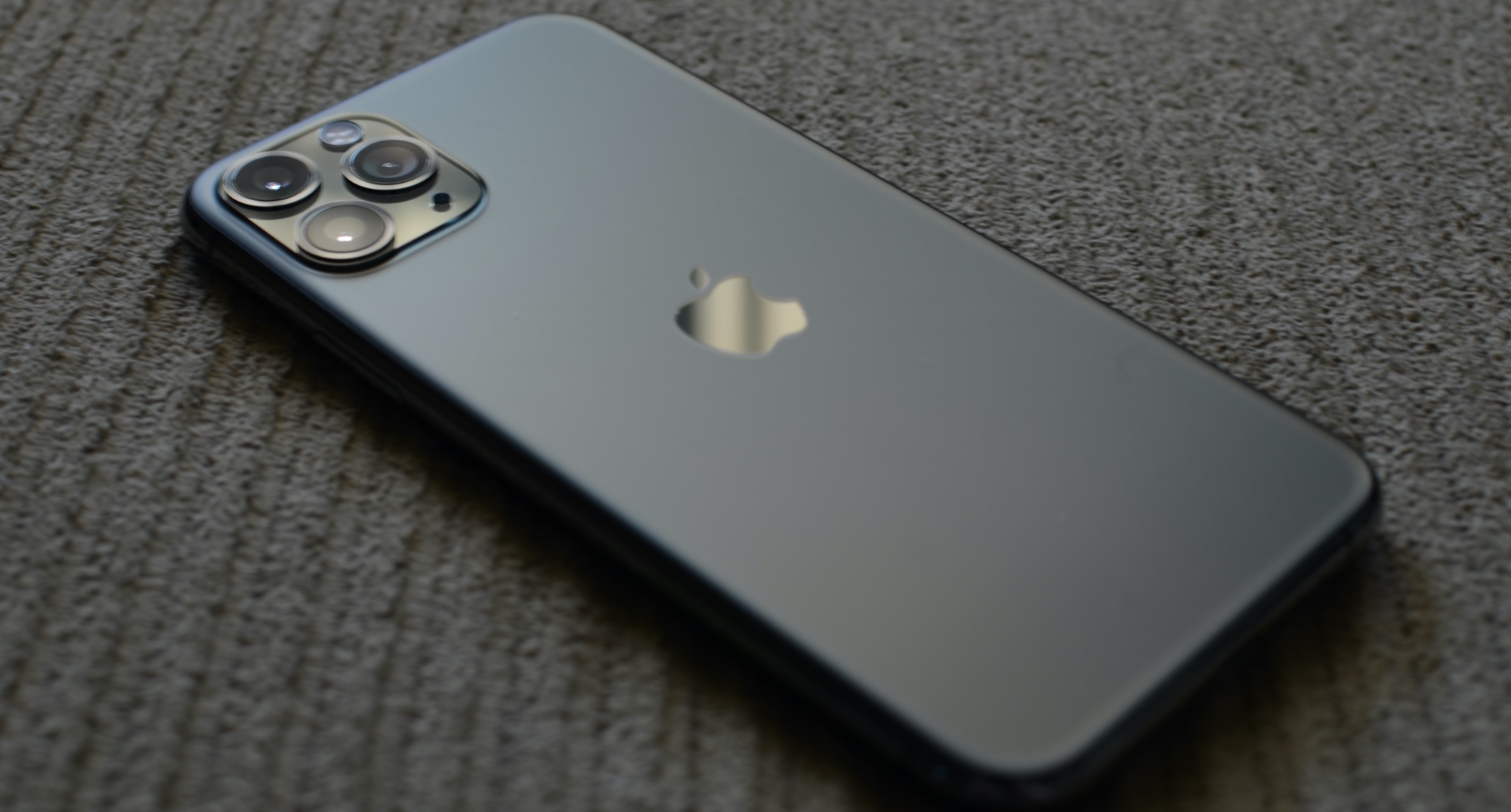
Apple has had a pretty set standard for cleaning guidelines for its products for years now, but it turns out that a big change has come into play: disinfecting wipes.
The Wall Street Journal‘s Joanna Stern tried it out over the last week and discovered that, yes, you can indeed clean your Apple products with disinfecting wipes. There are some caveats, of course. Apple’s confirmation that you can use the wipes says that the disinfecting wipes can be made from 70 percent isopropyl alcohol. That includes general wipes, or you can go ahead and use Clorox’s Disinfecting Wipes, which are A-OK as well.
Using a 70 percent isopropyl alcohol wipe or Clorox Disinfecting Wipes, you may gently wipe the hard, nonporous surfaces of your Apple product, such as the display, keyboard, or other exterior surfaces. Don’t use bleach. Avoid getting moisture in any opening, and don’t submerge your Apple product in any cleaning agents. Don’t use on fabric or leather surfaces.
Up to this point, Apple has generally recommended that Apple device owners don’t use cleaners of this nature. The company still warns that the chemicals from the cleaners can damage the oleophobic coating on the display of devices like the iPhone and iPad.
Related, the report from the WSJ. Stern tested this out, testing the Clorox Disinfecting Wipes on an iPhone 8. The test went on for about a week, as I mentioned above, and it included wiping the iPhone 8’s display over 1,000 times. Stern was going for the estimated times someone might clean their display over the course of ownership.
When it was all said and done, Stern discovered that the oleophobic coating on the iPhone 8 was just fine, and that the wipe did not harm the coating at all by the end of the test.
So, a big change! At least now you know you can use certain disinfecting wipes without fear of ruining your device.
Of course, Apple does make this note on its official support page: If liquid makes its way inside your Apple product, get help from an Apple Authorized Service Provider or Apple Retail Store as soon as possible. Liquid damage isn’t covered under the Apple product warranty or AppleCare Protection Plans, but you may have rights under consumer law. If you plan to visit an Apple Retail store, make a reservation at the Genius Bar (available only in some countries and regions).
Now that you know you can wipe down your device with a disinfecting wipe, do you think you’ll start cleaning it with the cleaning product?
Source: iDB









