 NEWS
NEWS
Disney World Returns Fully Working iPhone 11 to Family Weeks After Device Sank to Bottom of Lake
 03/02/2020
 2904
2904
A family from Montana has both Apple and Disney to thank for ensuring their recent vacation ended magically after all.
In early October, parents Lisa and Jacob Troyer took their daughter Sophie on a weeklong trip to Disney World to "fulfill a little girl's dream." While there, they took in the Florida sun, went on rides, met Halloween-themed Disney characters, and had all of the fun that one could possibly imagine. 
One not so fun moment came on the final evening of the trip. After attending Mickey Mouse's Not-So-Scary Halloween Party at Magic Kingdom and waiting for a ferryboat to depart the park, Lisa's brand new iPhone 11 fell out of her bag and landed right into the Seven Seas Lagoon, a small body of water in front of Magic Kingdom where Disney operates water-based transportation.
With the iPhone sinking to the bottom of the lake and it being late at night, Lisa believed the chances of getting the device back would be slim.
"I was upset to have lost my phone, and the pictures I had taken that evening of Disney's Halloween party, which had been the main event for our trip," said Lisa. "Our six-year-old daughter was particularly devastated, as pictures of her and Jack Skellington would never materialize; instead, they sat at the bottom of a lagoon." 
The next day, Lisa provided her contact information to a Disney World employee, who informed her that the resort had a team of scuba divers that retrieved lost goods every so often. Lisa's hopes remained low, and upon returning to Montana, she purchased a new phone and her family moved on with life as usual.
Almost two months later, Lisa received some missed calls from the Orlando area. Figuring it was a telemarketer, she ignored them. Then came a call from her father-in-law, who let her know that Disney had found her iPhone.
Lisa says the Disney employee mailed the phone to her and, despite being submerged for quite some time, she found the device to be completely functional. "I was able to retrieve all of the pictures from our Disney Halloween night, and besides some sand in my case and a little algae on the cover, the phone seems no worse for the wear," she said, noting that the device was only protected by a thin silicone case.
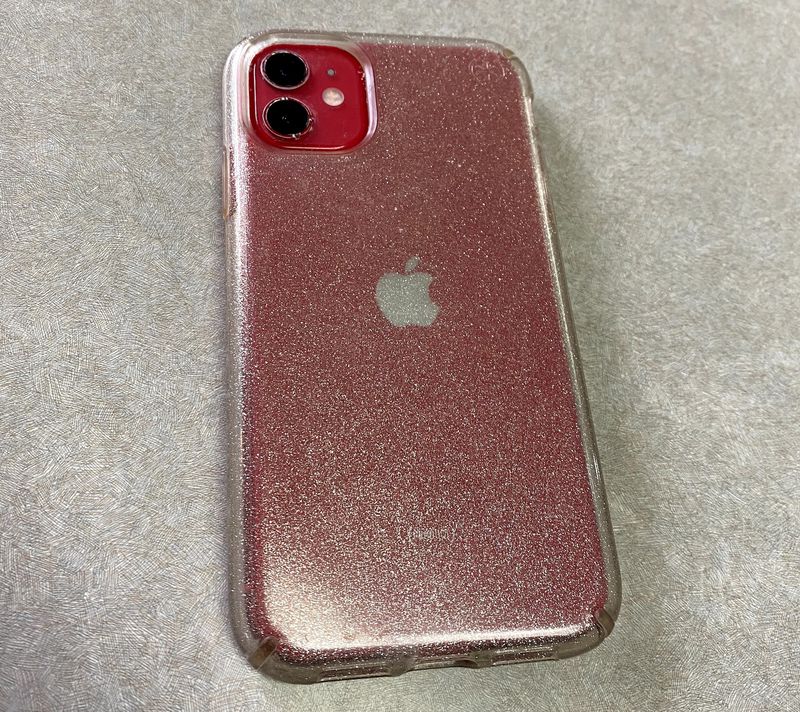
Impressed with the iPhone 11's water resistance, Lisa wrote about her experience in an email to Apple CEO Tim Cook, who thanked her for sharing the story. Her husband Jacob then relayed the story to MacRumors.
Lisa says her husband has always been "a very devoted Apple product user," revealing that one of the very first gifts he bought for her was the original iPad. She had purchased an iPhone 11 just a few days before traveling to Disney World, and thanks to its water resistance, her family now has photos that will last a lifetime.
Source: Macrumors









