 NEWS
NEWS
Siri Now Able to Answer U.S. Election Questions
 02/12/2020
 2853
2853
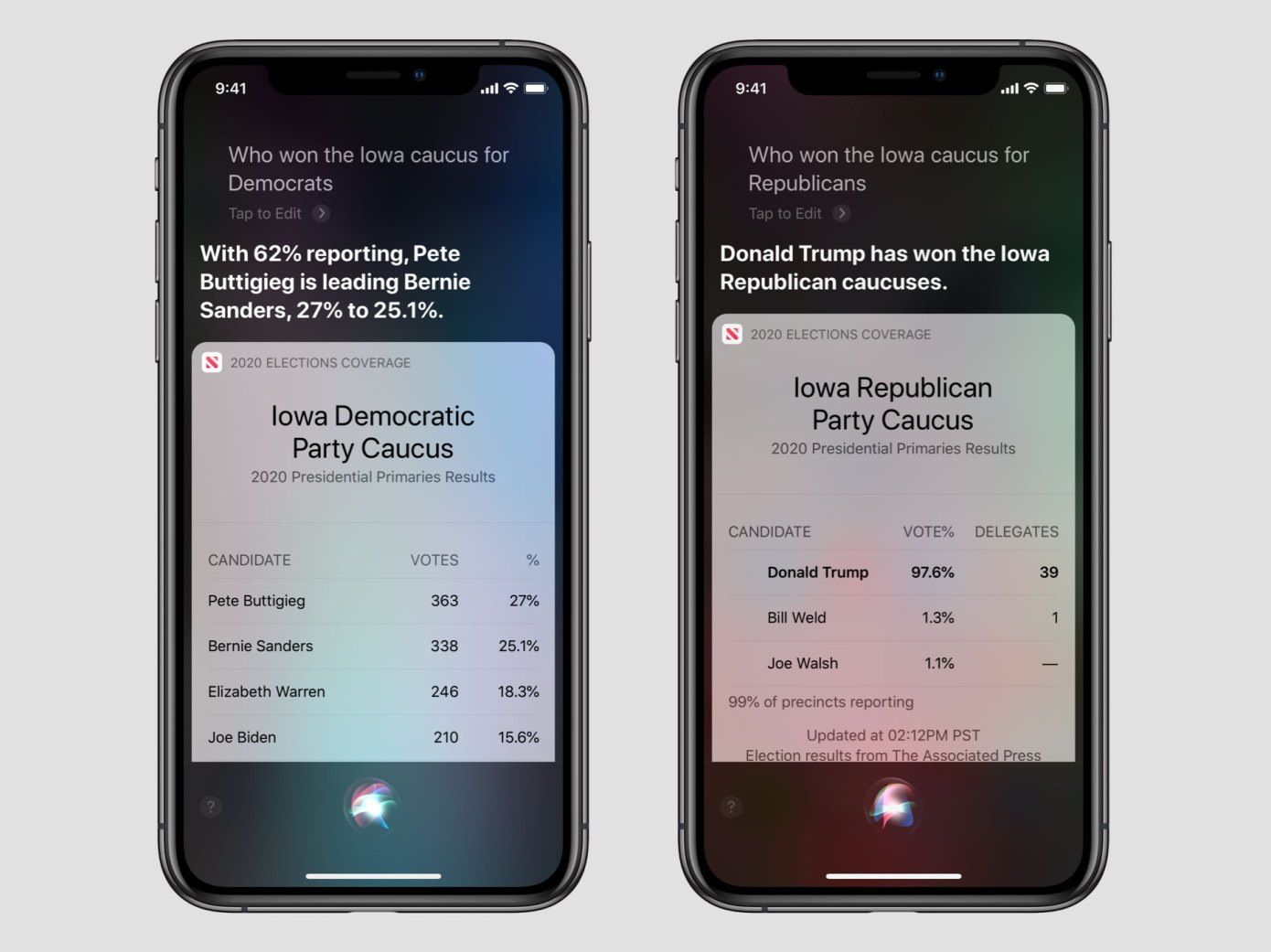
Apple is seemingly going all-in with 2020 election coverage in the United States, and it’s (finally) bringing Siri along for the ride.
As first noted on Tuesday by TechCrunch, Siri is now capable of answering questions directly related to the 2020 U.S. elections. Siri’s more than willing to answer your queries related to the issue on Apple’s range of products, including the iPhone, iPad, the Apple TV, and HomePod, along with other Apple-branded products.
With this new feature addition, you can ask Apple’s digital assistant things like, “Who is winning in the New Hampshire primaries?” or “When are the California primaries?” if you are so curious. You’ll get the standard visual answers as well, but Siri will speak the response out loud.
The report indicates that the live information is being delivered by the Associated Press.
The live results are being delivered via the Associated Press, Apple says. The company is also leveraging the AP’s real-time results in its Apple News app in order to give county-by-county results and a national map tracking candidate wins by each state primary, among other things.
This is just one of many steps that Apple has taken to cover the 2020 U.S. elections. For example, last week Apple, via Apple News, co-hosted with ABC a Democratic Presidential debate, where voters could actually submit questions through the Apple News app. And Apple launched curated coverage of the 2020 presidential election in the Apple News app earlier this month.
The addition of Siri’s support is a nice touch.
Source: iDB









