 NEWS
NEWS
iOS 13.3 Arrives With Full Support for Physical Security Keys
 12/11/2019
 2293
2293
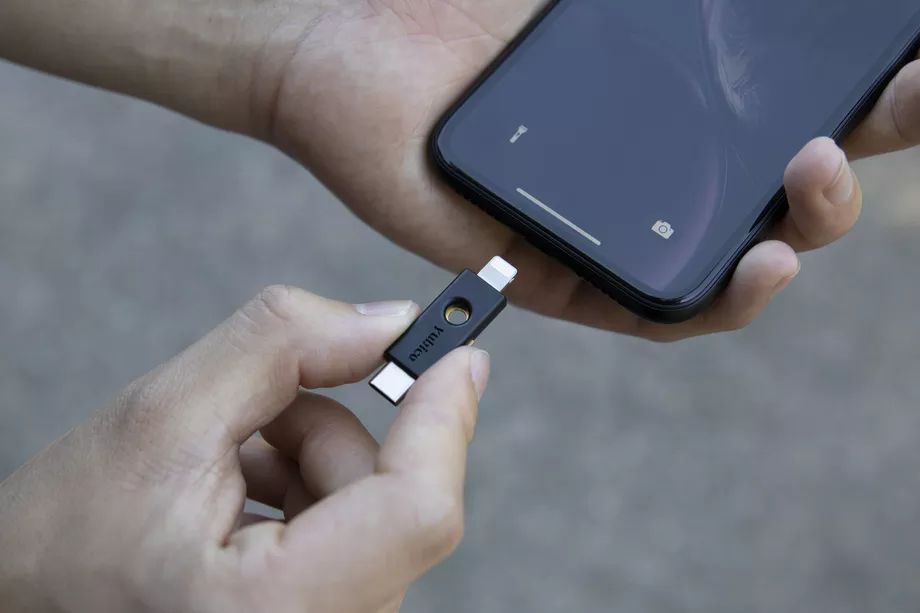
Apple is releasing its new iOS 13.3 update today with a pair of big features for all compatible devices. One of those is a major security update that enables the use FIDO2-compliant USB-C, NFC, and Lightning physical security devices with Apple’s Safari browser. These physical security keys offer greater account protection, and Yubico released the first Lightning security key back in August. Previously, iOS apps had to individually add support for a Lightning connector on the YubiKey 5Ci into their apps, but Apple’s native support will open this up to all apps and sites.
A number of web services like Gmail, Dropbox, Twitter, Outlook, and Facebook support security keys, so Apple’s native iOS support is a big improvement for any iPhone owner who wants to use a physical security key.
Today’s update also includes a new feature that’ll be helpful for parents: Communication Limits, which allows parents to control who can and can’t contact their kids. On a children’s account, parents can now choose to limit communications to only approved contacts within Apple’s core apps — Phone, FaceTime, Messages, and iCloud. That list can be narrowed even further once Screen Time limits are up, so parents might limit communications to family members only. It’s a useful safety feature, but keep in mind that it only works within those specific Apple apps; third-party apps could give kids a way to contact other people.
Alongside those additions, iOS 13.3 includes some other minor updates. Beta users have reported that RAM management appears to have improved, and Apple has also added the ability to hide the Memoji stickers in keyboard settings. iOS 13.3 is rolling out to all supported devices right now, and you can install it immediately by checking Settings > General > Software Update.
Source: The Verge









