 NEWS
NEWS
No Face ID required Apple Pay Express Mode now Available for the London Underground
 12/02/2019
 3039
3039
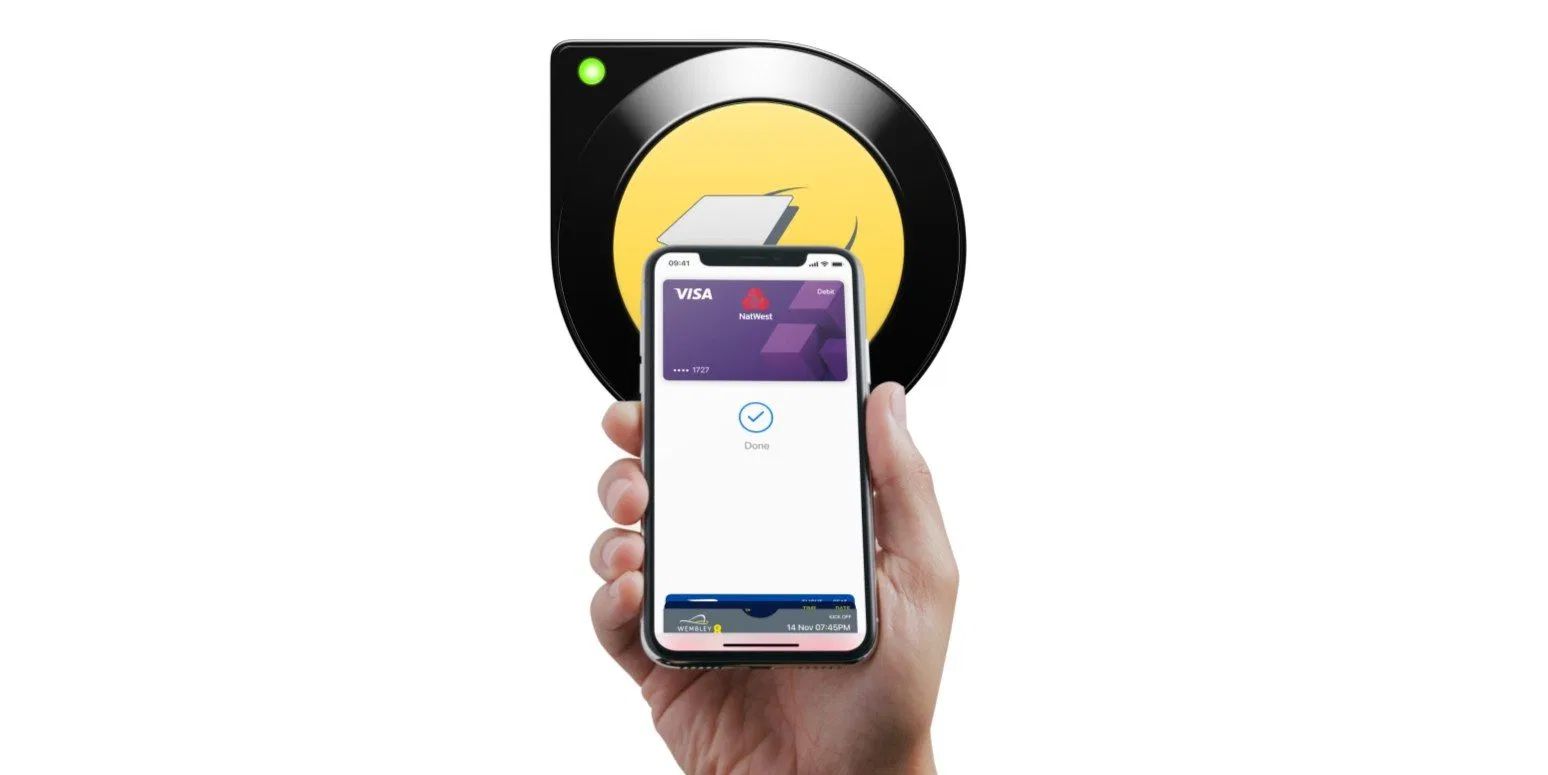
If you are in London, you can now travel using Apple Pay on the Underground network without having to use Touch ID or Face ID authentication.
This means that you don’t need to hold up the queue at the turnstile when travelling the Underground. You can simply tap and go with either iPhone or Apple Watch.
Express Transit has been a feature since iOS 12.3 but it requires partnerships with the transit networks in order for the feature to work. Apple announced the new support for the London Underground today with a new web page and sending out notifications to iPhone and Apple Watch users in the United Kingdom.
Apple says Express Mode is available on all Transport for London services, including the Underground, buses and trams. Customers just need to look out for the yellow contactless card reader.
How to setup Express Mode for Apple Pay
To set up Express Travel, you need an iPhone 6s or later.
Open Settings.
Scroll down and select Wallet & Apple Pay.
Select Express Travel Card.
You now see a list of cards, with the None option set by default. Select a preferred card.
The Express Mode travel trades some security for convenience. With the Express Travel card set, anyone who has possession of your device will be able to pay for transit rides using that card. Face ID / Touch ID authentication will still be required for all other Apple Pay purchases.
You can also enable Express Mode for Apple Watch. In this case, it removes the need to double click the side button to wake up the Apple Pay mode. You simply hold your watch near the Underground terminal and you’re done.
Apple Pay Express Transit is currently available for the TfL network in London, the MTA in New York City, Hop Fastpass in Portland, Suica transit in Japan and select Beijing and Shanghai transit cards.
Source: 9to5mac









