NEWS

Apple Makes Change to Show Crimea Differently in its Apps to Satisfy Russian Government

11/28/2019

2994

Apple Makes Change to Show Crimea Differently in its Apps to Satisfy Russian Government


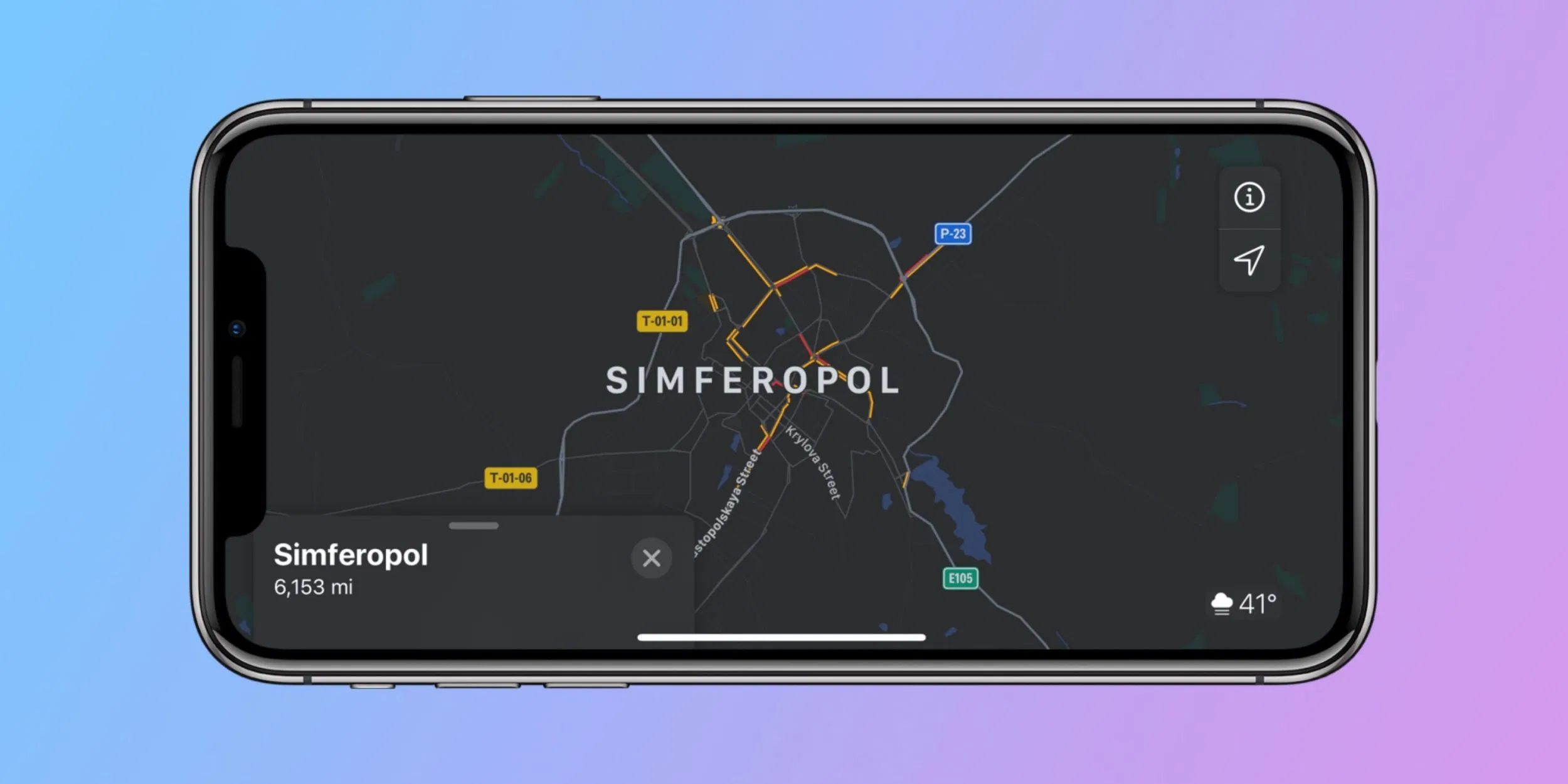
In another example of Apple walking a fine line with global governments, it has changed how Crimea is displayed in its Maps and Weather apps after heeding Russian demands.


In a globally criticized move in 2014, Russia annexed Crimea from Ukraine. Now, as reported by the BBC, Apple has updated how Crimea shows in its Maps and Weather apps and the results are different based on if you’re viewing the apps from inside Russia or not.


BBC notes that the Russian State Duma put out a very short statement highlighting the change, “Crimea and Sevastopol now appear on Apple devices as Russian territory.”


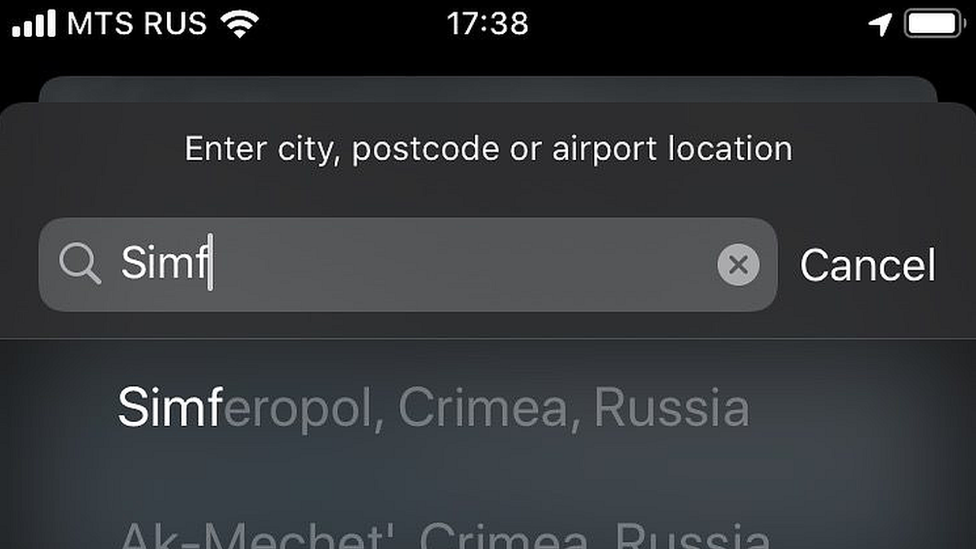
For Apple customers in Russia, here’s how it now looks in the Weather app:

Apple Makes Change to Show Crimea Differently in its Apps to Satisfy Russian Government


And here’s the same search from outside Russia:


Apple was reportedly in discussions with Russia for months over the issue and preferred to leave the region as an “undefined territory.”


But Vasily Piskaryov, chairman of the Duma security and anti-corruption committee, said Apple had complied with the Russian Constitution.


In contrast, Google Maps shows Crimea as an undefined territory but it does use Russian spellings instead of Ukrainian ones.


Apple has seen criticism building around its foreign relations, most recently with the Hong Kong protests and the decision to pull the HKmap Live app.


Source: 9to5mac

Windows
Mac OS
iOS
Linux
3uTools
Win 64-bit For this device
V9.0 2025-11-11
Download
Win 32-bit For this device
V9.0 2025-11-11
Download
3uTools
Intel Chip How to Identify Chip Type
V9.0 2025-12-02
Download
Apple Chip
V9.0 2025-12-02
Download
How to Identify Chip Type
1.  Click the Apple icon in the top-left corner of the screen and select About This Mac.
2.  Check the Processor or Chip field to determine if it is "Intel" or "Apple".
Please use the 3uTools PC client to install the iOS client:
1、 Install either the Windows or Mac version of 3uTools on your computer
2、 Open the PC client and connect your device to the computer via USB cable
3、 After the connection is successful, wait for the computer to automatically install the mobile app for the device, or locate “Install Mobile App” on the computer and manually click to install.
3uTools
deb file
V3.01 2025-11-20
Download
rpm file
V3.01 2025-11-20
Download
Windows
Windows
iOS
iOS
Android
Android
TV
TV
3uAirPlayer
Win 64-bit For this device
V6.0.2 2025-11-19
Download
Win 32-bit For this device
V6.0.2 2025-11-19
Download
iOS Device Mirroring (No App Required)
1、 Install 3uAirPlayer on the Windows PC
2、 Open Control Center and select Screen Mirroring
3、 From the list, choose your PC to start mirroring
4、 Or connect your iOS device to the PC via USB to begin mirroring
Scan to get "3uAirPlayer" App
3uAirPlayer TV V1.0.18
2025-11-28
TV System Requirements: Android 7.0 or later
Download the TV installation package, copy it to a USB drive, insert it into your TV or set-top box, then select the file from the home screen to install.