 NEWS
NEWS
Apple Music ‘Replay’ Feature Lets you see Most Played Songs, Albums, Much More
 11/14/2019
 3136
3136
Apple is taking a page out of Spotify’s book and adding a new year-in-review feature to Apple Music. Starting today, you can access your Apple Music “Replay” playlist through Apple Music on the web and in the Music apps on iOS, iPadOS, and Mac.
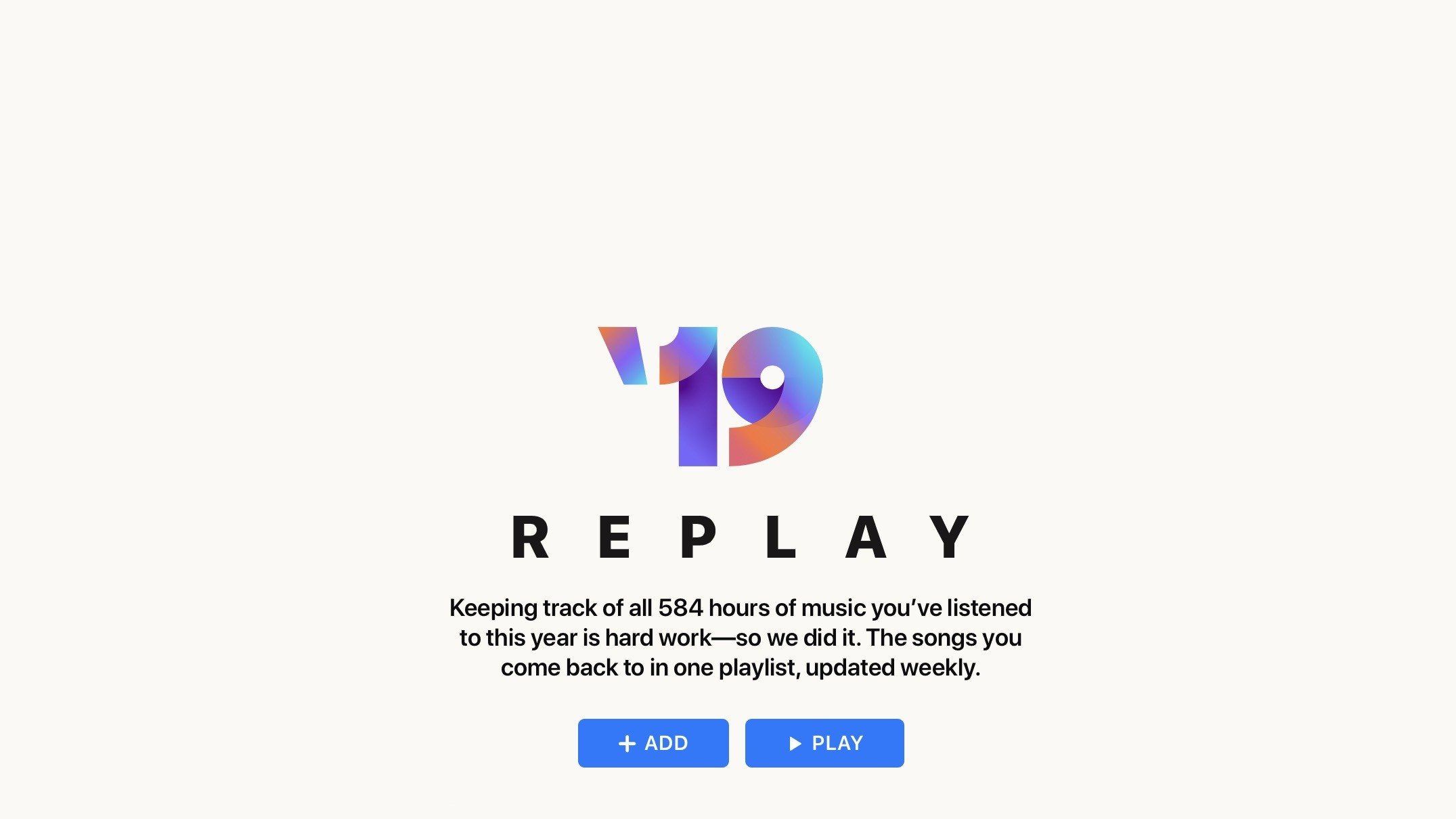
As first reported by TechCrunch, the new Replay feature provides users a playlist of their most listened to songs from 2019, as well as prior years dating all the way back to 2015.
You can also see interesting insights into your most popular artists, albums, and more. For the Apple Music Replay playlists, you can share them with others just like a normal playlist and download them for offline listening.
What differentiates Apple Music Replay from Spotify Wrapped, however, is that Replay will be continuously updated and can be accessed year-round. Spotify Wrapped is specifically for year-in-review purposes, but Replay will be continuously updated as you listen to Apple Music throughout the year.
For instance, in January of 2020, you’ll already be able to see your Replay 2020 playlist – but it will be blank and ready for you to start filling up. The playlist will update on a weekly basis throughout the year, giving you a live look at your listening trends.
But while Spotify’s Wrapped is more of an annual retrospective, Apple Music Replay will continue to be updated all year long, evolving as your musical tastes and interests do throughout the year. The playlist and its associated data insights will be updated on Sundays to reflect subscribers’ latest listening activity, says Apple.
Last year, various third-party tools popped up that generated year-in-review breakdowns for Apple Music. It’s nice to see Apple add native functionality to Apple Music this year, especially since it is retroactive and includes listening data for every year you’ve been an Apple Music subscriber.


Source: 9to5mac










