 NEWS
NEWS
Safari Supports NFC, USB, and Lightning FIDO2-Compliant Security Keys in iOS 13.3
 11/13/2019
 3522
3522
The iOS 13.3 update that is currently available to developers and public beta testers has a new Safari feature that supports NFC, USB, and Lightning FIDO2-compliant security keys.
This option was activated in the first beta of iOS 13.3, but in the second developer beta, Apple has added details about it in the release notes. 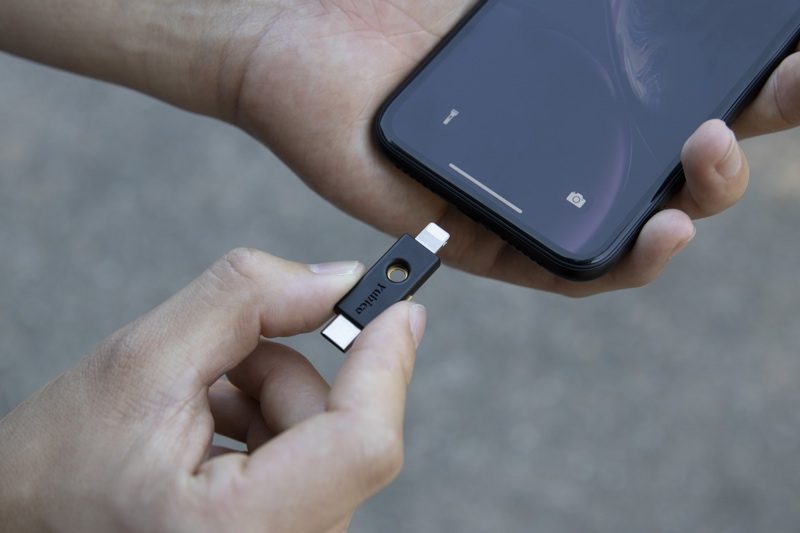
Now supports NFC, USB, and Lightning FIDO2-compliant security keys in Safari, SFSafariViewController, and ASWebAuthenticationSession using the WebAuthn standard, on devices with the necessary hardware capabilities.
With the iOS 13.3 update, Safari will support physical security keys like the Lightning-equipped YubiKey, which can be used for more secure two-factor authentication.
Yubico announced the YubiKey 5Ci back in August, but at the time of launch, it was of limited usefulness because it did not work with Safari, Chrome, or other major browsers, though it was compatible with apps like 1Password.
With Safari support, the YubiKey 5Ci is a legitimately useful tool that can be more convenient than software-based two-factor authentication because there's no need to enter a security code -- you simply plug it in to an iPhone or Mac (there's also a USB-C connector) to authenticate.
Support for FIDO2-compliant USB security keys using WebAuthn was previously added to Safari 13 in macOS.
Other NFC, USB, and Lightning-based security keys will also work with Safari following the iOS 13.3 update. There's no word yet on when iOS 13.3 will be released, but we may see it sometime in December after a few more weeks of beta testing.
Source: Macrumors









