 NEWS
NEWS
iPhone 11 Pro Scores 117 in DXOMark Camera Quality Test, Ranked in Third Place
 11/08/2019
 3687
3687
The reliability of DXOMark’s testing is often questioned and argued about. Camera quality is subjective, etcetera etcetera. With that disclaimer out of the way, the publication today released its test results for the iPhone 11 Pro Max.
Apple’s 2019 flagship scored 117 on its smartphone camera test, ranking third behind the Huawei Mate 30 Pro and the Xiaomi Mic CC9 Pro Premium. The iPhone 11 Pro currently holds the top spot for audio quality with a score of 71.
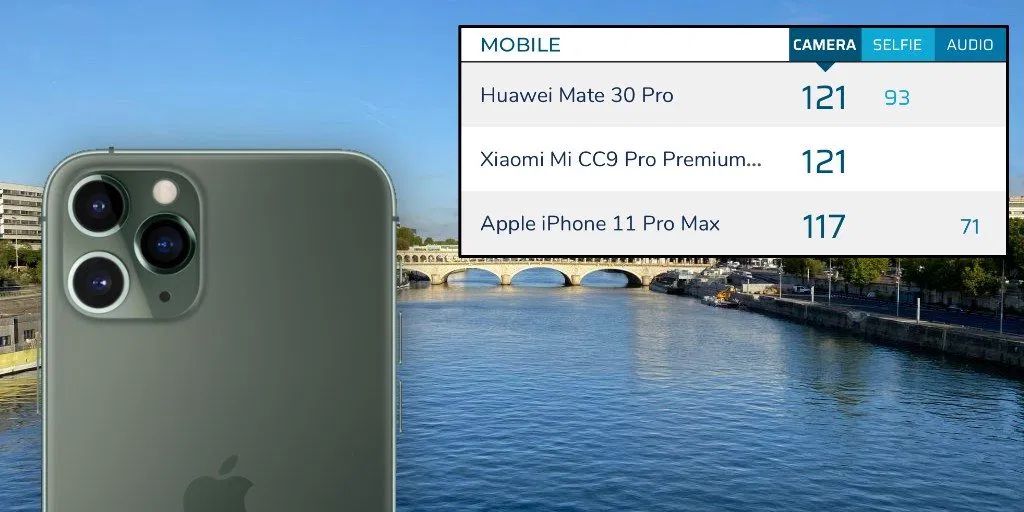
The iPhone 11 Pro Max was tested using iOS 13.2, so these tests include Apple’s latest Deep Fusion upgrades. The Deep Fusion smarts helped the iPhone’s smaller sensor match the Huawei Mate 30 Pro’s larger sensor on image detail at normal zoom levels.
DXOMark iPhone praised the iPhone’s photographic dynamic range and detail retention, fast autofocus, and impressive video stabilization. The amount of visible noise in an image is significant improved compared to the photos taken with the iPhone XS series.
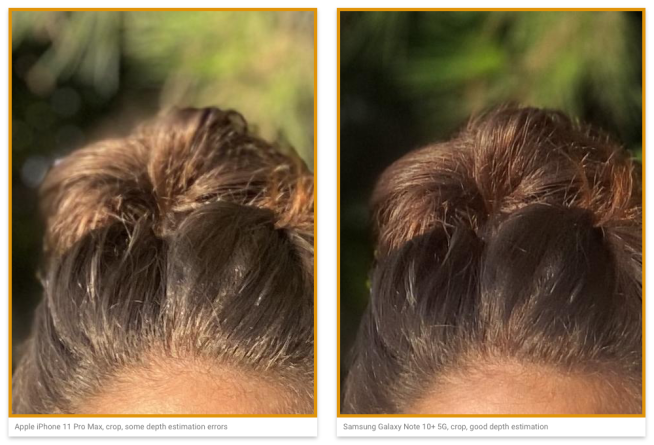
Performance from the 1x and 2x cameras was strong but long-range zoom detail pales next to competition from Huawei that can tout 5x optical zoom.
The synthesized bokeh effect was deemed not as good as the leading Android phone makers due to depth estimation errors around the subject’s hair.
The iPhone continues to excel as far as video recording is concerned with wide HDR dynamic range and “excellent” detail in highlights and shadows. On the negatives, the report says they spotted some tone mapping instabilities in regions of sky or reflective materials.
The iPhone 11 Pro Max scored 102 overall for video quality and comes in at first place, tied with the Xiaomi Mi CC9 Pro Premium Edition.
Source: 9to5mac









