 NEWS
NEWS
Ultimate iPhone 11 Waterproof Test Uses Underwater Drone to Dive 39 feet
 10/24/2019
 4180
4180
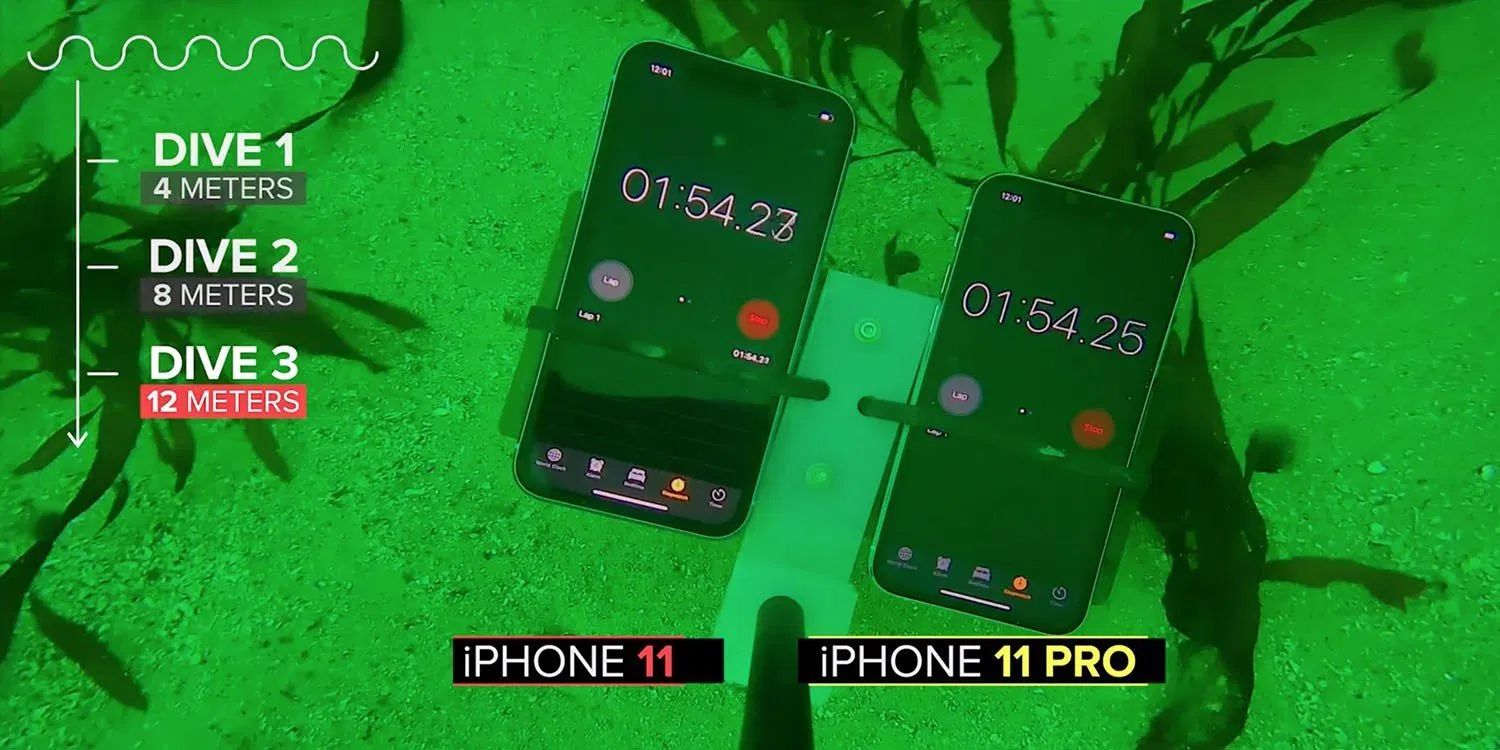
It’s not difficult to conduct a realistic iPhone 11 waterproof test. You could spill some beer or wine on it, to replicate the typical bar accident, or drop one in a water glass or swimming pool.
But if you have access to an underwater drone, well, it has to be done, right…?
Apple only claims an IP68 rating the both iPhone 11 and iPhone 11 Pro. That means they should survive being immersed in up to two meters of water for up to 30 minutes. Apple says the flagship Pro model exceeds this capability and can manage 4 meters. Which was where CNET began – but didn’t end – its testing.
Teaming up with Sofar Ocean Technologies (formerly known as OpenROV), we mounted a brand-new iPhone 11 and 11 Pro on their underwater drone called Trident […] We sent the Trident deep down into Monterey Bay in California on a chilly fall day to see what would happen to the iPhones […]
For the first dive, we wanted to test the claim for the iPhone 11 Pro: 4 meters for 30 minutes. The iPhone 11 is only rated for half this depth, so we had no idea what to expect for the less-expensive phone.
After 30 minutes, we brought the drone back to the surface with both phones still attached. Drying off the phones with a lint-free cloth, the screens on both still worked and there was no evidence of fogging on the camera lenses (front or back).
Buttons and speakers still worked; the iPhone 11 sounded a little waterlogged when playing back an audio clip I recorded before dunking the phones, while the iPhone 11 Pro had some distortion, but was louder than the iPhone 11 playback.
The second dive was to 8 meters or 26 feet. Other than the same speaker issues, both models survived.
Both touchscreens still worked, the cameras took photos without any evidence of fogging or water ingress on the lenses, and speakers played back audio. Again, the iPhone 11 sounded softer than the iPhone 11 Pro.
Finally, 12 meters, or 39 feet. This is six times deeper than the iPhone 11 rating, and three times deeper than the Pro one. Again, both were fine other than speaker performance, and three days later – when they were fully dry – even this damage was minor.
The only issue I could find was the speakers on both the iPhone 11 and 11 Pro sounded less crisp and slightly softer at maximum volume compared to two brand-new iPhones that hadn’t been dunked. I confirmed this by using the Sound app on the Apple Watch which showed the submerged phones were playing back at a few decibels lower than the new phones.
Source: 9to5mac










