 NEWS
NEWS
Apple Updates AirPort Utility app with iOS 13 Compatibility
 10/15/2019
 3535
3535
Following complaints of incompatibility with iOS 13, Apple on Monday issued an update to its AirPort Utility app, allowing users of devices running the latest operating system to control and manage the now discontinued first-party routers.
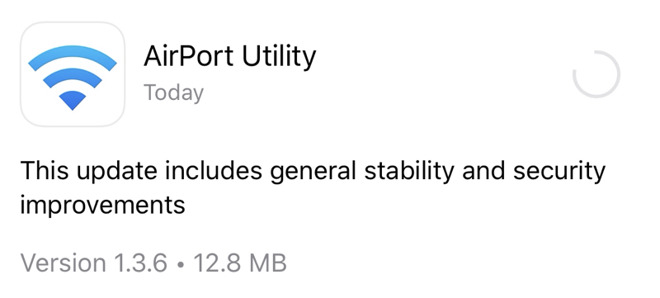
Release notes accompanying AirPort Utility version 1.3. note "general stability and security improvements," but the update is thought to address wider compatibility problems with iOS 13.
Users of Apple's AirPort management tool have complained of app crashes since iOS 13 launched in September. Specifically, the app would hang or crash when a device password was entered in the AirPort authentication prompt.
Subsequent iOS point updates, released over the past few weeks, did not rectify the situation, suggesting the AirPort Utility app was to blame.
What security updates are included in today's update remains unknown.
With Apple no longer producing AirPort base stations, updates for the company's first-party device management software have been few and far between. According to the App Store, AirPort Utility was last updated in September 2018.
The company continues barebones support of the AirPort line, though many customers have switched to faster routers marketed by third-party firms like Linksys, Netgear and Synology. In August 2018, for example, Apple pushed out a firmware update that delivered AirPlay 2 support to 802.11n AirPort Express base stations.
More recently, Apple in May issued an AirPort firmware update with security fixes, which was followed by patches for 802.11n AirPort Base Station and Time Capsule units in June.
Apple's AirPort Utility update is a free download from the iOS App Store.
Source: Appleinsider










