 NEWS
NEWS
Steve Jobs Didn’t Want ‘Mac vs. Pc’ Ads to Be Too Funny
 05/27/2019
 2656
2656
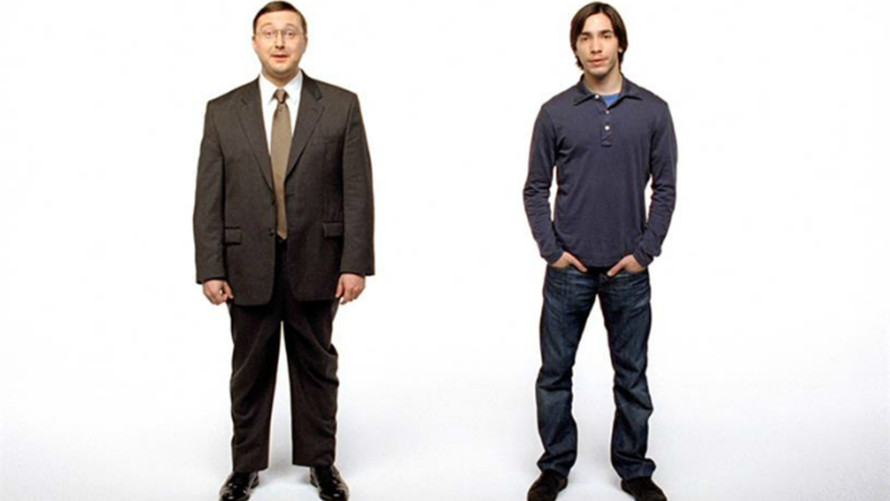
Remember those “Get a Mac” commercials that Apple Inc. ran in the mid- to late 2000s? And how they were pretty funny? Turns out, they could have been a lot funnier, if not for Steve Jobs.
In a new interview with People TV’s “Couch Surfing,” actor Justin Long — the hip “Mac Guy” who regularly traded quips with the uptight “PC Guy,” played by John Hodgman — said some of the commercials were too funny for TV.
“One in particular, I remember, Zach Galifianakis played, like, a drunken Santa Claus, and I was dying to see that one,” Long said. But it never aired. So he asked Apple why not.
“Apple said, basically, that Steve Jobs preferred when they weren’t super funny. . . . because he thought it would detract from the point of the commercial. He thought if people were too focused on the humor in it, they would lose sight of the product.”Justin Long
About 300 “Get a Mac” commercials were shot, but only 66 ever aired, between May 2006 and October 2009.
It’s hard to argue that then-CEO Jobs, a notorious perfectionist, was wrong — the ads helped reinvigorate Apple’s Mac sales, at least until the company turned its focus toward iPhones and iPads around the end of the decade.
In 2009, the series was named best advertising campaign of the decade by Adweek.
Apple shares AAPL, -0.38 %, which were around $10 in May 2006, closed Friday above $178, up 13.5% year to date, compared to the 9.7% gain this year for the Dow Jones Industrial Average DJIA, +0.37 %, of which Apple is a component.
Source: MarketWatch











