NEWS

Apple Announces Support for Apple Pay NFC Stickers, Partners with Bird Scooters and More

05/14/2019

2554

Apple Announces Support for Apple Pay NFC Stickers, Partners with Bird Scooters and More


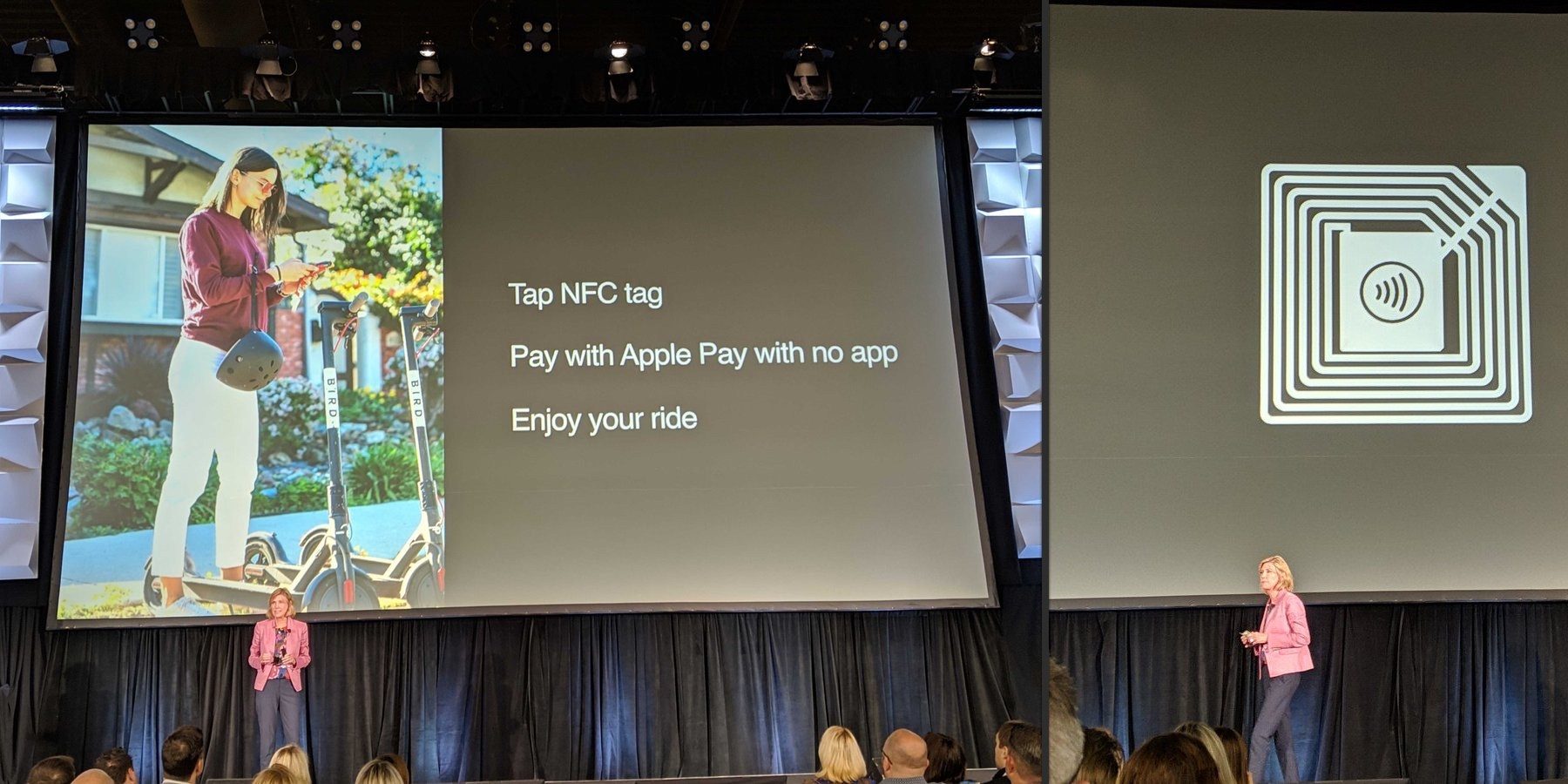
Apple’s VP of Apple Pay Jennifer Bailey today announced a new NFC feature for iPhone: special tags that trigger Apple Pay purchases when tapped, without the need to download a special app first. The company is partnering with Bird scooters, Bonobos clothing store, and PayByPhone parking meters for the initial rollout.


Apple also announced that inside the Wallet app, users will soon be able to sign up for loyalty cards in one tap, presumably presented to users as recommendations when they make eligible purchases.


The company announced the news at the TRANSACT conference in Las Vegas, an exhibition focused on mobile payment technologies.


Right now, physical Apple Pay transactions require bulky terminals like those you find at retail store checkouts. With the new support, an iPhone will know how to read a specially-encoded NFC tag (that can be as inert as a sticker) and automatically show the Apple Pay purchase interface when a user holds their device near it. No third-party apps or other set up required.


The obvious example is a user can ad-hoc top up their miles on a hired electric scooter simply by tapping their phone or watch to a NFC sticker on the bike. For Bonobos, it will enable simpler self-service shopping with the ability to place NFC tags directly onto clothing rails.


The new Apple Pay features will be rolling out later this year, presumably with more partners onboard now that the news is public. This is yet another step towards Apple’s goal of replacing the wallet.


Source: 9to5mac


Windows
Mac OS
iOS
Linux
3uTools
Win 64-bit For this device
V9.0 2025-11-11
Download
Win 32-bit For this device
V9.0 2025-11-11
Download
3uTools
Intel Chip How to Identify Chip Type
V9.0 2025-12-02
Download
Apple Chip
V9.0 2025-12-02
Download
How to Identify Chip Type
1.  Click the Apple icon in the top-left corner of the screen and select About This Mac.
2.  Check the Processor or Chip field to determine if it is "Intel" or "Apple".
Please use the 3uTools PC client to install the iOS client:
1、 Install either the Windows or Mac version of 3uTools on your computer
2、 Open the PC client and connect your device to the computer via USB cable
3、 After the connection is successful, wait for the computer to automatically install the mobile app for the device, or locate “Install Mobile App” on the computer and manually click to install.
3uTools
deb file
V3.01 2025-11-20
Download
rpm file
V3.01 2025-11-20
Download
Windows
Windows
iOS
iOS
Android
Android
TV
TV
3uAirPlayer
Win 64-bit For this device
V6.0.2 2025-11-19
Download
Win 32-bit For this device
V6.0.2 2025-11-19
Download
iOS Device Mirroring (No App Required)
1、 Install 3uAirPlayer on the Windows PC
2、 Open Control Center and select Screen Mirroring
3、 From the list, choose your PC to start mirroring
4、 Or connect your iOS device to the PC via USB to begin mirroring
Scan to get "3uAirPlayer" App
3uAirPlayer TV V1.0.18
2025-11-28
TV System Requirements: Android 7.0 or later
Download the TV installation package, copy it to a USB drive, insert it into your TV or set-top box, then select the file from the home screen to install.