
NEWS

Apple's Exciting iPhone XR2 Design Suddenly Takes Shape

05/08/2019

3844

Apple is facing serious problems right now, but there is good news on the horizon. Not only is the company's remarkably ugly iPhone 11 starting to take shape, but the iPhone XR2 now looks even more exciting.
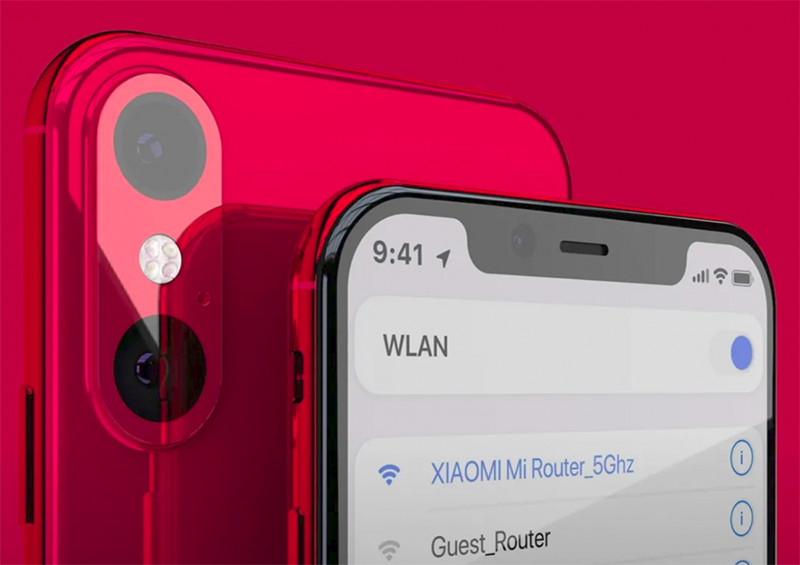

Apple's Exciting iPhone XR2 Design Suddenly Takes Shape


Following on from his exceptional iPhone 11 renders (built upon leaked iPhone 11 parts, schematic drawings, and chassis molds), graphic designer Hasan Kaymak is back applying the same process to the heavily leaked iPhone XR2. And the results show why this is going to be the new iPhone to buy.


The headline news is Apple has essentially turned the iPhone XR2 (name TBC, Kaymak calls it the iPhone 11R) into a slicker and more colorful version of the iPhone XS design, but with superior 2019 hardware. This includes a jump to dual rear cameras along with the adoption of two of the three massive new lenses in the iPhone 11.


Yes, the iPhone XR2 is going to miss out on one iPhone 11 lens (either the optical zoom or new wide-angle module) but that means it avoids the extremely polarising design of its big brother. For some, that alone will be a deal maker but you're also going to get the iPhone XR2 for a lot less than the inflated iPhone 11 prices.


Downsides? Apple will again give the iPhone XR2 a lower resolution LCD display instead of OLED and that means the phone will still have a slightly thicker bezel. But few will deny it's going to be the best looking iPhone this year - even if that's not a high bar this year.


Source: Forbes

Windows
Mac OS
iOS
Linux
3uTools
Win 64-bit For this device
V9.0 2025-11-11
Download
Win 32-bit For this device
V9.0 2025-11-11
Download
3uTools
Intel Chip How to Identify Chip Type
V9.0 2025-12-02
Download
Apple Silicon
V9.0 2025-12-02
Download
How to Identify Chip Type
1.  Click the Apple icon in the top-left corner of the screen and select About This Mac.
2.  Check the Processor or Chip field to determine if it is "Intel" or "Apple".
Please use the 3uTools PC client to install the iOS client:
1、 Install either the Windows or Mac version of 3uTools on your computer
2、 Open the PC client and connect your device to the computer via USB cable
3、 After the connection is successful, wait for the computer to automatically install the mobile app for the device, or locate “Install Mobile App” on the computer and manually click to install.
3uTools
deb file
V3.01 2025-11-20
Download
rpm file
V3.01 2025-11-20
Download
Windows
Windows
iOS
iOS
Android
Android
TV
TV
3uAirPlayer
Win 64-bit For this device
V6.0.2 2025-11-19
Download
Win 32-bit For this device
V6.0.2 2025-11-19
Download
iOS Device Mirroring (No App Required)
1、 Install 3uAirPlayer on the Windows PC
2、 Open Control Center and select Screen Mirroring
3、 From the list, choose your PC to start mirroring
4、 Or connect your iOS device to the PC via USB to begin mirroring
Scan to get "3uAirPlayer" App
3uAirPlayer TV V1.0.18
2025-11-28
TV System Requirements: Android 7.0 or later
Download the TV installation package, copy it to a USB drive, insert it into your TV or set-top box, then select the file from the home screen to install.




