
NEWS

Apple Forces Retailers to Purchase In-Store Display iPhones

11/23/2018

2586

A group of Korean smartphone retailers are upset at Apple for forcing them to purchase in-store tester iPhones. This differs from the usual practice of manufacturers, who will provide free display smartphones and pick them up later.
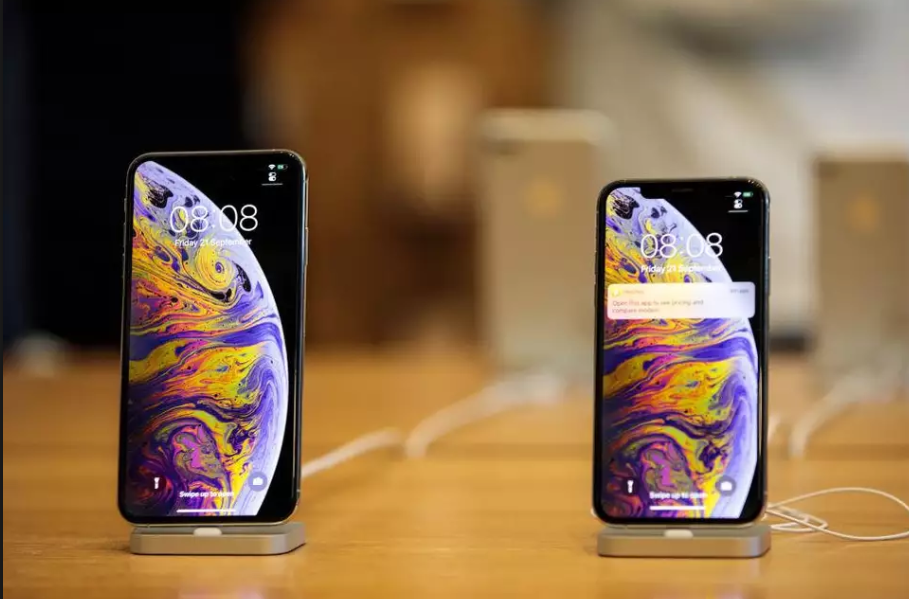

Apple Forces Retailers to Purchase In-Store Display iPhones


“Apple, on the other hand, forces retailers to purchase all the phones used for demonstration purposes, giving more burden to retailers than other manufacturers,” the Korea Mobile Distributors Association says in a statement. Apple doesn’t allow any retailers to buy iPhones if they do not also agree to purchase display devices.


It seems that Apple’s insistence on end-to-end control goes even further.


“Retailers not only bear the price of building shelves to display the devices for demonstration, but Apple also strictly controls the location of such shelves, as well as where posters are hung,” the KMDA continues.


The retailers are currently trying to calculate the damages they think Apple owes them. When this has been calculated, they plan to take legal action in conjunction with South Korea’s three mobile carriers.


While this could be singled out as yet another example of South Korea picking faults with Apple, it’s easy to see how retailers could be frustrated by Apple refusing to play by the established smartphone rules. Then again, anyone surprised by the controlling habits of a company which opened its own retail stores so as to control the customer experience probably shouldn’t be.


Source: cultofmac

Windows
Mac OS
iOS
Linux
3uTools
Win 64-bit For this device
V9.0 2025-11-11
Download
Win 32-bit For this device
V9.0 2025-11-11
Download
3uTools
Intel Chip How to Identify Chip Type
V9.0 2025-12-02
Download
Apple Silicon
V9.0 2025-12-02
Download
How to Identify Chip Type
1.  Click the Apple icon in the top-left corner of the screen and select About This Mac.
2.  Check the Processor or Chip field to determine if it is "Intel" or "Apple".
Please use the 3uTools PC client to install the iOS client:
1、 Install either the Windows or Mac version of 3uTools on your computer
2、 Open the PC client and connect your device to the computer via USB cable
3、 After the connection is successful, wait for the computer to automatically install the mobile app for the device, or locate “Install Mobile App” on the computer and manually click to install.
3uTools
deb file
V3.01 2025-11-20
Download
rpm file
V3.01 2025-11-20
Download
Windows
Windows
iOS
iOS
Android
Android
TV
TV
3uAirPlayer
Win 64-bit For this device
V6.0.2 2025-11-19
Download
Win 32-bit For this device
V6.0.2 2025-11-19
Download
iOS Device Mirroring (No App Required)
1、 Install 3uAirPlayer on the Windows PC
2、 Open Control Center and select Screen Mirroring
3、 From the list, choose your PC to start mirroring
4、 Or connect your iOS device to the PC via USB to begin mirroring
Scan to get "3uAirPlayer" App
3uAirPlayer TV V1.0.18
2025-11-28
TV System Requirements: Android 7.0 or later
Download the TV installation package, copy it to a USB drive, insert it into your TV or set-top box, then select the file from the home screen to install.




