 NEWS
NEWS
Police Told to Avoid Looking at Recent iPhones to Avoid Lockouts
 10/15/2018
 3029
3029

As Apple continues to update its iPhones with new security features, law enforcement and other investigators are constantly playing catch-up, trying to find the best way to circumvent the protections or to grab evidence. Last month, Forbes reported the first known instance of a search warrant being used to unlock a suspect’s iPhone X with their own face, leveraging the iPhone X’s Face ID feature.
But Face ID can of course also work against law enforcement—too many failed attempts with the ‘wrong’ face can force the iPhone to request a potentially harder to obtain passcode instead. Taking advantage of legal differences in how passcodes are protected, US law enforcement have forced people to unlock their devices with not just their face but their fingerprints too. But still, in a set of presentation slides obtained by Motherboard this week, one company specialising in mobile forensics is telling investigators not to even look at phones with Face ID, because they might accidentally trigger this mechanism.
“iPhone X: don’t look at the screen, or else… The same thing will occur as happened on Apple’s event,” the slide, from forensics company Elcomsoft, reads. Motherboard obtained the presentation from a non-Elcomsoft source, and the company subsequently confirmed its veracity.
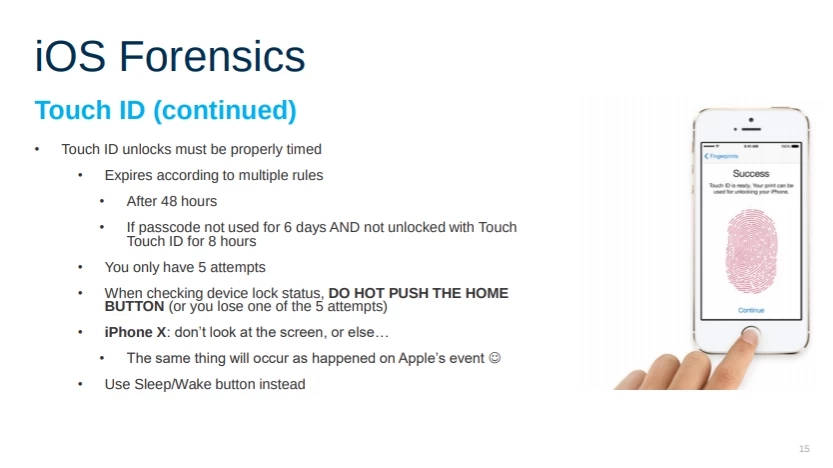
The slide is referring to Apple’s 2017 presentation of Face ID, in which Craig Federighi, Apple’s senior vice president of software engineering, tried, and failed, to unlock an iPhone X with his own face. The phone then asked for a passcode instead.
“This is quite simple. Passcode is required after five unsuccessful attempts to match a face,” Vladimir Katalov, CEO of Elcomsoft, told Motherboard in an online chat, pointing to Apple’s own documentation on Face ID. “So by looking into suspect’s phone, [the] investigator immediately lose one of [the] attempts.”
As Apple has improved its security protections against attackers who have physical access to a phone—Touch and Face ID, the Secure Enclave Processor that handles these tools, and robust encryption used by default—law enforcement agencies have come up with varying techniques for getting into devices they seize. In the UK, police officers simulated a mugging to steal a suspect’s phone while he was using it, so it would be unlocked, and the officer repeatedly swiped the screen to make sure the phone did not close itself off again. Police lawyers determined that they would have no legal power to force the suspect to place his finger on the device, so opted for this unusual, albeit novel, approach.
In the US, however, law enforcement agencies have used both technical and legal means to get into devices. Courts have compelled suspects to unlock their device with their face or fingerprint, but the same approach does not necessarily work for demanding a passcode; under the Fifth Amendment, which protects people from incriminating themselves, a passcode may be considered as “testimonial” evidence. A number of warrants have focused on forcing suspects to place their finger onto an iPhone, and, as Forbes noted in its recent report, some warrants now include boilerplate language that would cover unlocking a device with a person’s face as well. Law enforcement agencies across the country have also bought GrayKey, a small and relatively cheap device that has had success in unlocking modern iPhones by churning through different passcode combinations.
“With Touch ID, you have to press the button (or at least touch it); that’s why we always recommend (on our trainings) to use the power button instead, e.g to see whether the phone is locked. But with Face ID, it is easier to use ‘accidentally’ by simply looking at the phone,” Katalov added.
Source: motherboard










