 NEWS
NEWS
Apple Sued by ex-Engineer Over Find My iPhone Patent Credit
 09/29/2018
 2472
2472
Apple sued by ex-engineer over Find My iPhone patent credit, stock revocation after being fired
A former Apple engineer is suing the iPhone producer for failing to include his name as an inventor of five patent applications filed by the company, including the ideas behind the "Find My iPhone" and Apple's Passbook technology.
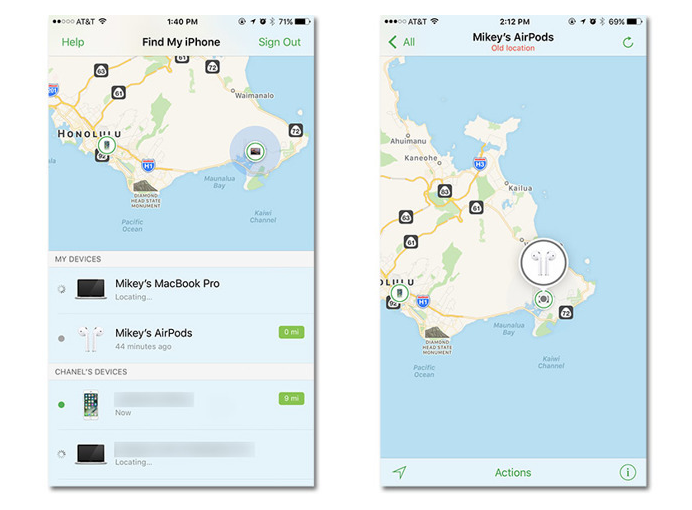
Darren Eastman wants to be acknowledged as an inventor for five Apple patent applications, according to filings with the U.S. District Court for the Northern District of California. Filed on Thursday, the complaint alleges how Eastman's ideas were accepted and then employed by Apple in its products and filings, but without his crediting.
A patent application for electronic ticketing is claimed to have been taken from technology developed by Eastman before joining Apple in 2006, and was declared in an Intellectual Property Agreement he signed with the company the previous year. In February 2006, Eastman told former CEO Steve Jobs about the ticketing concept, with Jobs replying it was "insanely great" and potentially able to break a monopoly held by Ticketmaster.
For the patent application relating to Find My iPhone, Eastman claims he lost his original iPhone in 2008, inspiring him to come up with a device location system. Documenting it in Apple's Radar internal bug-tracking system in October 2008, Eastman reportedly started to tell others in the company about his idea.
An initial attempt to gain support from the director of iTunes at the time failed, with the suggestion customers "would hate such a feature and feel Apple was spying on them." In 2009 he approached then-VP of iCloud Eddy Cue about the concept, realizing the need to use Apple's infrastructure for it to work, then after receiving favorable feedback, approached then-VP for iOS Scott Forstall.
If you want to know more about the case, you could read full of Find My iPhone debuted in June 2010. Via Appleinsider.









