 NEWS
NEWS
Orlando Bloom Doesn’t Want to See your iPad at his Show
 07/30/2018
 2497
2497
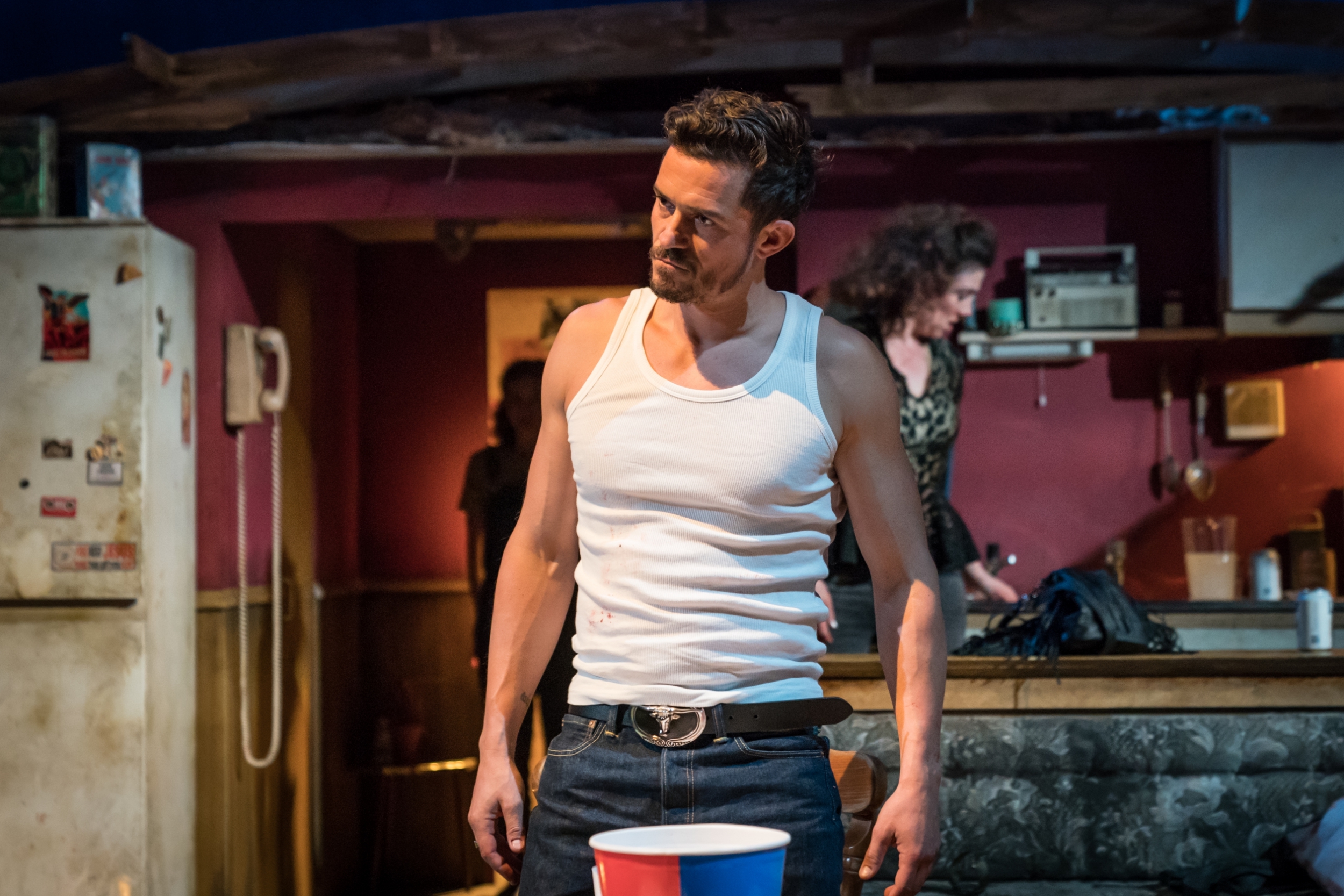
Apple’s normally happy to get a public shout-out for one of its products from a celebrity. It’s unlikely to be quite so chuffed about a recent incident involving actor Orlando Bloom, however.
Bloom was acting in a play at Trafalgar Studios in London, England, when he flipped out at an audience member using an iPad during his performance.
I was sat behind and although it would have looked bad, in her defence she was only using it for her fan as the auditorium was roasting! #preshowpic pic.twitter.com/TAwSWLRT4b
— Harry Edwin (@HarryEdwin_UK) July 26, 2018
“I need you to put [that] iPad away now,” he said, stopping mid-performance to address the person. “Put that f****** iPad away now, and I will wait.” According to reports, Bloom stopped the performance twice in order to admonish the iPad user.
“So at today’s matinee of @KillerJoePlay #OrlandoBloom shut down a lady filming on her iPad TWICE and he maintained character the entire time and that alone was worth a standing ovation,” one attendee tweeted.
According to another attendee, however, the iPad user was not using the tablet to film, but rather to fan herself during the heat in the theater. “I was sat behind and although it would have looked bad, in her defence she was only using it for her fan as the auditorium was roasting!” they tweeted.
Bloom’s outburst isn’t the only case of an artist getting annoyed at (the possibility of) live performances being filmed. A growing number of artists, comedians and actors have instituted mobile phone and tablet bans at their events.
Apple is clearly aware of the problem, too. With this goal in mind, Apple has filed a patent making it possible to let venues block iOS users from taking photos and videos of the event by using infrared signals.
Source: cult of mac









