
NEWS

iPhone 7 Survives Two Days 30-Foot Submergence, Text at Depth Alerts Diver

07/13/2018

2537

Thanks to the magic of waterproof cases, an iPhone 7 lost overboard during a vacation not only got a text message alerting a diver to its location, but kept 84 percent battery life through the ordeal.


A scuba diver this week was stunned to make a discovery on a dive off the coast of Dorset, England- a lost iPhone that lit up when a text came through.


According to The Daily Mirror, and assorted other reports, diver Cerys Hearsey noticed something lighting up on the seabed roughly 30 feet down from the water. It was an iPhone, in a waterproof case receiving a text message.
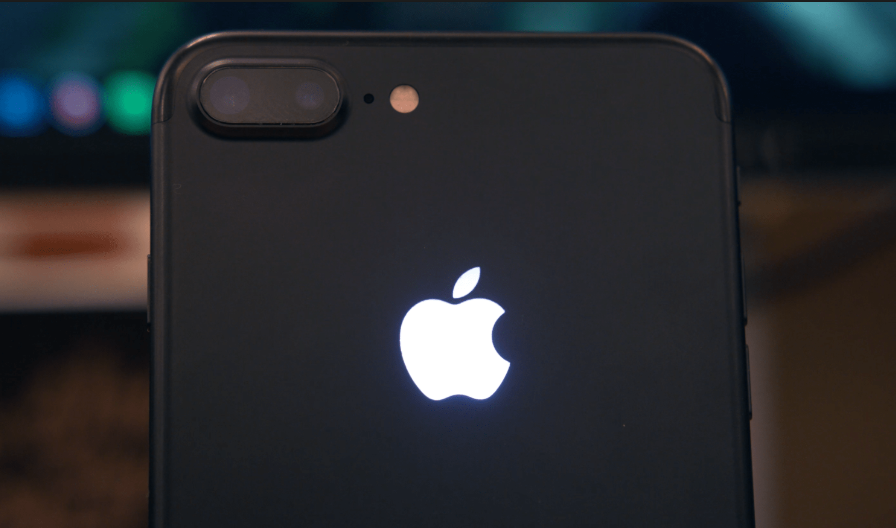

iPhone 7 Survives Two Days 30-Foot Submergence, Text at Depth Alerts Diver


Upon returning to the surface with her find, Hearsey scrolled through the contacts. The owner lives in Canada, but lost the phone on a kayaking expedition.


The cousin of the owner was determined to be Rob Smith, a UK resident. Hearsey returned it to Smith, and the iPhone is in the process of being returned to the owner through international mail.


The cousin, who thought the phone was lost for good after the two-day dunk not only is getting it back, but as a bonus got to be part of an international news story.


The phone is an iPhone 7, according to the Sun. While the make and model of the waterproof case is unknown, it certainly did its job in this instance. 


Apple has reportedly worked on making iPhones and other devices that are themselves waterproof, with a patent approved last month for "Sealed accessories for electronic devices."


Source: appleinsider

Windows
Mac OS
iOS
Linux
3uTools
Win 64-bit For this device
V9.0 2025-11-11
Download
Win 32-bit For this device
V9.0 2025-11-11
Download
3uTools
Intel Chip How to Identify Chip Type
V9.0 2025-12-02
Download
Apple Silicon
V9.0 2025-12-02
Download
How to Identify Chip Type
1.  Click the Apple icon in the top-left corner of the screen and select About This Mac.
2.  Check the Processor or Chip field to determine if it is "Intel" or "Apple".
Please use the 3uTools PC client to install the iOS client:
1、 Install either the Windows or Mac version of 3uTools on your computer
2、 Open the PC client and connect your device to the computer via USB cable
3、 After the connection is successful, wait for the computer to automatically install the mobile app for the device, or locate “Install Mobile App” on the computer and manually click to install.
3uTools
deb file
V3.01 2025-11-20
Download
rpm file
V3.01 2025-11-20
Download
Windows
Windows
iOS
iOS
Android
Android
TV
TV
3uAirPlayer
Win 64-bit For this device
V6.0.2 2025-11-19
Download
Win 32-bit For this device
V6.0.2 2025-11-19
Download
iOS Device Mirroring (No App Required)
1、 Install 3uAirPlayer on the Windows PC
2、 Open Control Center and select Screen Mirroring
3、 From the list, choose your PC to start mirroring
4、 Or connect your iOS device to the PC via USB to begin mirroring
Scan to get "3uAirPlayer" App
3uAirPlayer TV V1.0.18
2025-11-28
TV System Requirements: Android 7.0 or later
Download the TV installation package, copy it to a USB drive, insert it into your TV or set-top box, then select the file from the home screen to install.




