 NEWS
NEWS
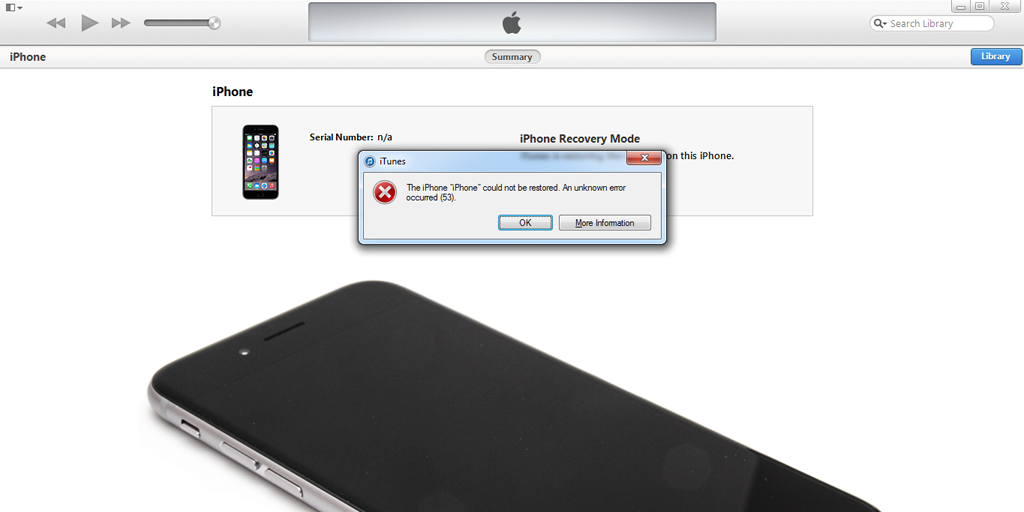
Apple Hit With $9M Fine in Australia for ‘Error 53’ Bug
 06/19/2018
 4325
4325
Apple has been hit with a $9 million by the Federal Court in Australia over the the infamous Error 53 bug that affected numerous users last year. Today’s decision 117 Comments Australian Competition and Consumer Commission levied a lawsuit against Apple over the issue…
As reported by The Sydney Morning Herald, ACCC Commissioner Sarah Court explained that Apple was denying Australian customers the ability to have their devices repaired by a third-party and was not offering any remedy:
[The customers said] they were being refused a remedy of any kind by Apple on the basis that their device had had unauthorised repairs, and those repairs could be as minor as just having a cracked screen replaced on an iPhone or iPad, which all of us need to do from time to time,” ACCC Commissioner Sarah Court said.
“So these consumers were being told, ‘because you’ve had this third party repair, you are not entitled to any remedy’.”
The ACCC argued that “customers and consumers are free to have screens and other repairs done” by third-parties as long as the repair doesn’t “damage the underlying system of the phone.”
In addition to the $9 million fine, Apple offered a “court enforceable undertaking to not in engage in this kind of conduct in the future.”
In a statement, Apple pledged its commitment to the Australian market and said it will continue to do what it can to deliver excellent service to its customers:
“We’re constantly looking for ways to enhance the service we deliver and we had very productive conversations with the ACCC about this,” the spokesperson said.
“We will continue to do all we can to deliver excellent service to all of our customers in Australia.”
Apple explained in 2016 that Error 53 appeared when a customer had a Home button replaced by a third-party. The company would run security checks and because the Touch ID module was different, the device would fail the check. The issue was also the subject of a class action in the United States, though it was eventually thrown out due to a lack of merit
Source: 9to5mac









