 NEWS
NEWS
Apple Rejects Valve's Steam Link App Due to 'Business Conflicts'
 05/25/2018
 3887
3887
It looks like Valve's planned Steam Link app for iOS devices isn't coming after all, because Apple has rejected the app due to "business conflicts."
In a statement, Valve said that Apple initially approved Steam Link for release on May 7, but ultimately decided to reject the app because of conflicts that had not been recognized by the original review team.
"On Monday, May 7th, Apple approved the Steam Link app for release. On Weds, May 9th, Valve released news of the app. The following morning, Apple revoked its approval citing business conflicts with app guidelines that had allegedly not been realized by the original review team.
Valve appealed, explaining the Steam Link app simply functions as a LAN-based remote desktop similar to numerous remote desktop applications already available on the App Store. Ultimately, that appeal was denied leaving the Steam Link app for iOS blocked from release. The team here spent many hours on this project and the approval process, so we're clearly disappointed. But we hope Apple will reconsider in the future."
Valve's appeals have not been successful at the current point in time, and the company is now hoping that media attention may spur Apple to change its mind.
The Steam Link app for iOS, which was announced on May 9, is designed to allow Steam users to play their Steam games on an iPhone, iPad, or Apple TV using either a 5GHz WiFi network or a wired Ethernet connection to a host PC or Mac.
Valve was planning to launch the Steam Link app this week, and Valve had worked to add Steam Link support for the Steam Controller and Made for iPhone controllers ahead of the app's debut. 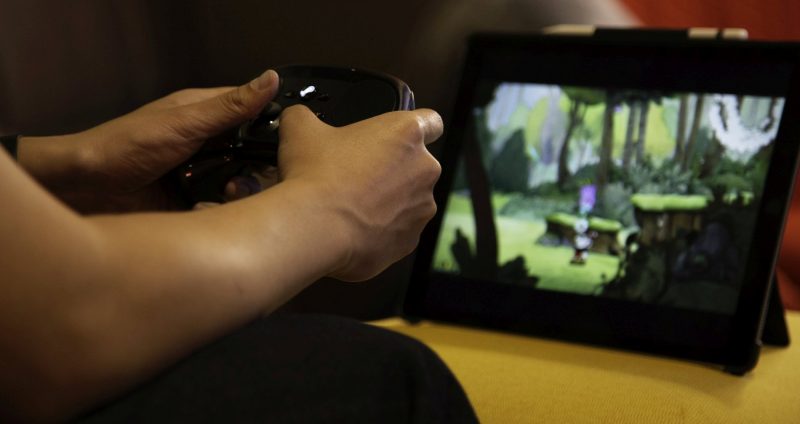
Earlier this week, our sister site TouchArcade was able to go hands-on with the Steam Link app and said that it works so well that "it feels like there's some kind of actual wizardry powering it all." In what might have been a bit prescient, TouchArcade editor-in-chief Eli Hodapp said he was "dumbfounded" Apple was allowing it given how good the gaming experience was.
"If you're the kind of person who is always hungry for "real" PC-like game experiences on your Apple device, but have been dismayed by the amount of junk on the App Store, you can basically delete everything else but the Steam Link app. I'm still dumbfounded by Apple apparently allowing this on their platform, as I could see a very real situation where many people just straight up stop buying things from the App Store and exclusively purchase Steam games through Valve instead."
As Valve says, there are many other remote access-style apps available in the App Store, so the reasoning behind Apple's decision is unclear. It is not known if Apple will ultimately end up reversing its position on the Steam Link app given the media attention, which has happened in the past, but we've reached out to the company for a comment.
Source: macrumors









