 NEWS
NEWS
Tests of Embedded Fingerprint Reader Show That Option Could Have Worked for Apple
 05/16/2018
 2705
2705
We know from both a succession of patents and Apple statements that the company was exploring a Touch ID sensor embedded into the screen of the iPhone before it settled on Face ID for last year’s flagship iPhone …
Apple says that it abandoned all work on an embedded Touch ID sensor as soon as it saw how good Face ID was. Some skeptics wondered whether the real reason might have been that a fingerprint reader embedded into the screen simply didn’t work well, but tests on a rival system appear to show that the option would have been viable.
The Vivo X20 uses a Synaptics sensor embedded into the bottom of the display, and tech reviewer Marques Brownlee put the system through a series of tests designed to see how well it stands up to real-life use.
He started with a finger contaminated with water and a sauce, discovering that this caused the Synaptics system to fail – but so did Touch ID on an iPhone.
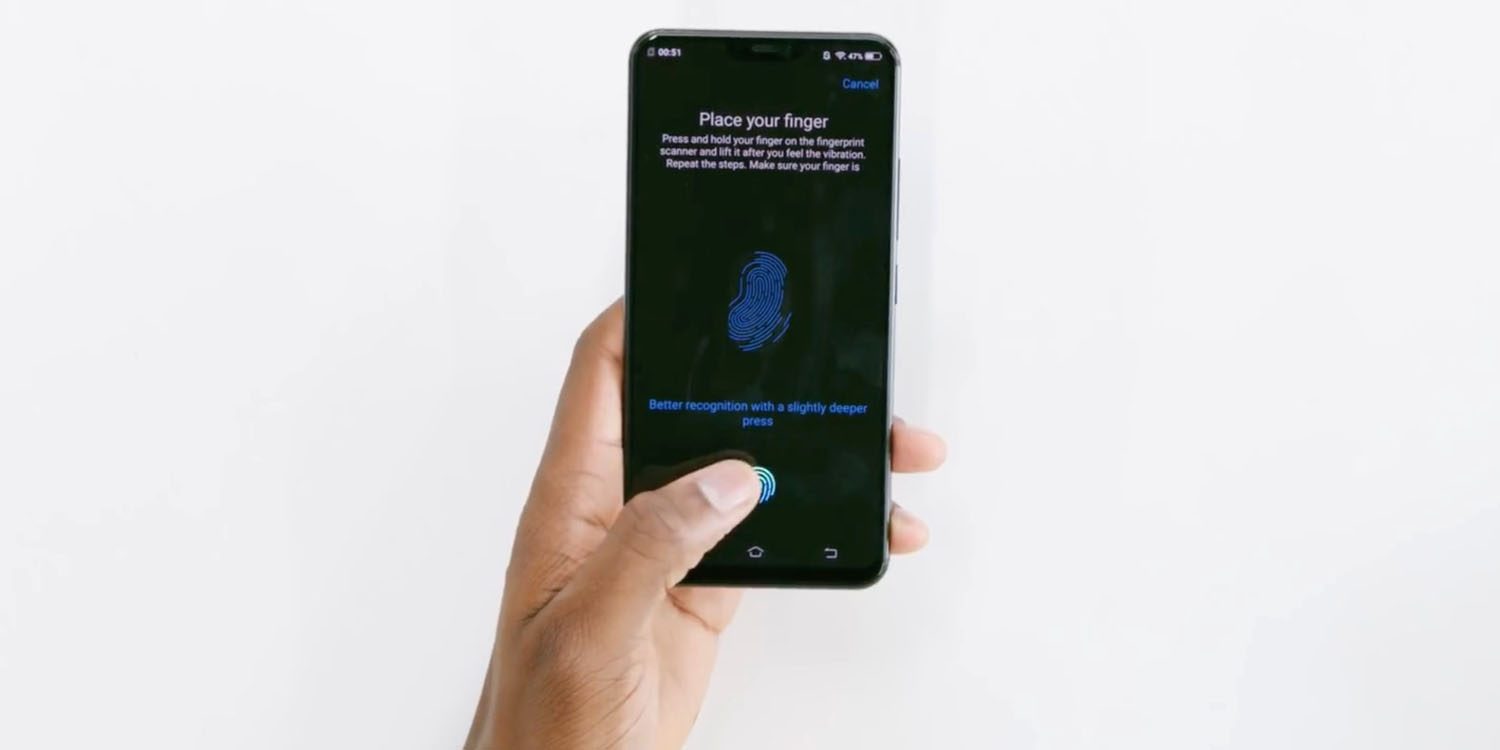
He followed this by trying it with screen protectors; shattered glass; minor scratching; and massive scratching – and the sensor passed every test.
Recognition was admittedly slower with the very badly scratched screen – after Brownlee attacked it with sandpaper – but it continued to work.
The Synaptics sensor was notably slower than Touch ID, even on an undamaged screen, but it’s likely that Apple could have sped up recognition just as it did in the move from the first to second generation Touch ID sensors.
So there’s every reason to believe Apple’s claim that it simply found Face ID to be a superior approach. It’s certainly one of my favourite features of the iPhone X, especially when logging into apps, where the login experience is almost invisible. Seeing the comparison reaffirms my own view that embedded fingerprint readers are too little, too late.
Source: 9to5mac











